

To create a Hadoop Distributed File System (HDFS) connection in Integrate.io ETL
1
Click the Connections icon (lightning bolt) on the top left menu.
2
Click New connection.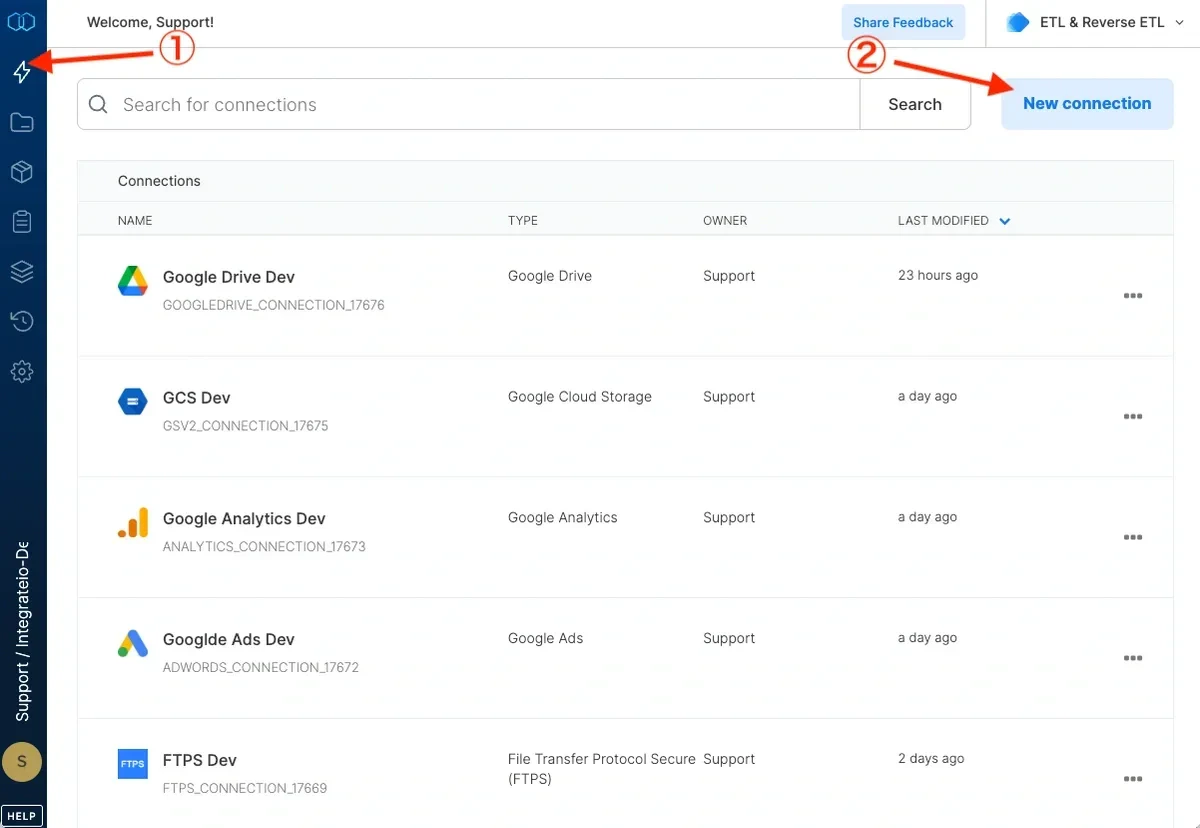
3
Select Hadoop Distributed File System (HDFS).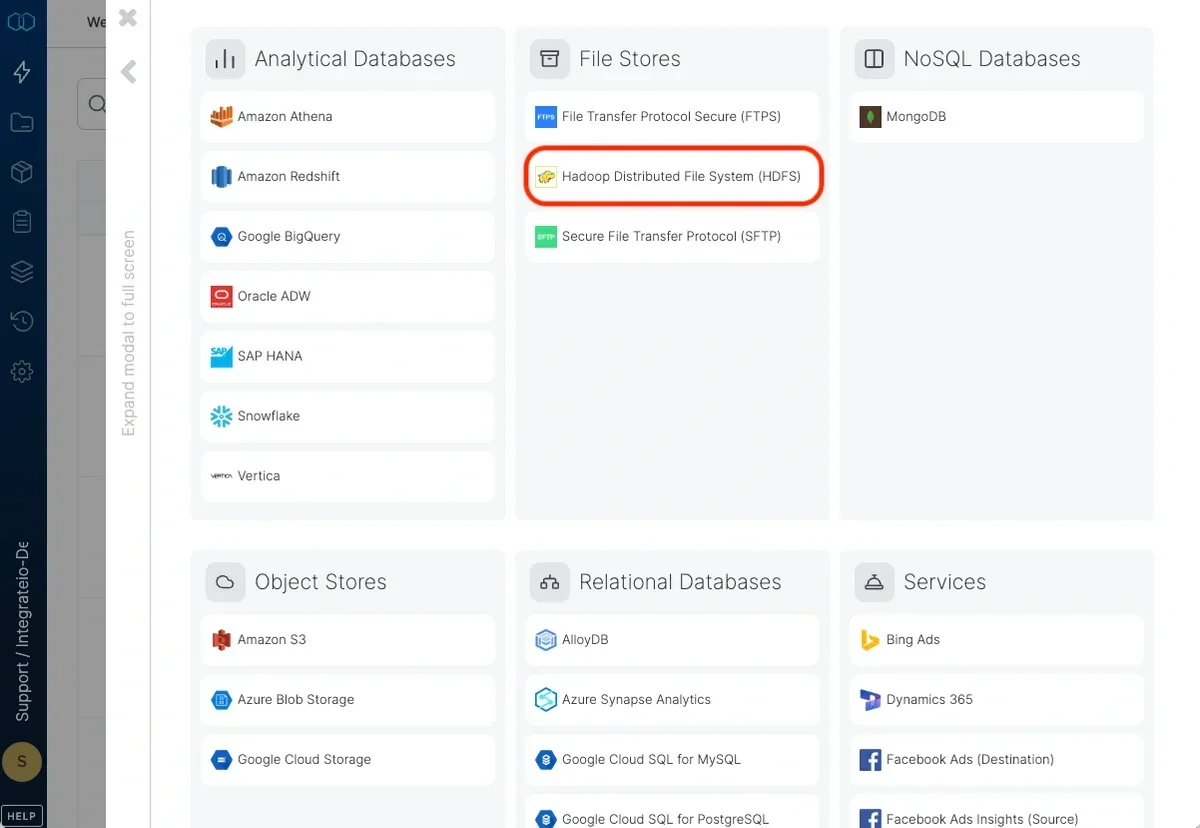
4
In the new HDFS connection window, name the connection and enter the connection information.
- User Name - the user name to use when connecting to HDFS (Kerberos authorization is not currently supported).
- NameNode Hostname - the host name of the NameNode server or the logical name of the NameNode in a high availability configuration.
- NameNode Port - the TCP port of the name node. Leave empty if the NameNode is in a high availability configuration.
- HttpFS Hostname - the host name of the Hadoop HttpFS gateway node. This should be available to Integrate.io ETL’s platform.
- HttpFS Port - the TCP port of the Hadoop HttpFS gateway node (Default is 14000).
5
Click Test connection. If the credentials are correct, a message that the connection test was successful appears.
6
Click Create HDFS connection.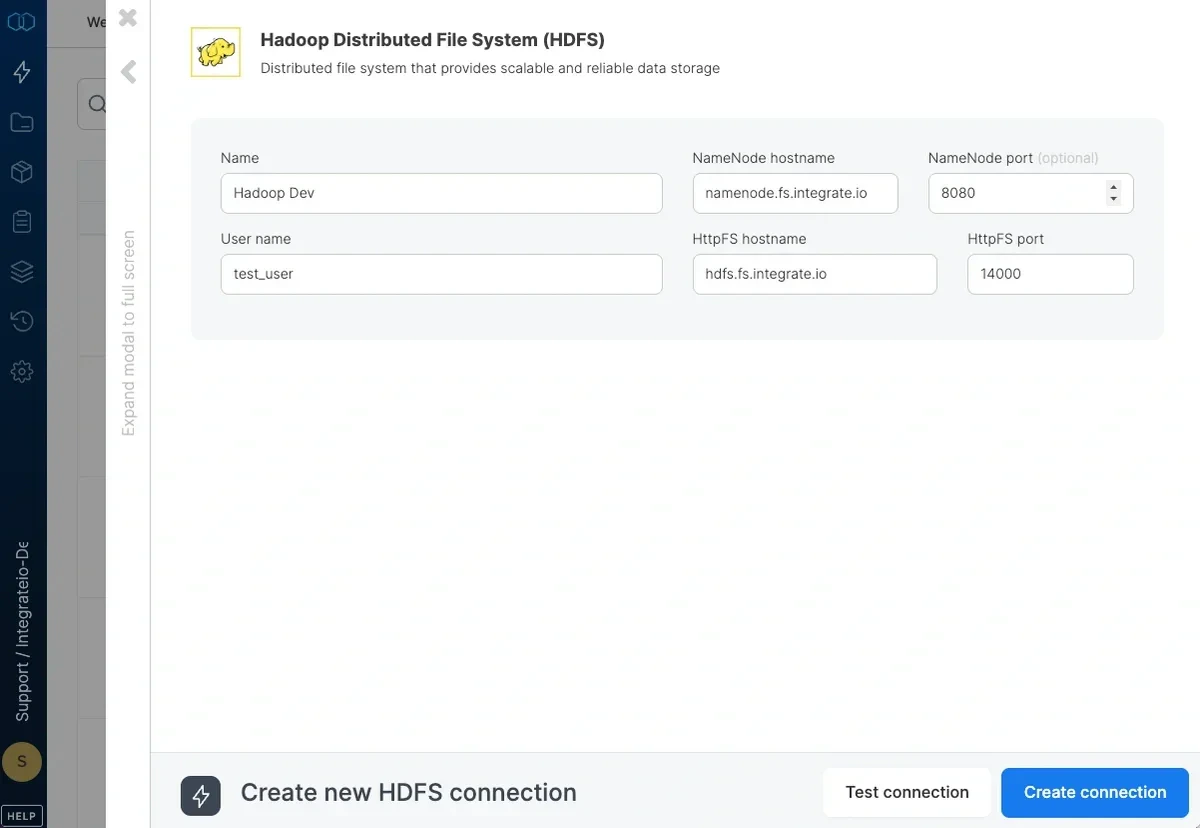
7
The connection is created and appears in the list of file storage connections.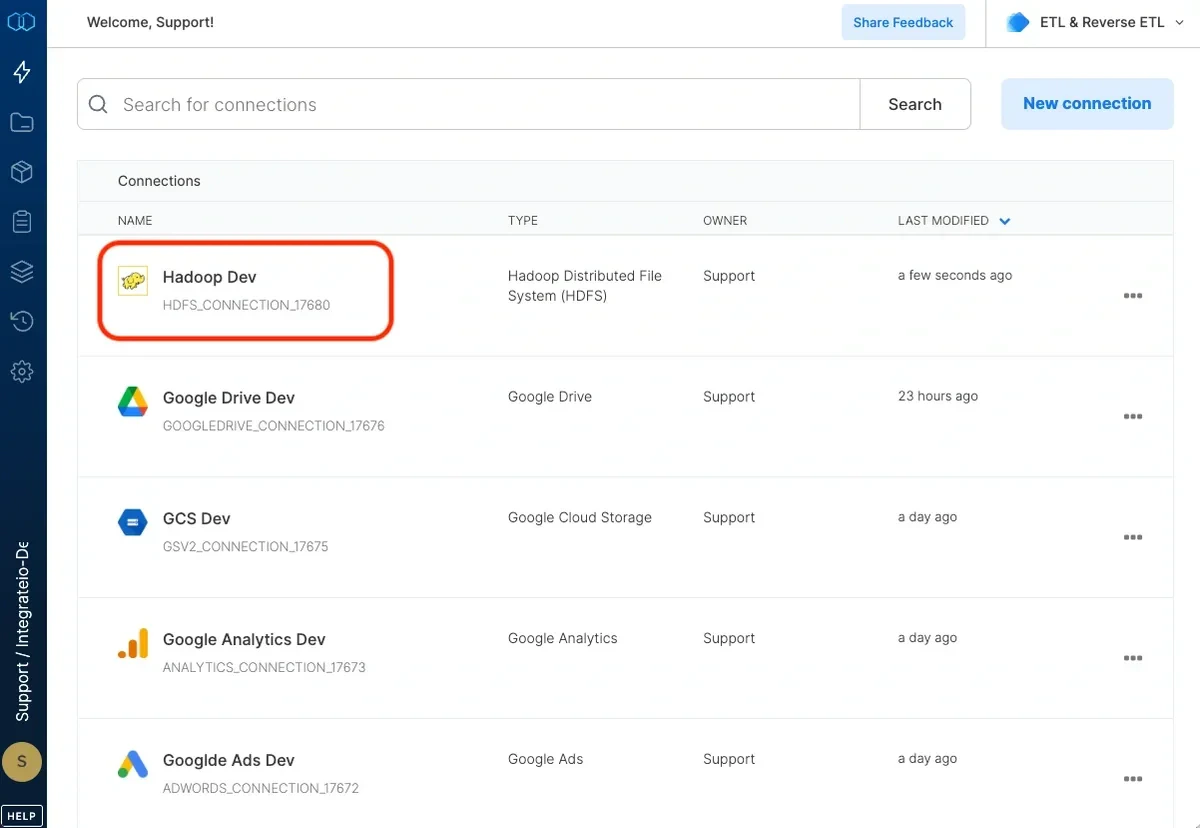
8
Now you can create a package and test it on your actual data stored in Hadoop Distributed File System (HDFS).