Configure the REST API source component to read data from HTTP endpoints and web services. Supports pagination and authentication methods.
Using the Rest API source provides access to read data from HTTP endpoints such as Rest Web Services. Use the Rest API source component to define the authentication method, request parameters, and response fields to use in the package. For OAuth-protected APIs, use the Connection option with a Universal OAuth connection to handle token management automatically.
Basic - Use basic authentication (user and/or password).
Connection - Use a saved Integrate.io ETL connection to handle authentication automatically. When selected, a Choose connection dropdown appears with two types of connections:
Pre-built service connections – Ready-made connections for popular platforms, including: Google Analytics, Facebook Ads Insights, HubSpot (Service Token), HubSpot, Facebook Ads (Destination), Intercom, Xero, LinkedIn, Instagram, Google Sheets, Google Drive, YouTube, Shopify, Salesforce, Marketing Cloud (SOAP), and Marketing Cloud (REST).
Universal OAuth – A flexible connection for any OAuth-protected API not covered by the pre-built options. Supports three authentication methods: OAuth 2.0 (authorization code flow), Client Credentials (server-to-server), and Custom Auth (non-standard endpoints). See Allowing Integrate.io ETL access to any API with Universal OAuth to set one up.
Tip: If the API you want to connect to appears in the pre-built list, select it for the simplest setup experience. If your API is not listed, use the Universal OAuth connection to configure authentication manually.
When you select Connection as your authentication method:
A Choose connection dropdown appears. Select an existing connection or create a new one.
The component will automatically attach the correct authentication header (typically Authorization: Bearer {token}) to every outbound API request.
If you configured a custom authentication header in your connection (e.g., X-Shopify-Access-Token for Shopify), that will be used instead, so no changes are needed in the Headers section.
Tokens are refreshed automatically when possible, so long-running jobs won’t fail due to token expiry mid-execution.
Check Use pagination to have the source component make paginated requests. See here for list of supported API endpoints in addition to the standard link headers.
Pagination scheme - The method to paginate through response data (e.g. page number, offset+limit, cursor, link headers) and how to detect the final page.
Automatic (Default) - the source detects the pagination scheme to use by the URL host/path.
Jira - Use with hosted Jira installations.
Magento - Use with hosted Magento installations.
BigCommerce - Use with hosted BigCommerce installations.
Elasticsearch - Use with hosted Elasticsearch installations.
Link headers - the fallback option which will be used with the default automatic as well.
Sleep interval between paginated requests (ms) - use to throttle API requests to avoid rate limitations. Default is 0 (no sleep).
Maximum paginated requests - use to control the maximum number of pages for the source to go through. Default is unlimited, 0 or 1 means a single request will be made.
Select the response type to determine how to parse the response from the API endpoint.
Raw - returns 3 fields: status code (integer), body (string) and headers (map).
JSON - Response is processed using a JSONPath expression.
You can use a custom JSONPath expression to extract nested objects and arrays or the presets for object and array. Using the object preset, the response fields are the keys of the JSON object. Using the array preset, the response fields are the keys of the JSON objects within the array and each object is returned as a record in the component’s output.
Line Delimited JSON - Response is a single JSON object per line. Note that the response as a whole is not a valid JSON. The response fields are the keys of the JSON objects and each object is processed as a record.
Line Delimited raw data - Response is broken to record per line. Useful when data contains records delimited by new line.
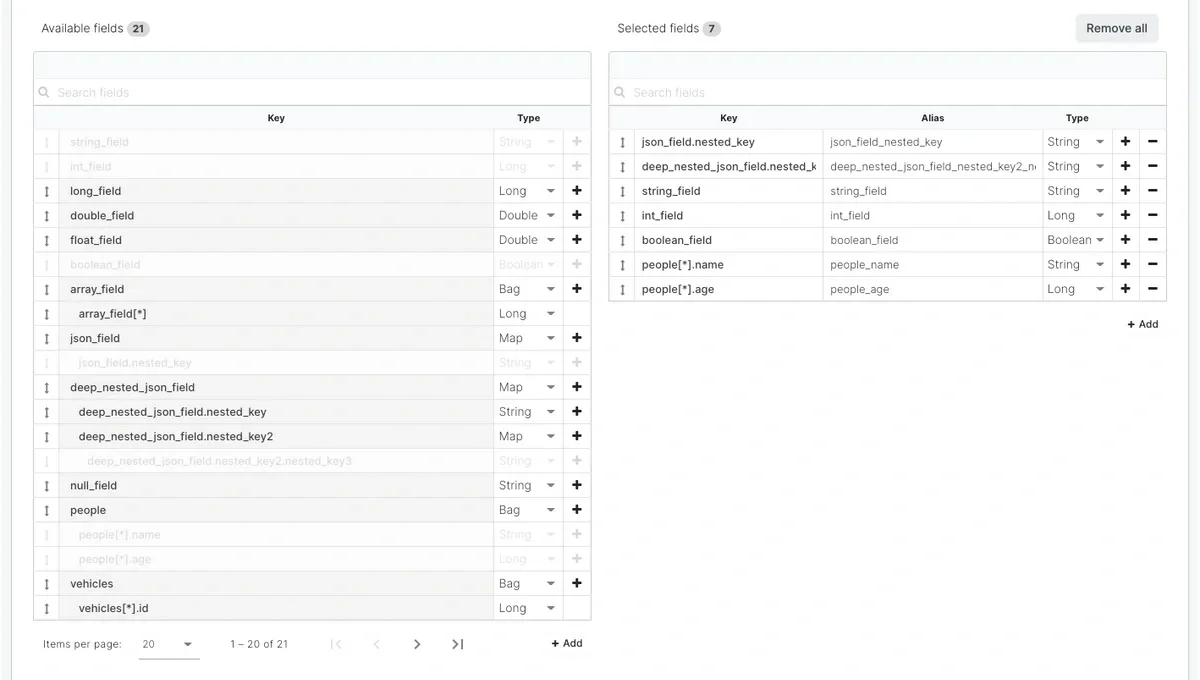
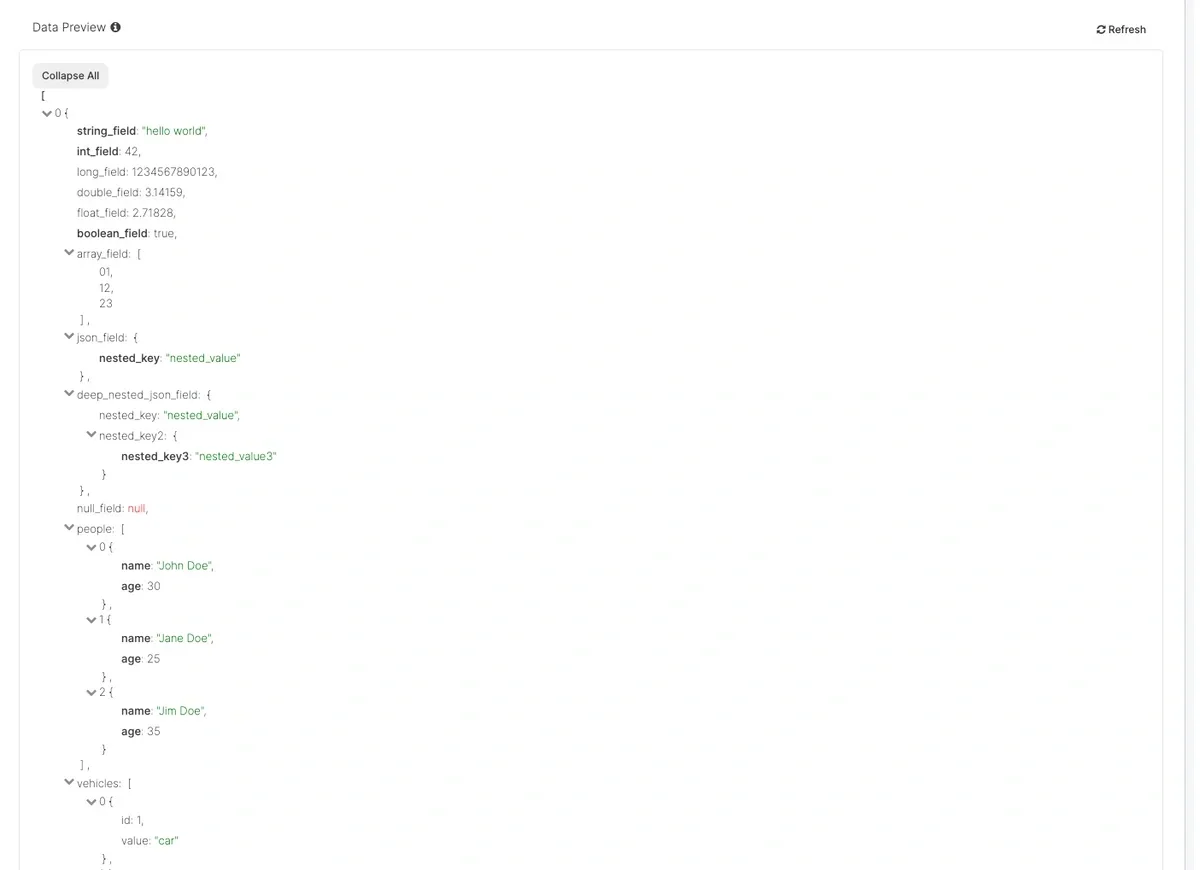
Setting this option to true enables extracting nested json fields into schema. As you can see on the screenshot below, each nested object property or array item can be selected directly in the schema section.
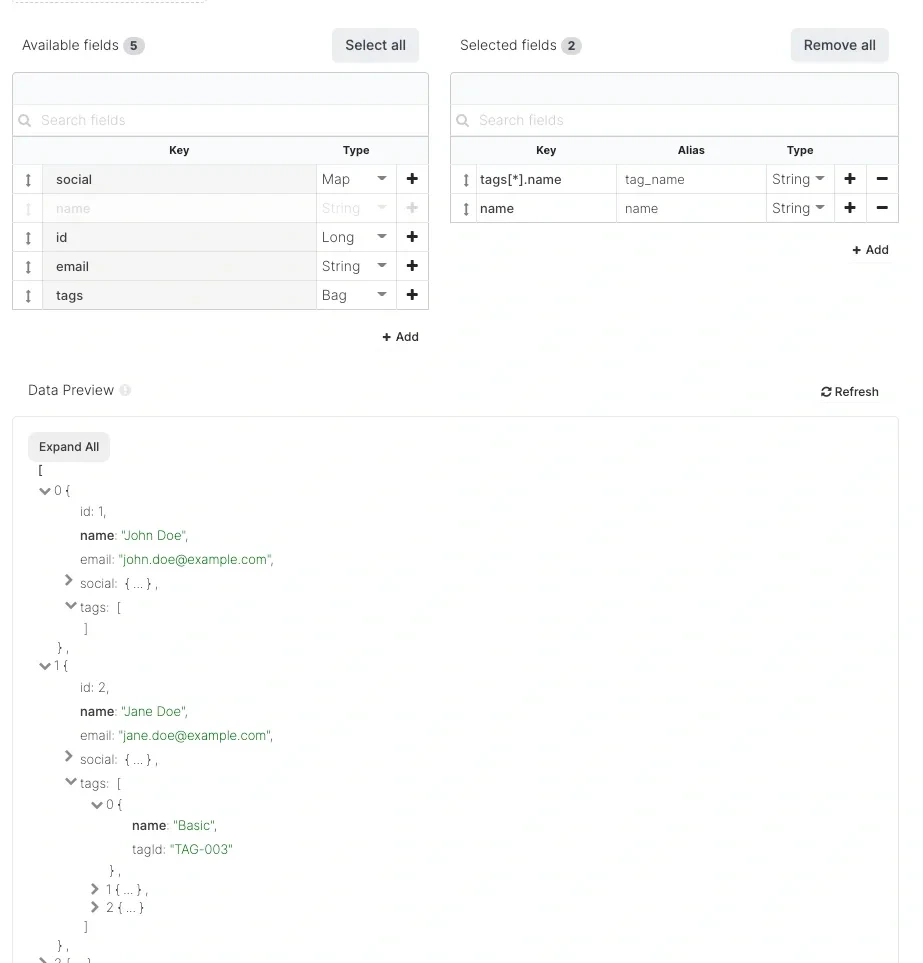
You can also modify key item directly in the schema in the case, where the nested attribute is missing in the list. The job will take that field for given record if it will be available. If not, then it will be set to null.For example, in the below screenshot, tags is an array of object. However, first item has empty tags, so it’s not available in the fields list. But you can modify Key manually to tags[*].name.
Field names that start with a numberSome APIs key their JSON by number. For example, Gravity Forms returns each form field under its numeric field ID:
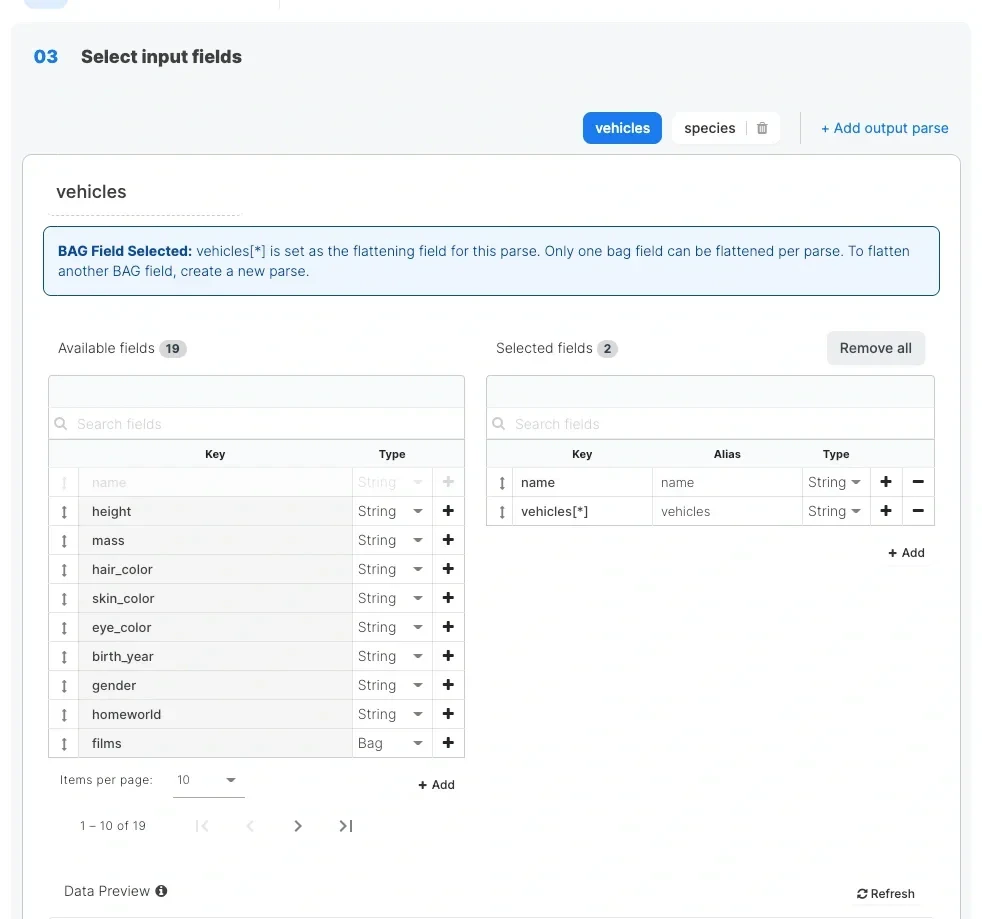
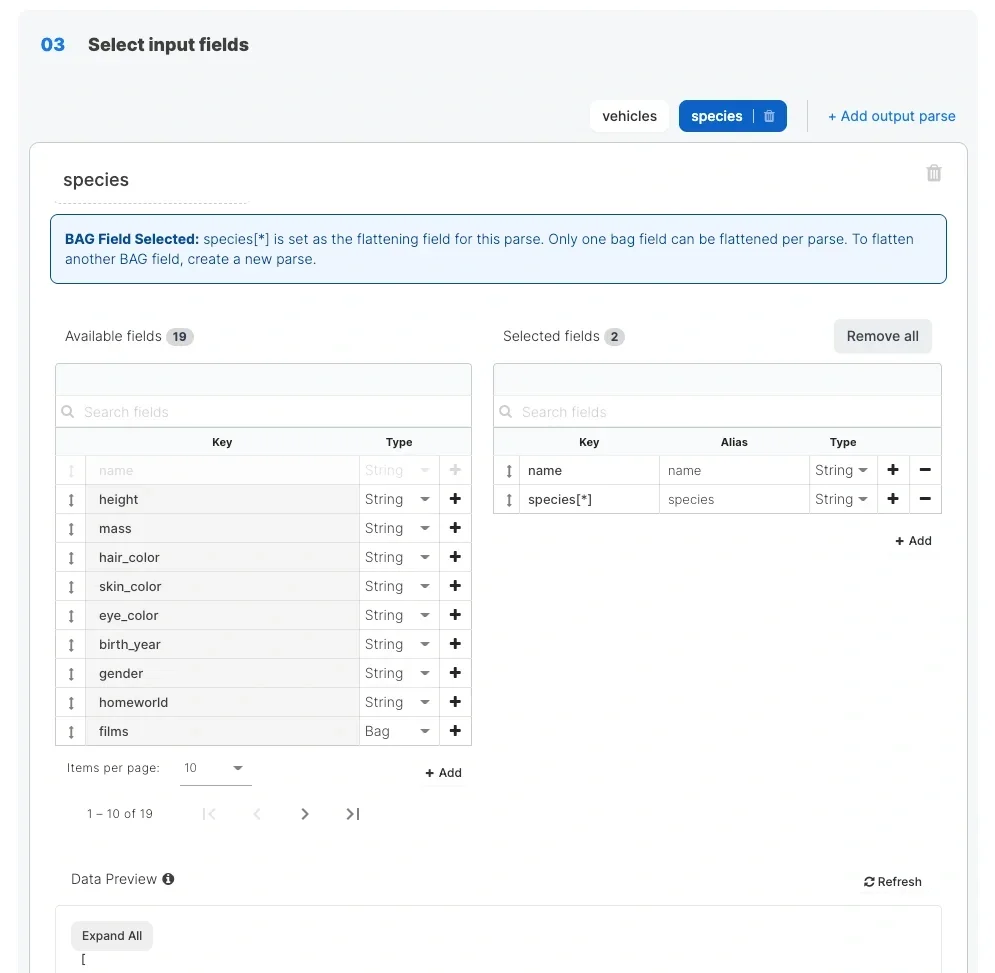
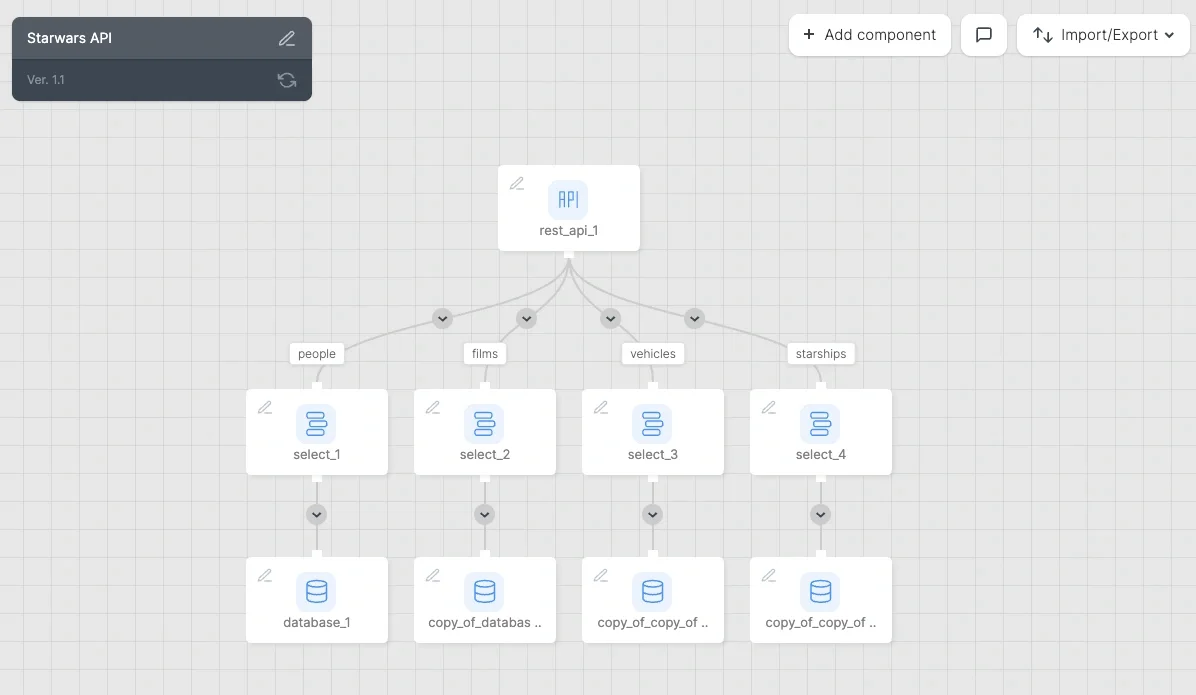
With Extended JSON extraction enabled, you can select and extract these fields like any other field. Keep the original JSON key (for example 44) in the Key column and set the field’s alias to a name that starts with a letter, such as first_name. The alias becomes the output field name. The same applies to any field name that does not start with a letter.Multiple output parsesIf you want to extract data from the REST API response for multiple components, then you can add new parse using + Add output parse button. It will add a new schema section. Each section/edge can be named differently.
When using a $ sign in the call, it needs to be escaped with back slash - \Please note - it will run successfully at runtime, but will fail with a preview of the API source component or component preview in the flow.Only one bag field can be flattened per parse. To flatten another BAG field, create a new parse.