Connection
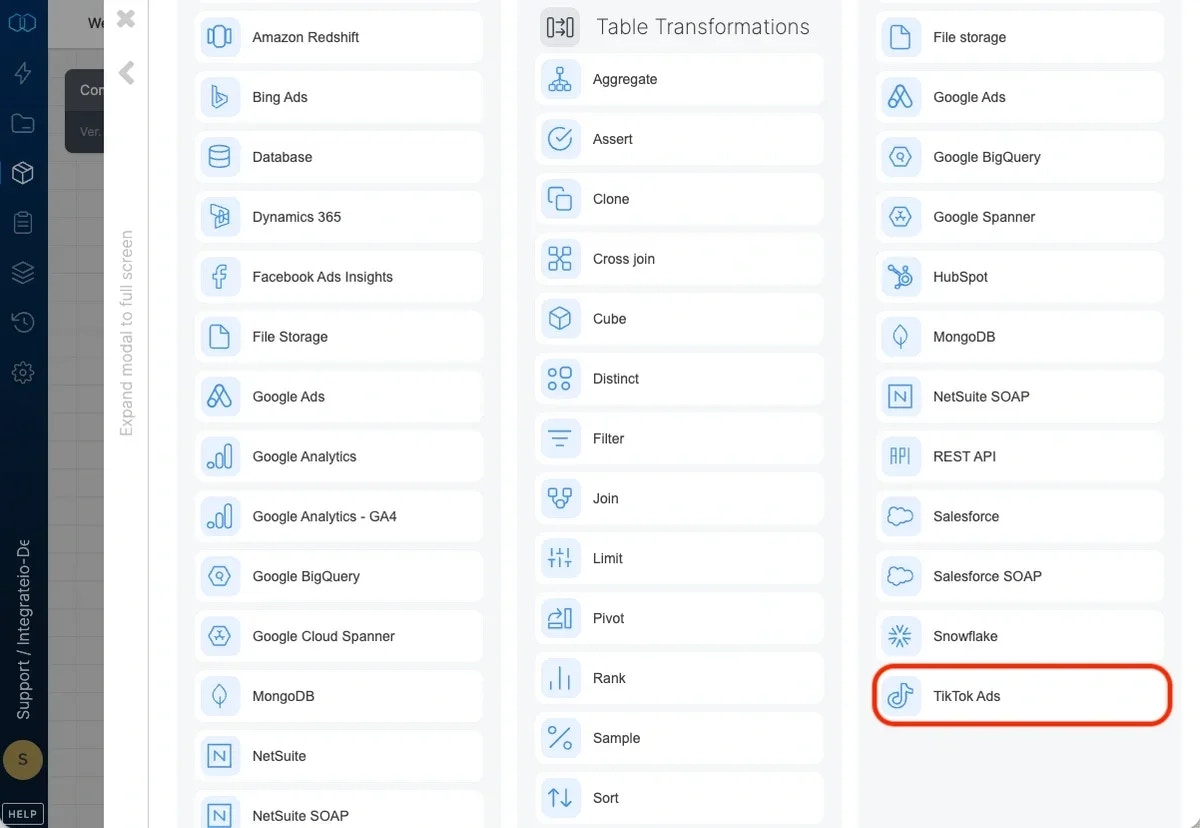
Select an existing TiktokAds connection or create a new one (for more information, see Allowing Integrate.io ETL access to my data on TiktokAds.)
Destination Properties
- Target object - select the name of the target object in your TiktokAds.
- Ads
- AdCommentsBlockedWords
- AdGroup
- Campaign
- Catalog
- CatalogFeed
- CatalogSet
- CatalogVideoPackage
- CreativePortfolio
- Identity
- RfAdGroup (Reach & Frequency AdGroup)
Operation type
- Insert - inserts new data into the selected object according to the required ID
- Update - updates existing data in the selected object according to the required ID
Necessary IDs to Insert or Update Data in TiktokAds
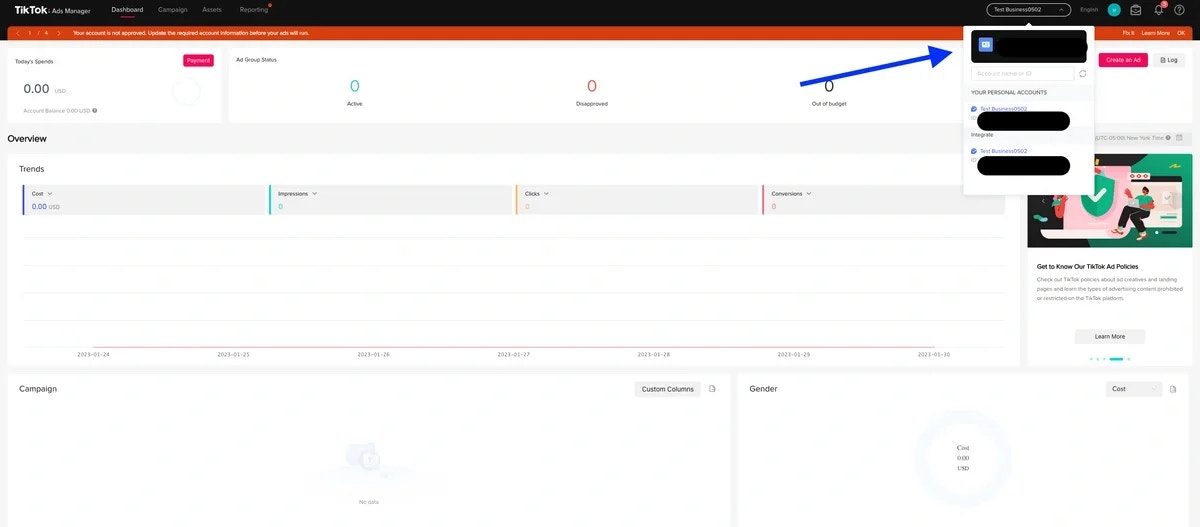
- Advertiser ID (All Object) - account id recognition for TiktokAds Account
- Access your Ads manager dashboard (link)
- Find the advertiser ID under your account name
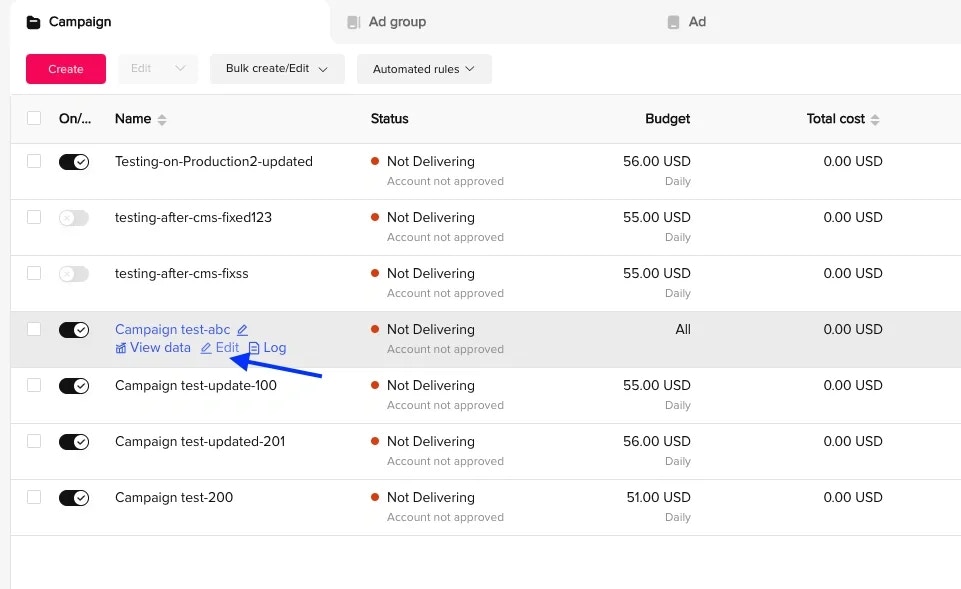
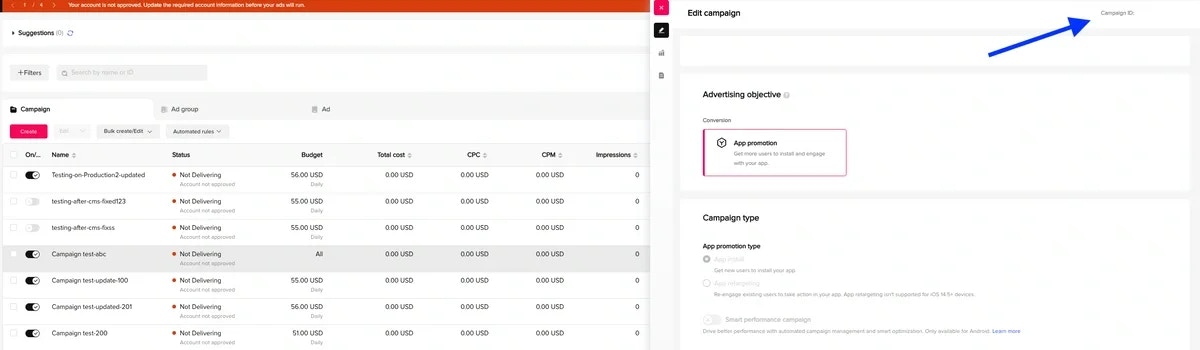
- Campaign ID (Campaign Object) - Campaign id recognition for TiktokAds
- Access your Campaign dashboard (link)
- Hover your mouse over the campaign object & select “Edit” under the campaign name
- Find the campaign ID at the top-right corner of the right sidebar
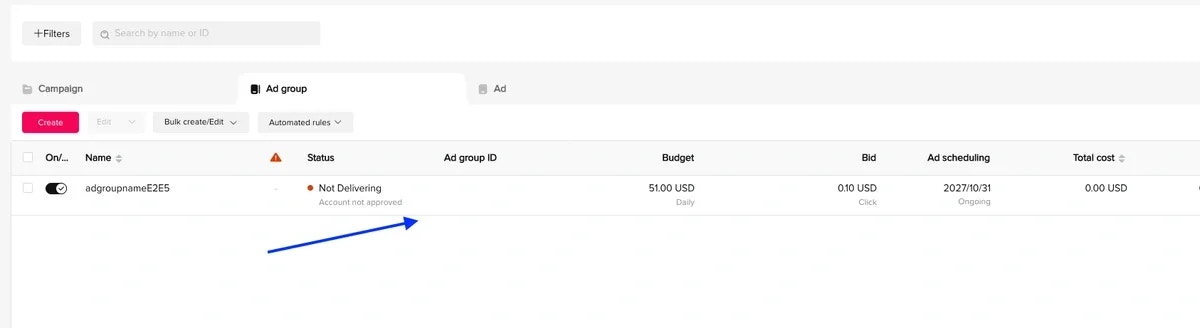
- Ad Groups ID (Ad Groups Object)
- Access your Adgroup dashboard (link)
- Find the Ad group ID in on of the columns
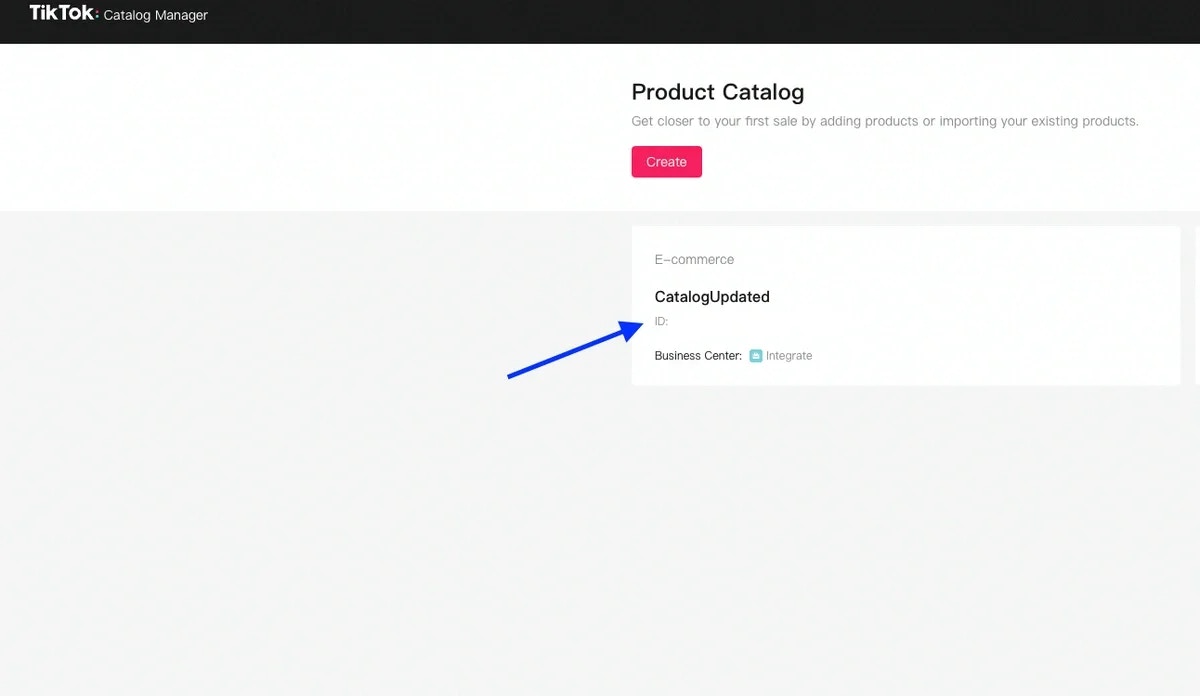
- Catalog ID (Catalog, CatalogFeed, CatalogVideoPackage, CatalogSet Object)
- Access your Catalog Manager Dashboard (link)
- Find the ID under the catalog name
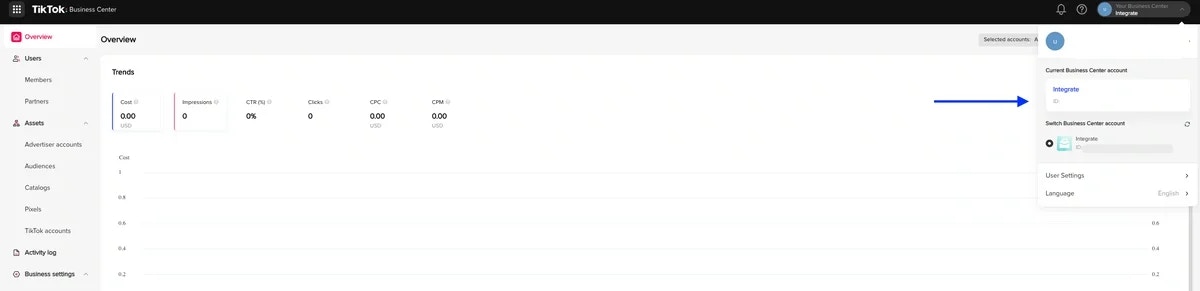
- Business Center ID (Catalog, CatalogFeed, CatalogVideoPackage, CatalogSet Object)
- Access your Business account (link)
- Find the business center ID in the account list dropdown
Schema Mapping
Select the required and optional fields to use in the destination according to the object. (Check out the TiktokAds API documentation for more details on fields for each object) Last modified on October 5, 2026