

This component is listed as Salesforce Bulk API in the pipeline designer. For synchronous writes with per-record success and failure output, use the Salesforce REST API destination.
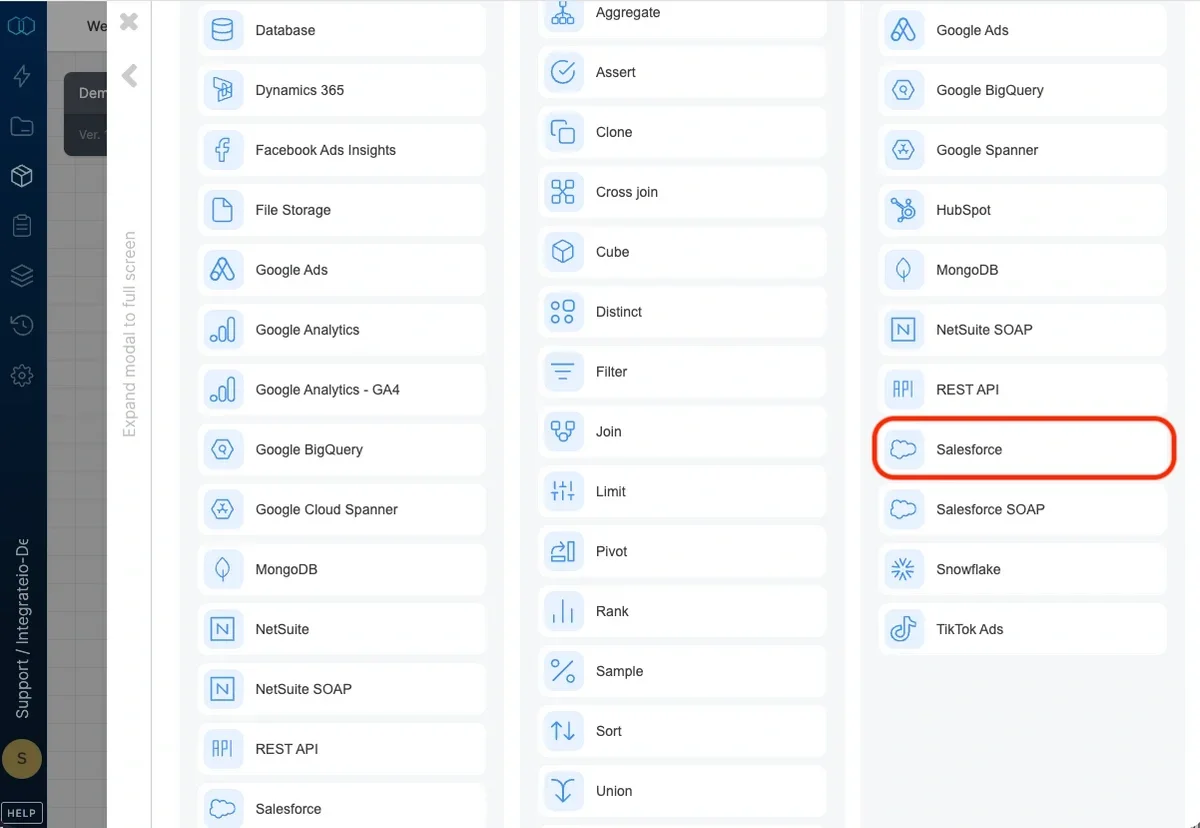
Connection
Select an existing Salesforce connection or create a new one (for more information, see Allowing Integrate.io ETL access to my data on Salesforce.)Salesforce orgs with IP login restrictions: Salesforce connections now route through Integrate.io’s secure proxy by default (enabled for all accounts). If your Salesforce org limits access by IP (for example, Login IP Ranges on a user profile, or Trusted IP Ranges under Setup → Network Access), allowlist Integrate.io’s IP addresses so the connection can authenticate and run. Use the current list here: Integrate.io ETL’s IP addresses.
Destination Properties
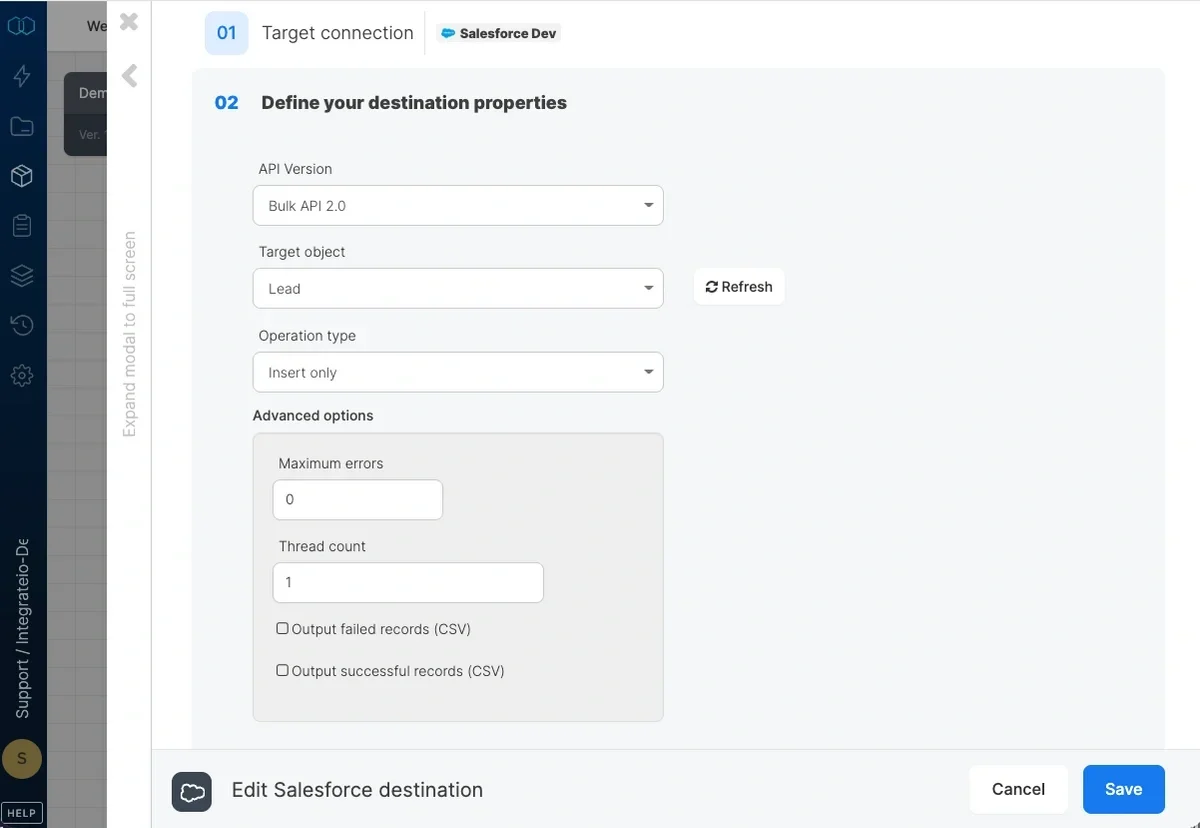
- API Version - list of Salesforce Bulk API versions we support. Read more about Bulk API 2.0 here
- Target object - select the name of the target object in your Salesforce org. By default, if the table doesn’t exist, it will be created automatically.
Operation type
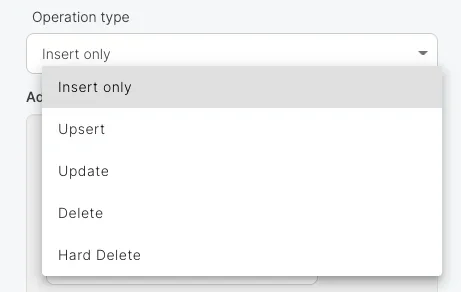
- Append (Insert only) - default behavior. Data will only be appended to the target object. Note that you can’t insert data into the internal id field.
- Update - update existing data according to the selected update key.
- Update key - when operation type is update, you must map a key field and select it as the update key. This can be either the internal id field, or an external key field. The external key should not allow duplicate values.
- Upsert - inserts new data into the object and updates existing data according to the selected upsert key.
- Upsert key - when operation type is upsert, you must map a key field and select it as the upsert key. This can be either the internal id field, or an external key field. The external key should not allow duplicate values.
- Delete - deletes data in the destination object by Salesforce internal id field.
- Hard Delete - deletes data in the destination object by Salesforce internal id field. This allows records to bypass the recycle bin and immediately become available for deletion.
Advanced options
- Batch size - number of records that are inserted to Salesforce in each batch (default 1000)
- Maximum errors - maximum number of errors to tolerate when inserting data into Salesforce. Note that the actual number of errors may be greater than the maximum due to the parallel nature of the process.
- Thread count - number of threads can be used when writing the data in parallel to Salesforce. A one node cluster can run around 5 threads in parallel (assuming no other packages are running).
- Include null fields on the payload - include null values using update/upsert operation type in Salesforce.(As a default behavior, null fields omit on the payload.)
- Process batch in serial mode - this feature controls how Salesforce processes batches within a Bulk job by enforcing sequential (serial) execution instead of parallel processing.
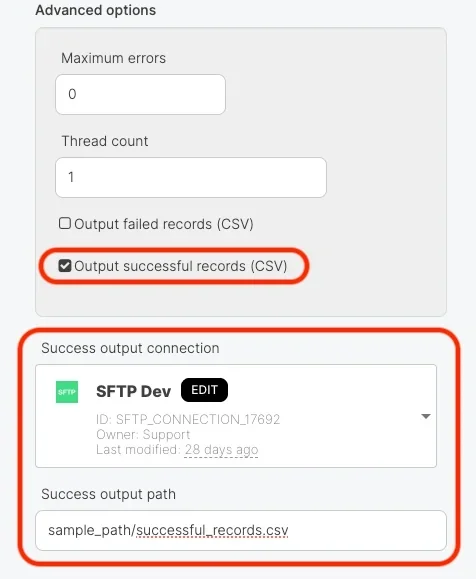
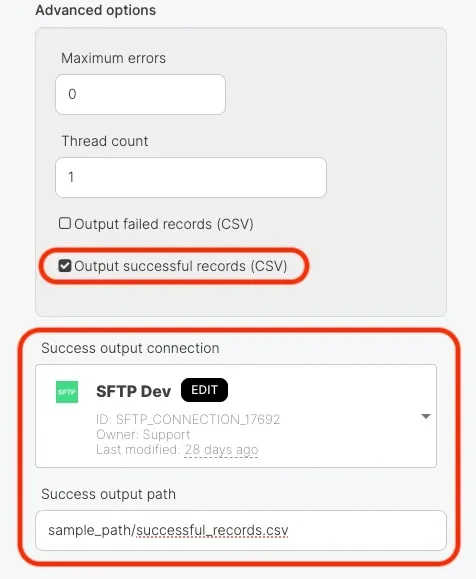
- Output failed records(CSV) - number of failed records for a completed job using any operation type in Salesforce with CSV file as an output. Currently, we have limitation using package variables in file path of output failed records.
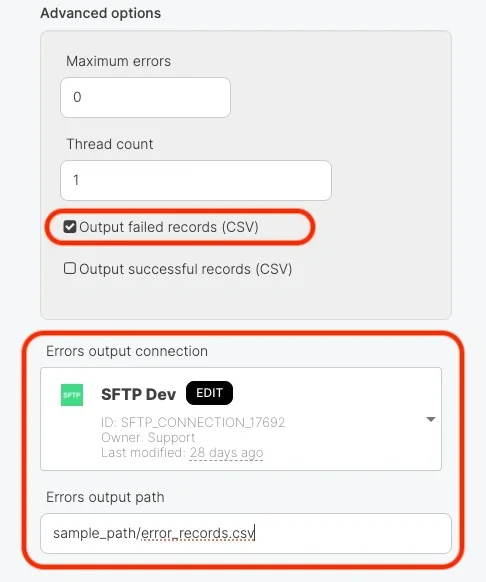
- Output successful records (CSV) - This feature allows you to retrieve a CSV file containing only the successfully processed records after a Salesforce Bulk job completes. The CSV file is delivered for both fully successful jobs and jobs that complete with partial failures, so you can reconcile the records that were written even when some records failed.
drive.file scope required for uploads. Google Drive connections used as sources are unaffected.
Schema Mapping
insert operation, fields defined as mandatory in the object must be mapped to input fields. When using the upsert operation, you should map the mandatory fields if you expect to insert data. If you use the internal id field as the upsert key, make sure to use null in the mapped field’s value for new records. When using the delete operation, the internal id field must map to an input field.