To create a Xero connection in Integrate.io ETL
1
Click the Connections icon (lightning bolt) on the top left menu.
2
To create a connection, click New connection.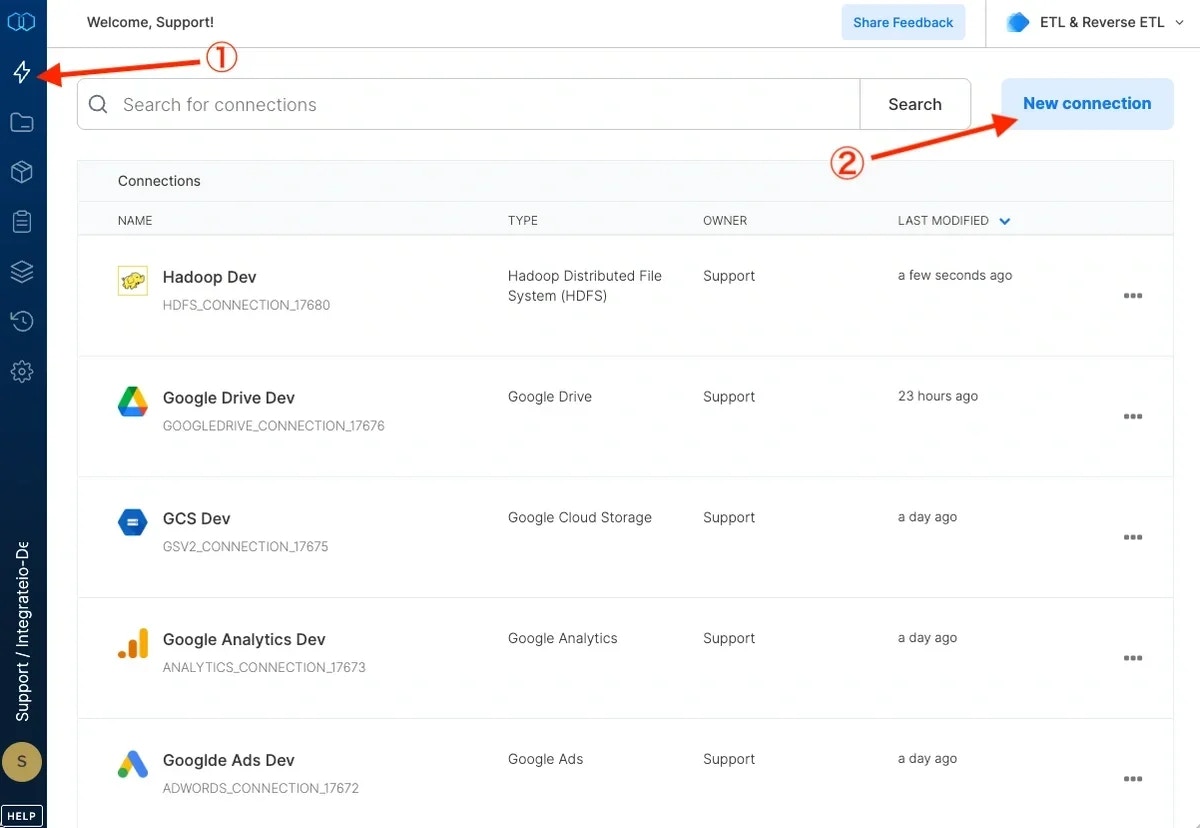
3
Select Xero.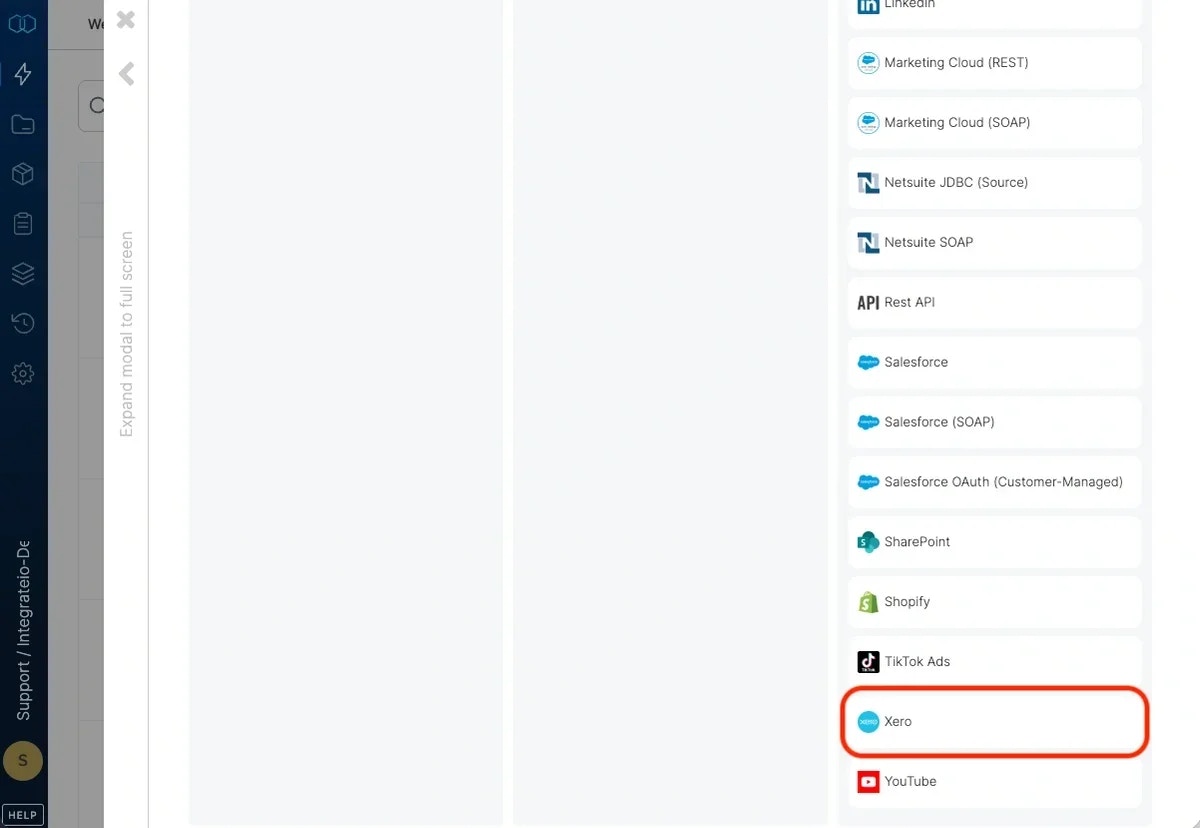
4
Click Authenticate. (If required, sign in to Xero)
5
Click Connect to authorize Integrate.io ETL access to your Xero account.
6
In the new Xero connection window, name the connection and click Create Xero connection.
Xero data access scopes
The Xero connection requests OAuth scopes that grant read access to accounting transactions, reports, journals, settings, contacts, attachments, files, and budgets. Existing connections created before a scope is added do not retroactively gain access. To read data from an endpoint added to the scope list after your connection was created, open the connection and click Authenticate to re-consent. If a Xero API call returns401 with insufficient_scope, Xero issued the token before you granted the required scope. Re-authenticate the connection to fix it.
To modify Xero connections in Integrate.io ETL
1
Click the Connections icon (lightning bolt) on the top left menu.
2
Click a connection to re-connect if your password has changed or the token has expired.
3
To delete a Xero connection, click the three vertical dots on the far right of the connection listing and select the Delete connection option.
To build a data pipeline to read Xero account data in Integrate.io ETL
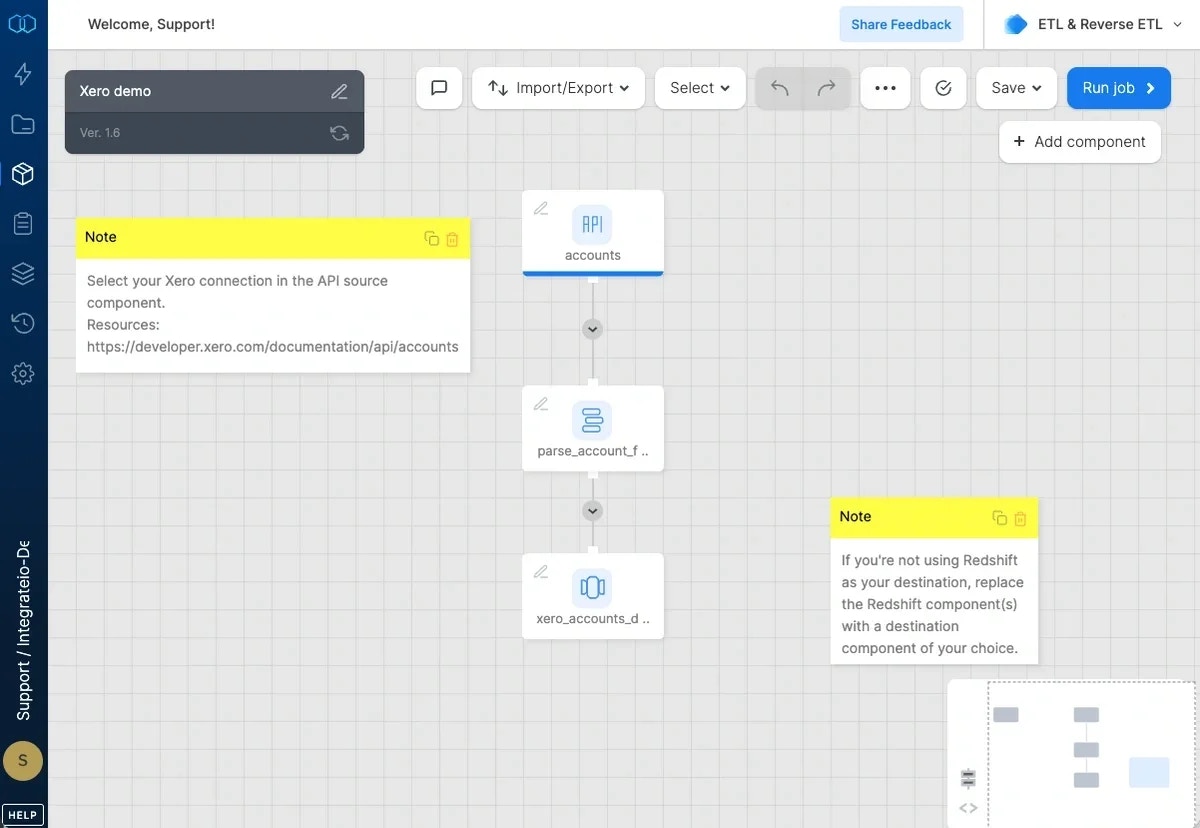
REST API Component: accounts
- Authentication - Click Connection and then select your Xero connection. If you haven’t created your Xero connection yet, click + New and follow the instructions found above.
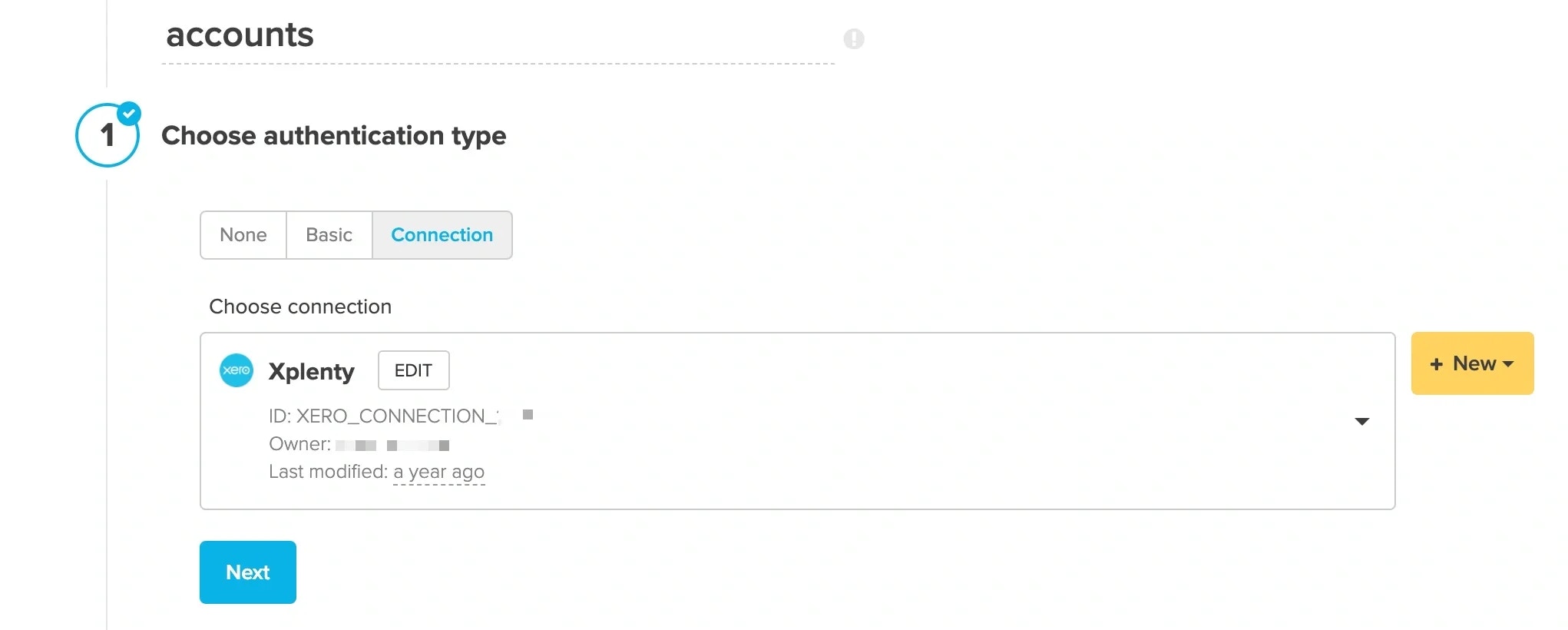
- URL - Enter the URL for the Accounts endpoint of the Xero API:
https://api.xero.com/api.xro/2.0/Accounts. Make sure the method is set to GET. Click Add beneath Headers twice to add the following two headers: Accept: application/json, If-Modified-Since:$last_updated_at. Replace the variable$last_updated_atwith a timestamp for the minimum age of the updated data.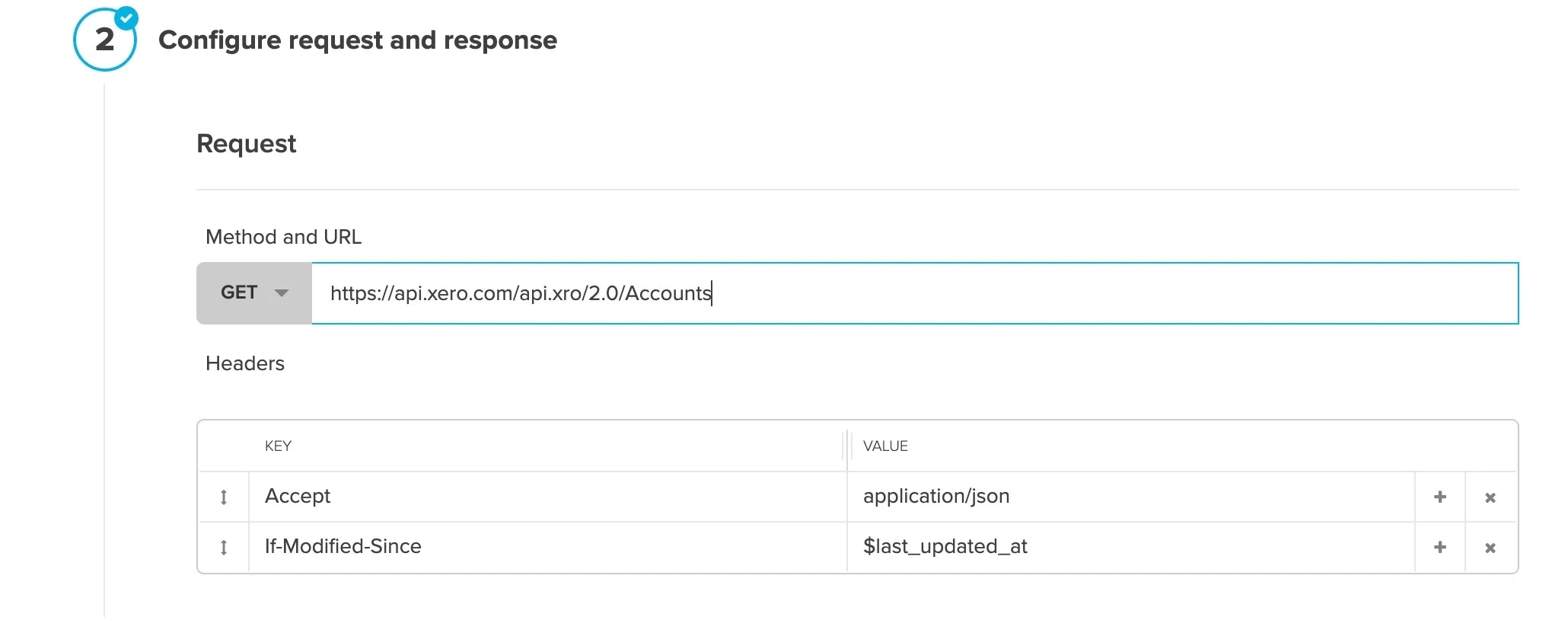
- Response - Make sure the JSON response type is selected. Edit the Base record JSON Path Expression field like this:
$.Accounts[*].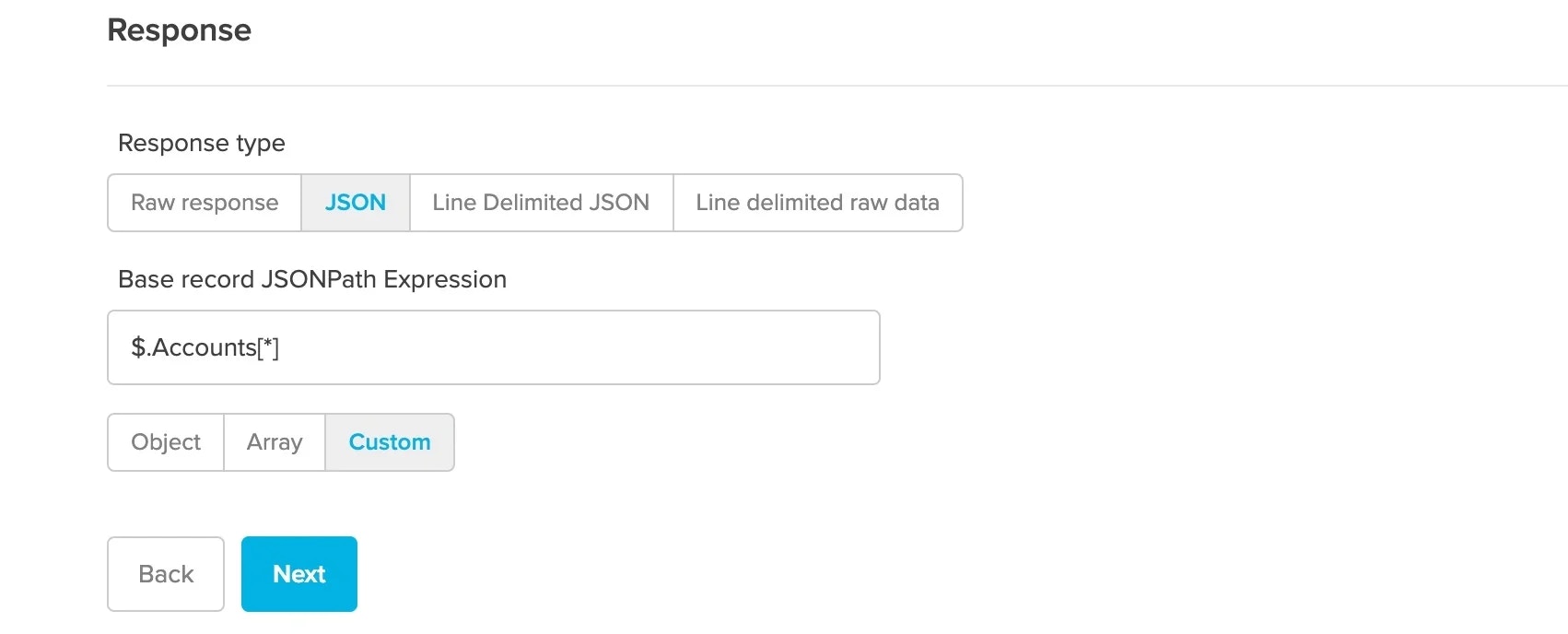
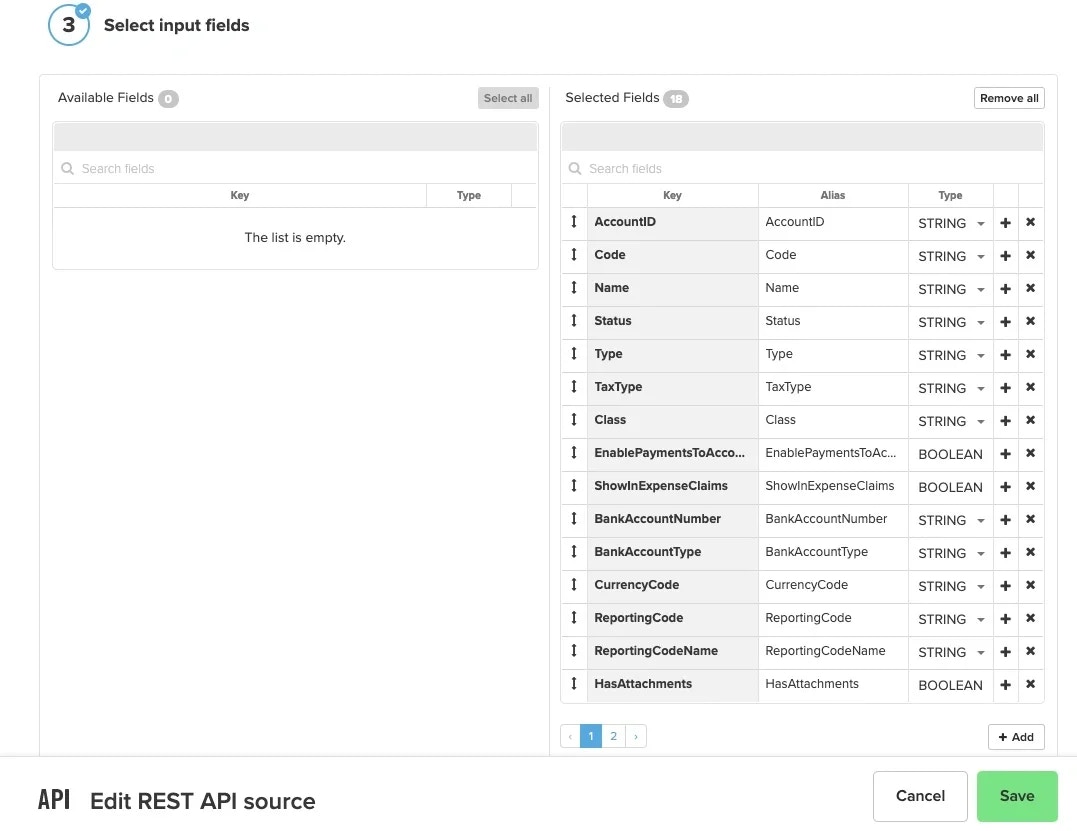
- Input fields - Click Select all to move all the Available fields over to the Selected fields or pick and choose which fields you would like by clicking on the + icon next to the field name in the Available Fields column. Then click Save.
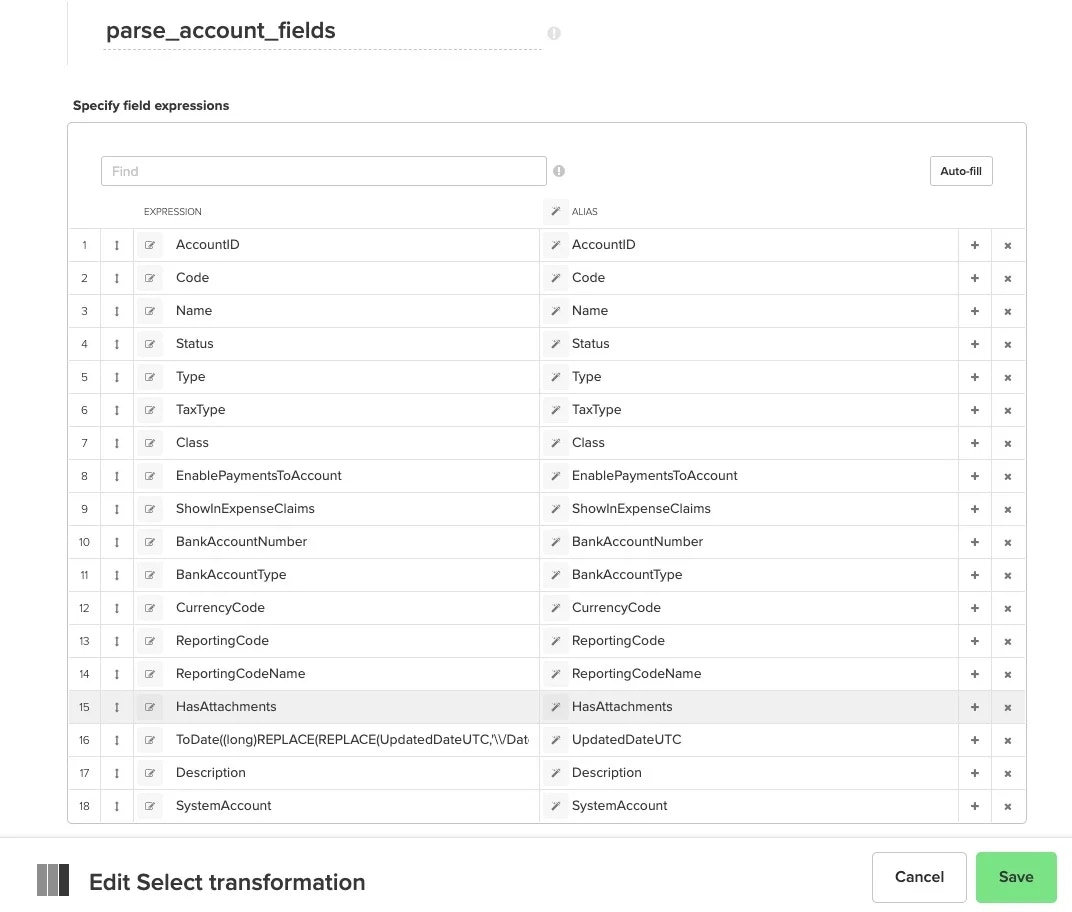
Select Component: parse_account_fields
- Click Autofill to bring in all the fields from the source component. Convert the UpdatedDateUTC field into a datetime data type using these functions: ToDate((long)REPLACE(REPLACE(UpdatedDateUTC,’\/Date\(’,”),’\+.*’,”)). Click Save.
REST API Component: budgets
Use this configuration to read budget data from the Xero Budgets API. Your connection must include theaccounting.budgets.read scope. If you created your Xero connection before Integrate.io added this scope, re-authenticate it first.
- Authentication - Click Connection and select your Xero connection.
- URL - Enter
https://api.xero.com/api.xro/2.0/Budgetsand set the method to GET. Add a headerAccept: application/json. - Use pagination - Leave this unchecked. The Xero Budgets endpoint does not support pagination, and enabling the page-parameter strategy returns the same records repeatedly.
- Response - Select JSON and set Base record JSON Path Expression to
$.Budgets[*]. - Input fields - Click Select all or pick individual fields, then click Save.
GET /Budgets returns budget summaries. To retrieve the budget lines for a specific budget, use GET https://api.xero.com/api.xro/2.0/Budgets/{BudgetID} in a second REST API source component.
Example URL for a single budget:
Destination Component: xero_accounts_destination
- The template shows a Redshift destination component; however, if you’d prefer to use a different destination, delete the Redshift component and select a destination component of your choice.
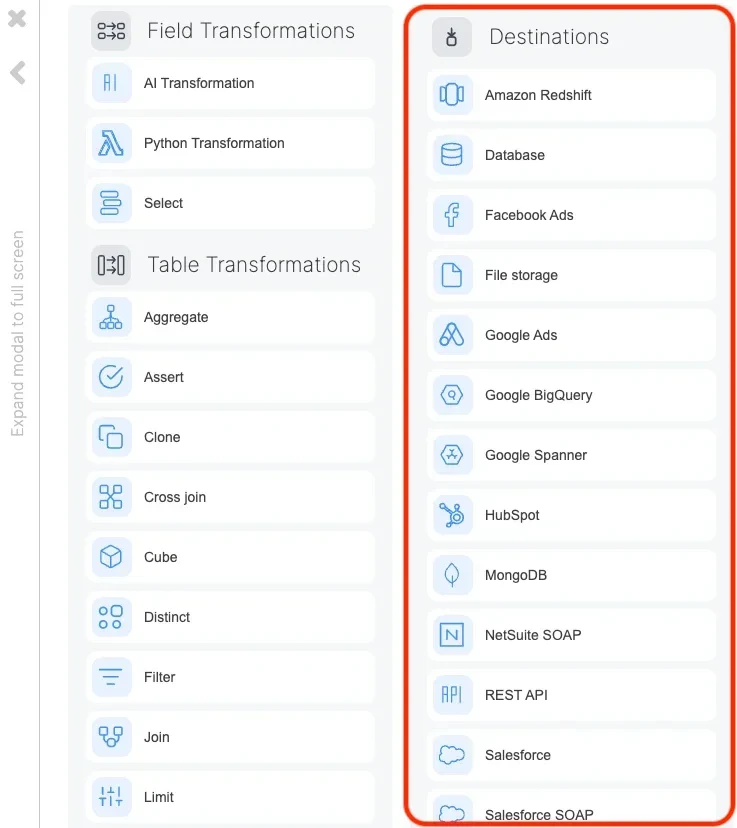
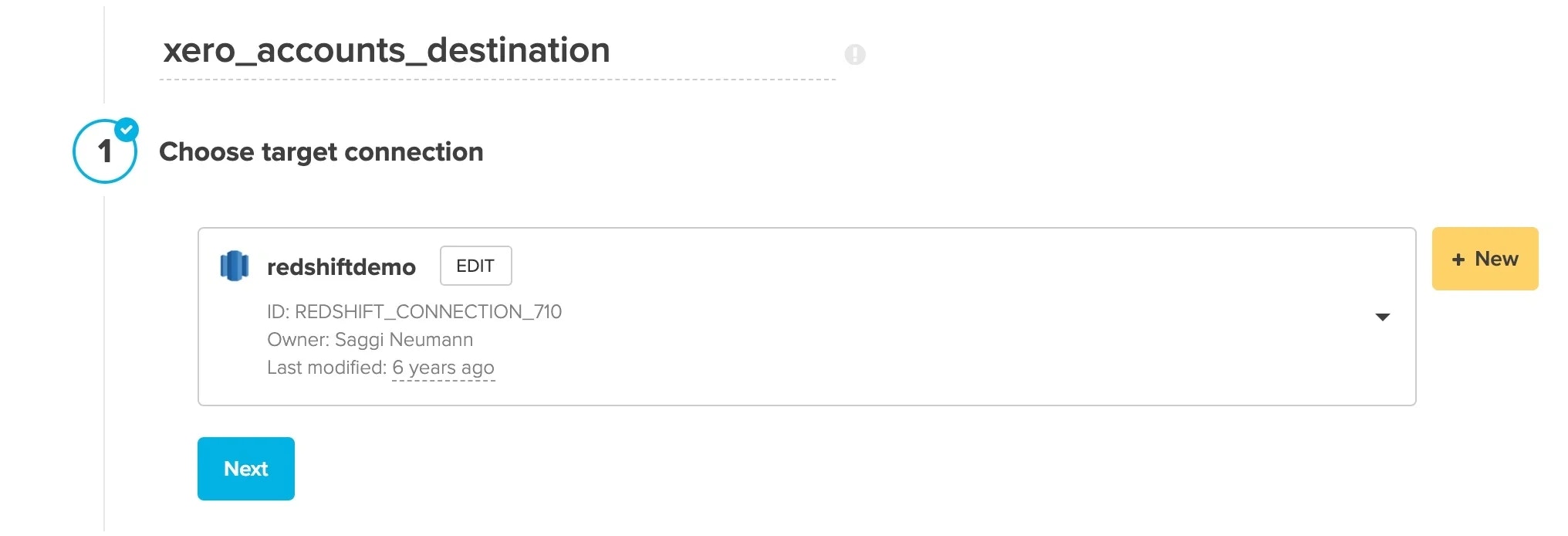
- Choose target connection - Select your target connection. If you haven’t created your connection yet, click + New.
- Destination properties - Fill in the values for target schema and table, select an operation type, pre or post-action SQL, and advanced options.
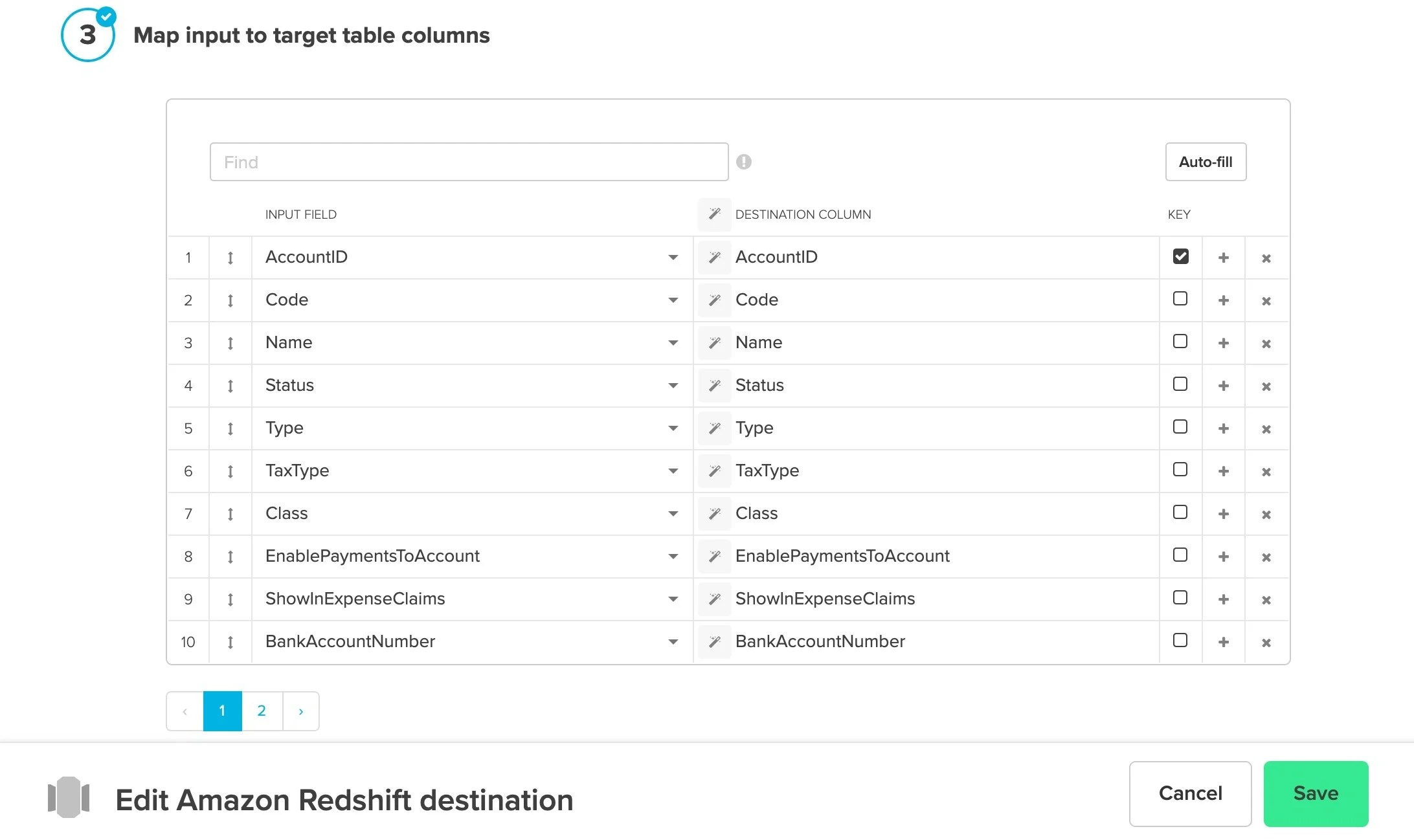
- Schema mapping - Click Auto-fill to bring in all of the fields. If you’ve selected a Merge operation type, click the Key box next to the merge key field(s). Click Save.