Introduction
XML, which stands for eXtensible Markup Language, is a software- and hardware-independent tool for storing and transporting data. Both XML and JSON can be used for data storage and interchange. JSON is the newer and more popular tool; however, they are similar in that they are both human readable, can be used to store nested data, and can be parsed and used by lots of programming languages. Although many systems have chosen JSON for communicating data, XML is still around today, and Integrate.io helps many clients ingest and parse XML from files and APIs.
Processing XML data in Integrate.io ETL - tutorial
Integrate.io ETL allows you to process XML and extract data from it using two important functions - XPath and XPathToBag. In order to do that, we need to understand the structure of an XML document. An XML document is composed of elements, and it must have a root element that is the parent of all other elements like this:
The element is composed of the opening tag, content, and closing tag. In our example above, is the opening tag, “This is the content” is the content, and is the closing tag.
What is a tag? Tags provide the structure of an XML document. They are surrounded by angle brackets (< and />). They’re case sensitive—this is very important! When you reference the tags in the XPath function, they must be exactly the same as in the XML document.
Throughout this tutorial, we’ll be using the following XML example:
Loading XML data from files as XML file
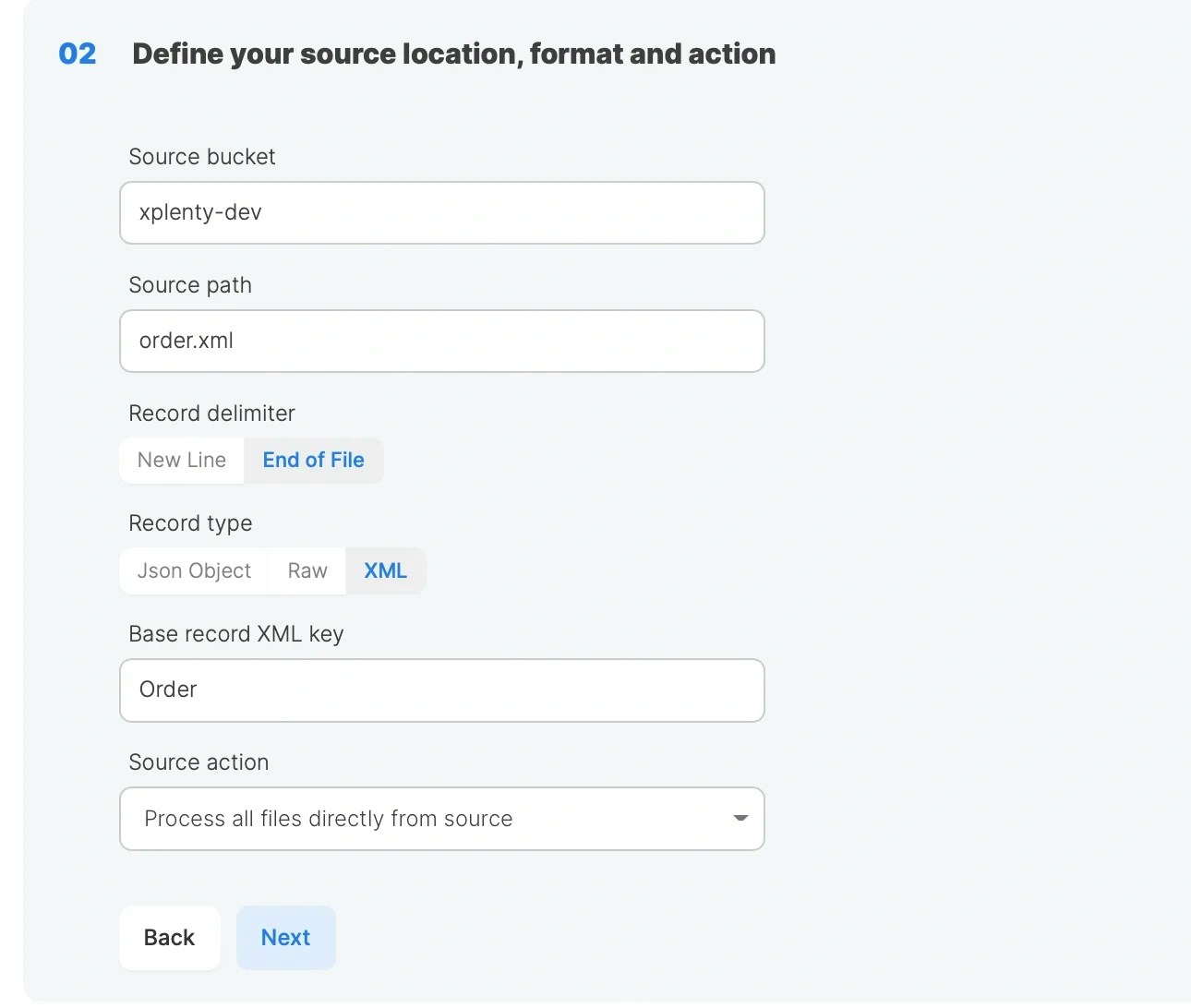
When loading XML data from files, simply select the End of File record delimiter, the XML record type, specify “Base record XML key” and proceed to the next step to see a preview of the data.
Loading XML data from files as Raw
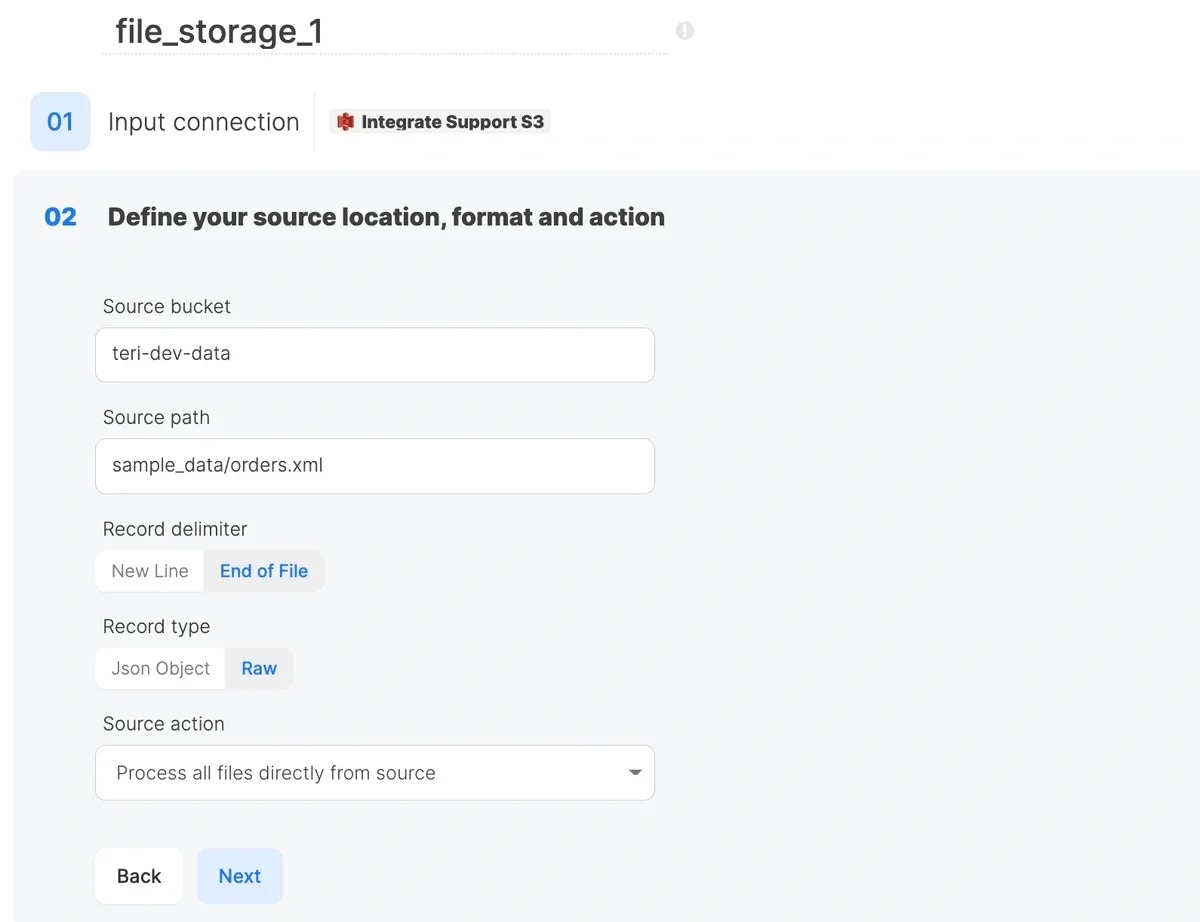
When loading XML data from files, simply select the End of File record delimiter, the Raw record type, and proceed to the next step to see a preview of the data.
Loading XML data from an API
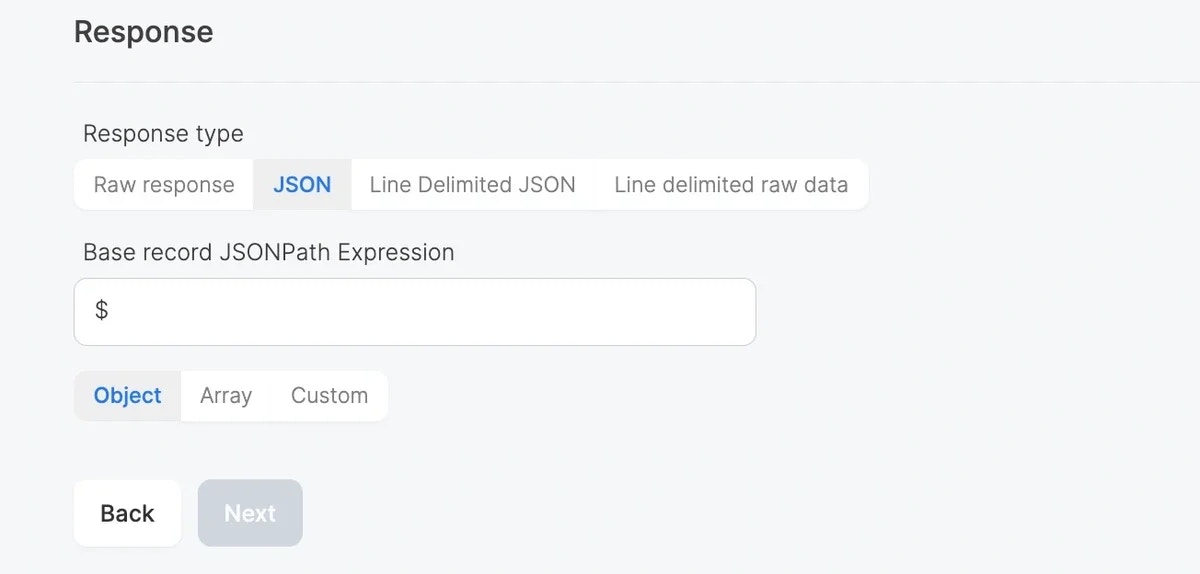
When loading XML data from an API, select the Raw response type and proceed to the next step to see a preview of the data.
There are 2 ways of transforming XML data based on type of record:
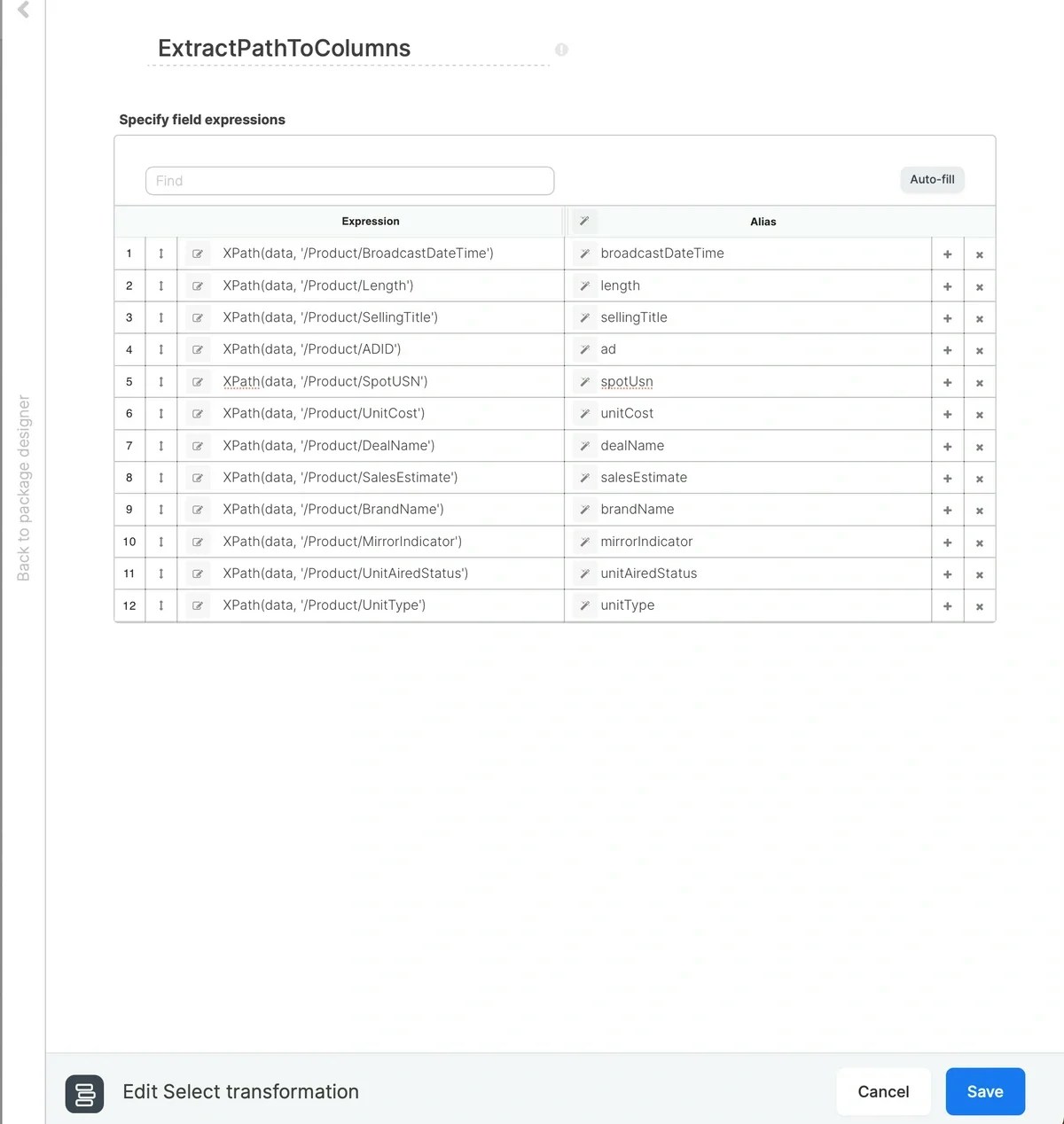
When transforming File Storage source component and XML type is selected as record type, we can use select component and calling XPath to parse attributes in each of record.
Integrate.io ETL will read the data in as one long string of data. Then, we will parse it using the XPath and XPathToBag functions in the following transformation steps.
-
Identify the root tag - the parent element to all the rest. In our example, this is Orders. It will be found after the opening XML tag that starts like
<?xml . . .
-
Identify the first child tag nested inside Orders. In our example, it is Order. Orders is the parent to Order. Are there other tags nested within Order? Does Order repeat?
Yes, we can see that there are other tags nested within Order (for example, Line is nested within Order), and there are two Order objects in our XML data. Since Order repeats, we need to convert it to a Bag datatype, Integrate.io ETL’s complex data types that is akin to an array. From there we will be able to flatten that Order bag which will create a record for each of the Order objects in the Bag.
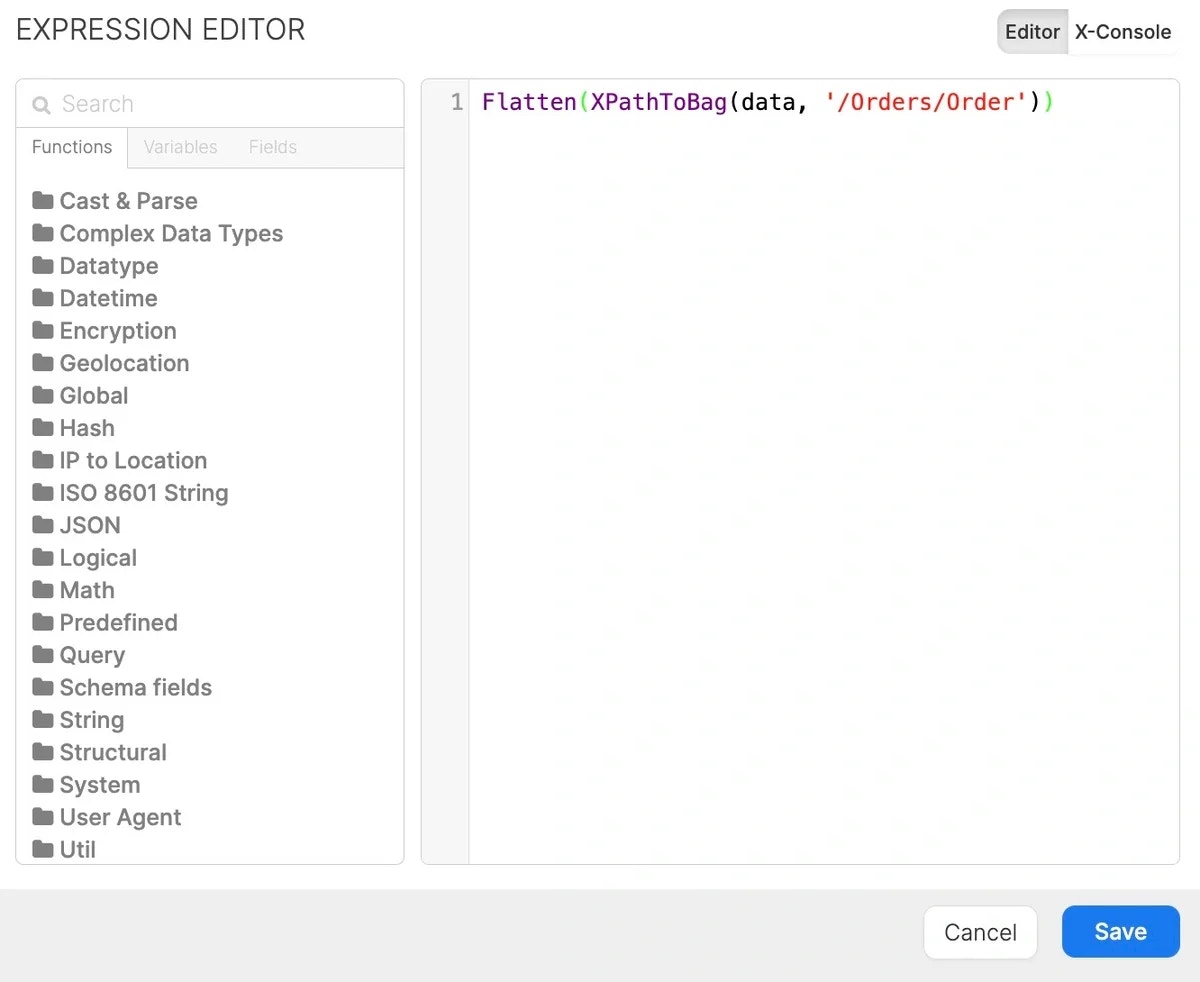
Add a Select component to the pipeline, click Autofill to bring in the field from your source, and then open the Expression Editor (pencil and paper icon to the left of the Expression field). We can perform these two actions in the same step by nesting the XPathToBag function within the Flatten function. When defining the XPath, follow this syntax: ‘/tag/tag .’ Always start with an opening slash — each tag in the XPath needs to be preceded by a slash. Define the path starting at the parent tag.
-
Identify the next child tag nested within Order. In our example, it is Line. Order is the parent to Line. Are there other tags nested within Line? Does Line repeat?
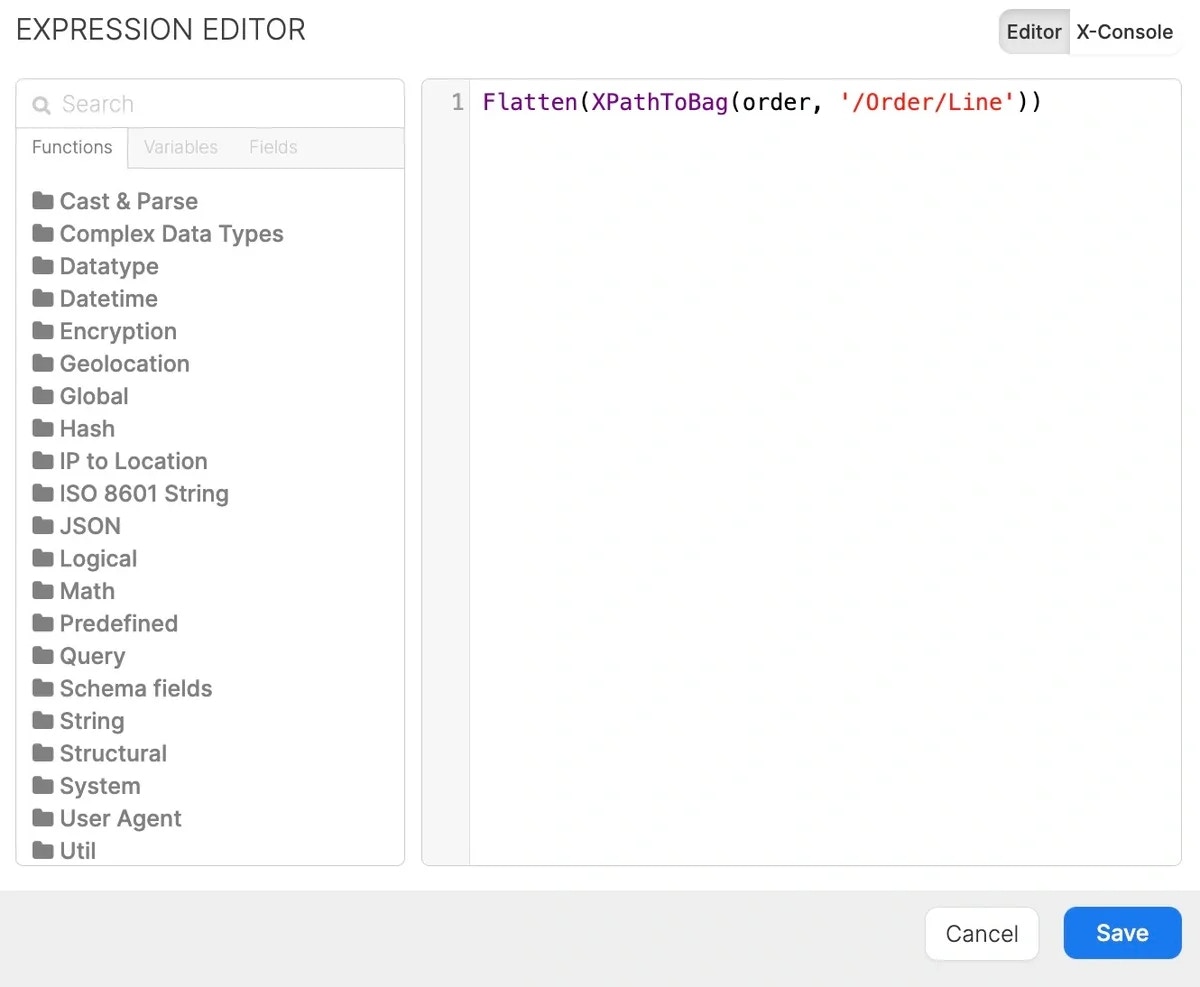
Yes, we can see that there are other tags nested within Line (for example, BroadcastDateTime is nested within Line) and there are two Line objects in the first Order object and three Line objects within the second Order object. Since Line also repeats, we need to follow the same steps we did with Order. Add another Select component to the pipeline, click Autofill to bring in the field from your previous component, and then open the Expression Editor again. We will write a very similar expression except that our XPath now begins at Order which is the parent to Line:
-
Identify the next child tag nested within Line. In our example, the first one is BroadcastDateTime. Line is the parent to BroadcastDateTime. Are there other tags nested within BroadcastDateTime?
No, the only thing between the opening and closing BroadcastDateTime tags is the content. Since there are no more nested, repeating tags within Line we move on to parse the non-nested tags using the XPath function. The XPathToBag function is used with tags that contain nested tags; the XPath function is used for tags that only contain scalar values.
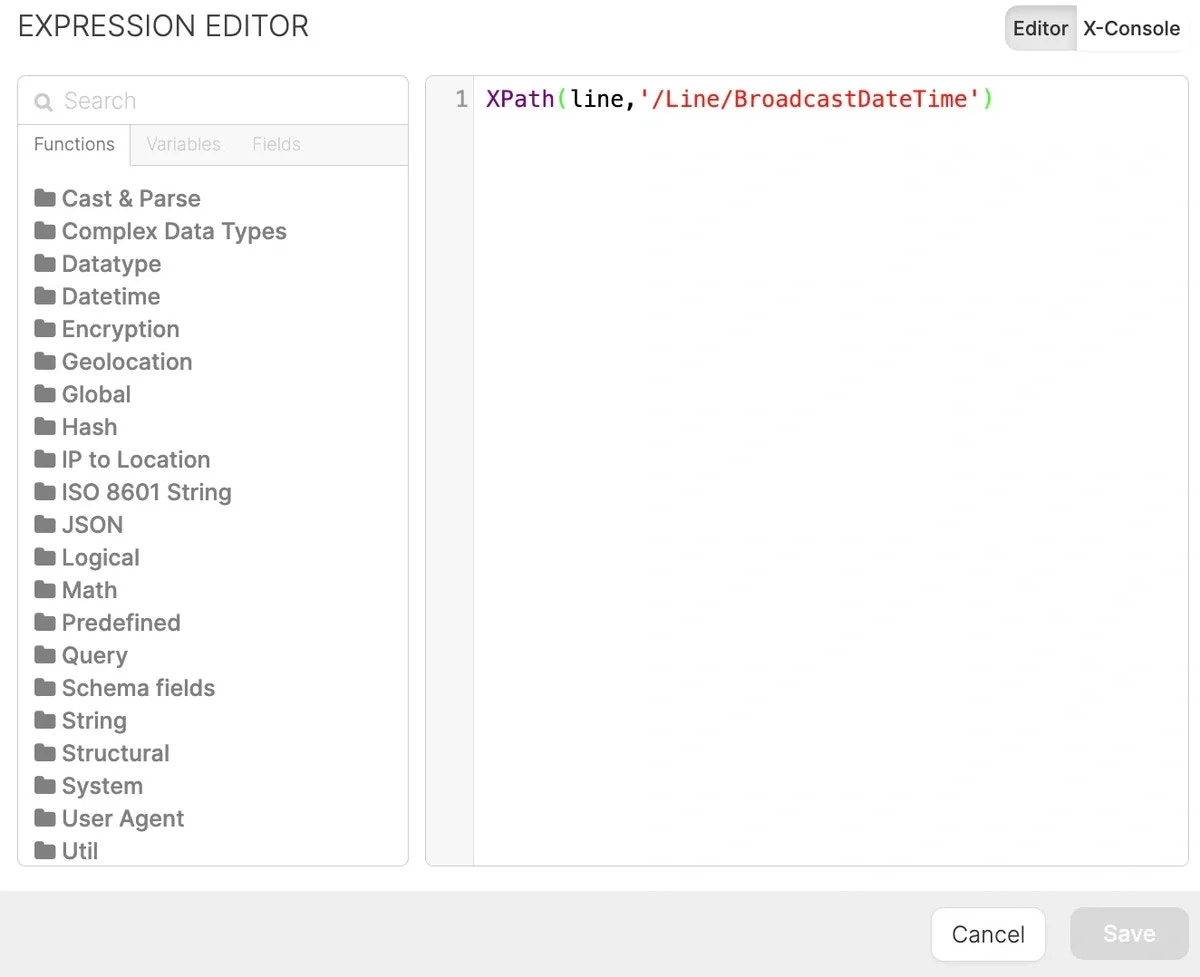
Add another Select component to the pipeline, click Autofill to bring in the field from your previous component, and then open the Expression Editor again. Our XPath will begin at Line which is the parent to BroadcastDateTime:
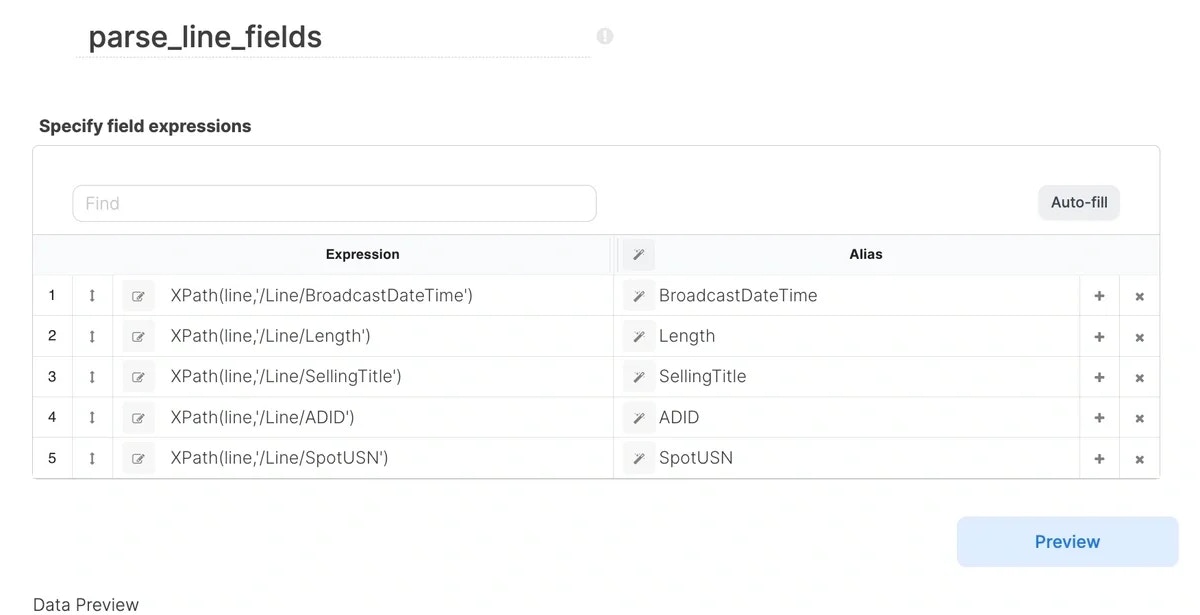
Repeat this process for each of the sub-child tags that you want to parse into its own column:
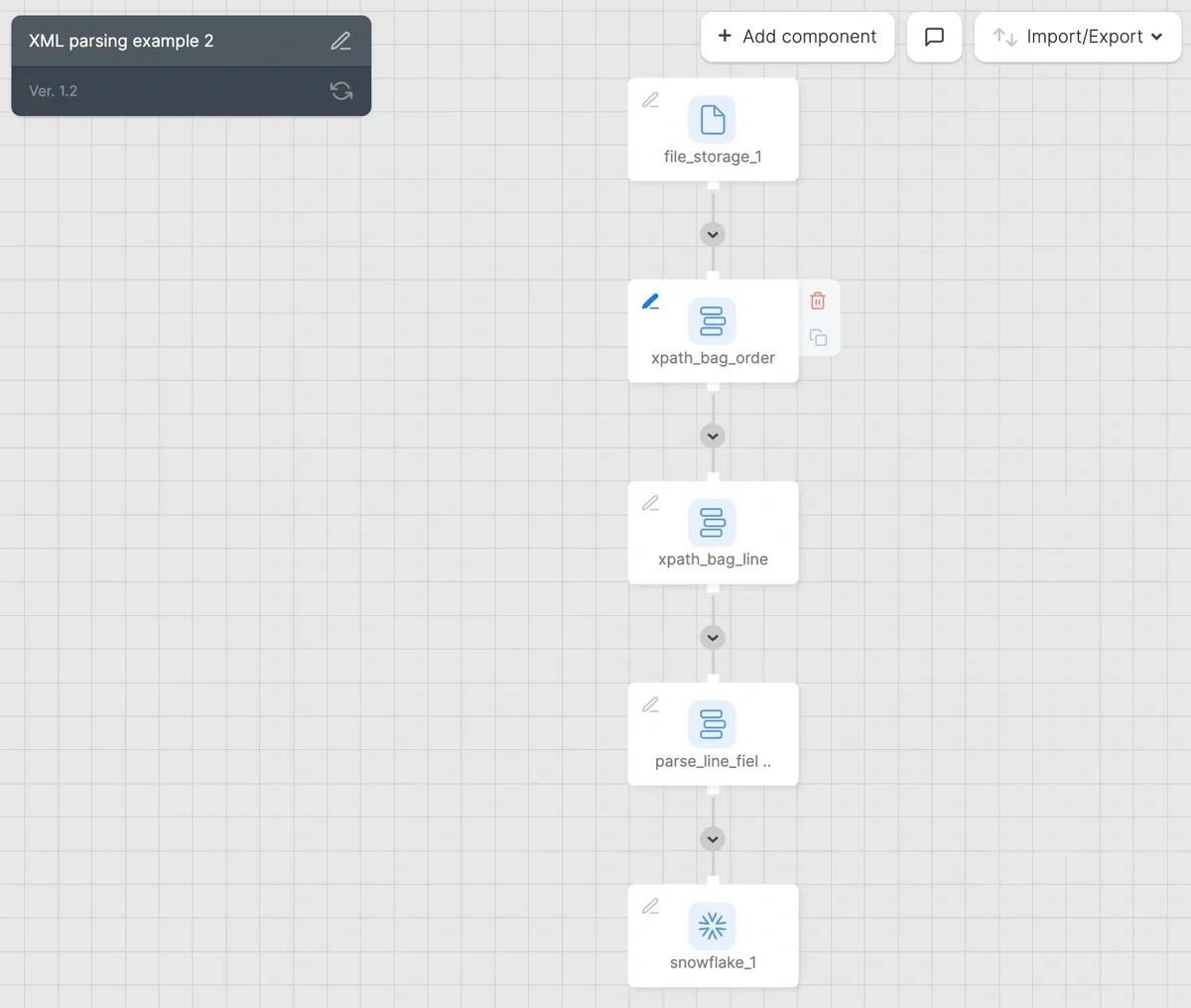
Finished Pipeline:
Each step where you Flatten a bag needs to have its own Select component. You won’t have access to that transformed data until after the component executes. Thus, there are five components in our pipeline. First, we extract the file. Second, we Flatten the Order in the xpath_bag_order component. Third, we Flatten the Line in the xpath_bag_line component. Fourth, we parse the Line fields in the parse_line_field component. Finally, we write the data to Snowflake.
Gotchas
- In order to access the attribute within a tag use the @ syntax. In our example, the Order tag has three attributes:
<Order WON_Order_Number="67400" External_ID="1017675" Network_Code="A&E">
To extract those attributes, follow these steps:
- If the file is very large, the data preview will not load and the component will give you the error message: Could not process request. However, when the job runs it will still process the entire file without problem.
- When defining the XPath, follow this syntax: ‘/tag/tag … ’ Always start with an opening slash. Each tag in the XPath needs to be preceded by a slash.
Last modified on October 5, 2026