

To create a Marketing Cloud (SOAP) connection in Integrate.io ETL
1
Click the Connections icon (lightning bolt) on the top left menu.
2
To create a connection, click New connection.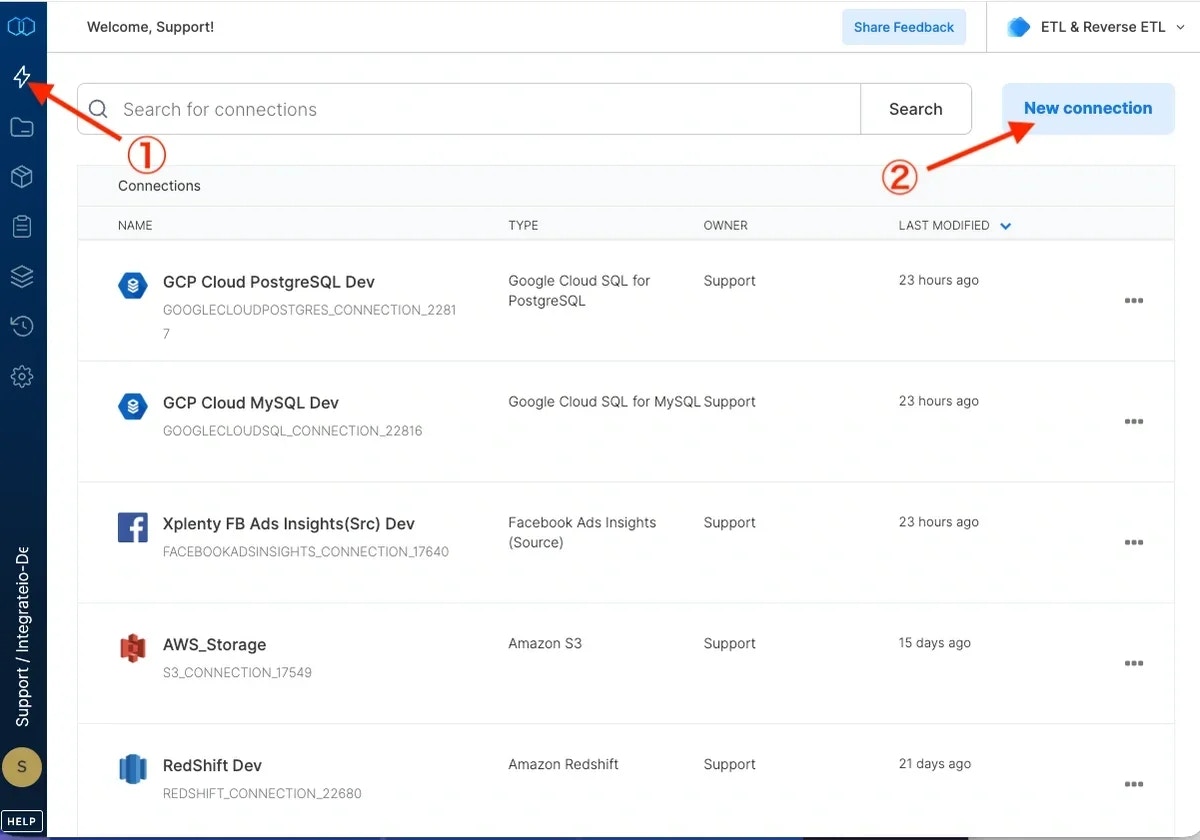
3
Select Marketing Cloud (SOAP).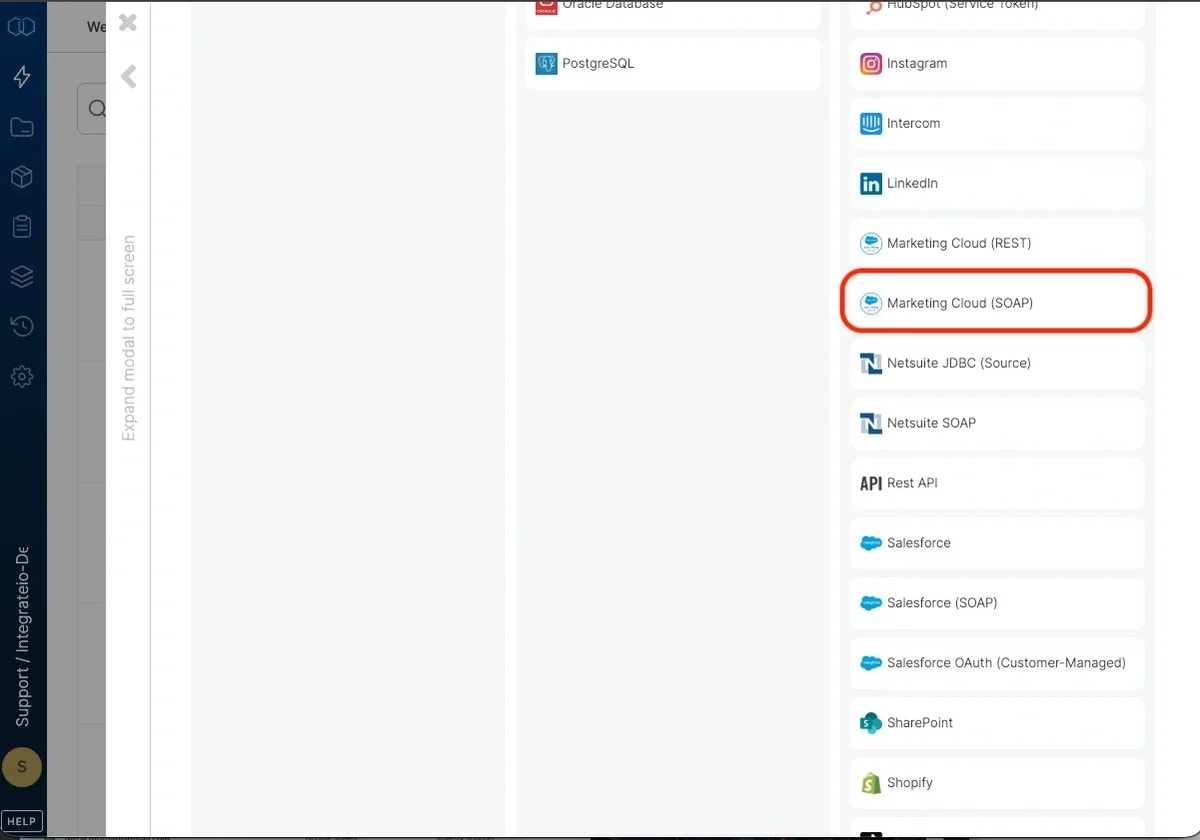
4
In the new Marketing Cloud (SOAP) connection window, name the connection and enter the connection information, then click Create connection.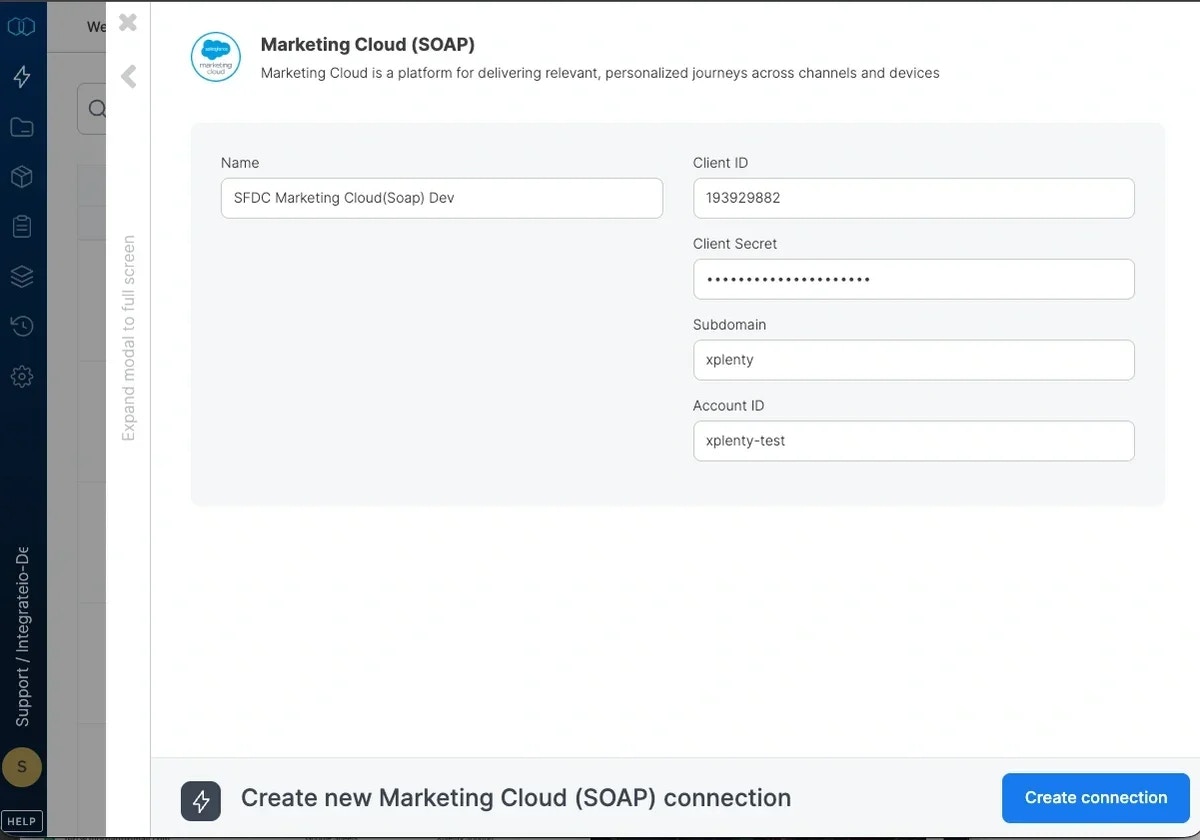
- Name - Name of the new connection
- Client ID - Your Marketing Cloud Client ID
- Client Secret - Your Marketing Cloud Client Secret
- Subdomain - Your Marketing Cloud Subdomain
- Account ID - Your Marketing Cloud Account ID
To modify a Marketing Cloud (SOAP) connection in Integrate.io ETL
1
Click the Connections icon (lightning bolt) on the top left menu.
2
Click a connection to open and modify it.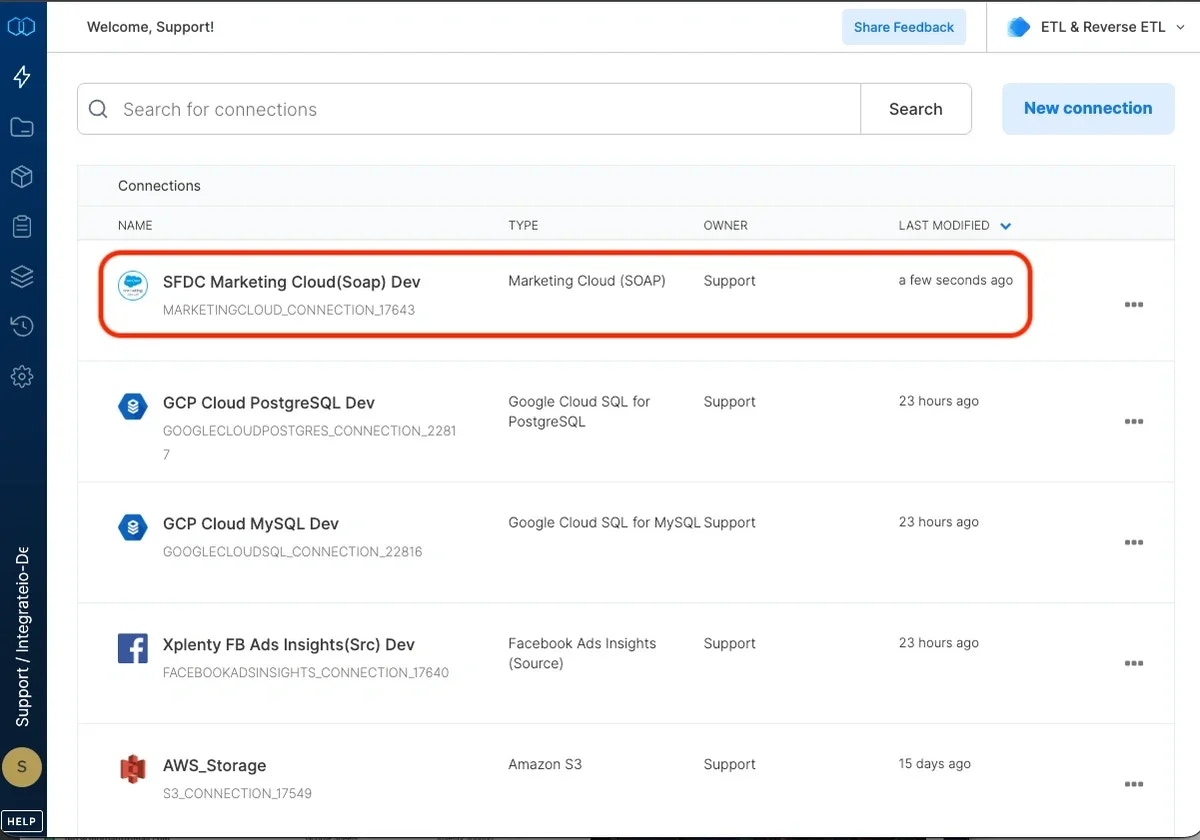
3
To delete a Marketing Cloud (SOAP) connection, click the three vertical dots on the far right of the connection listing and select the Delete connection option.