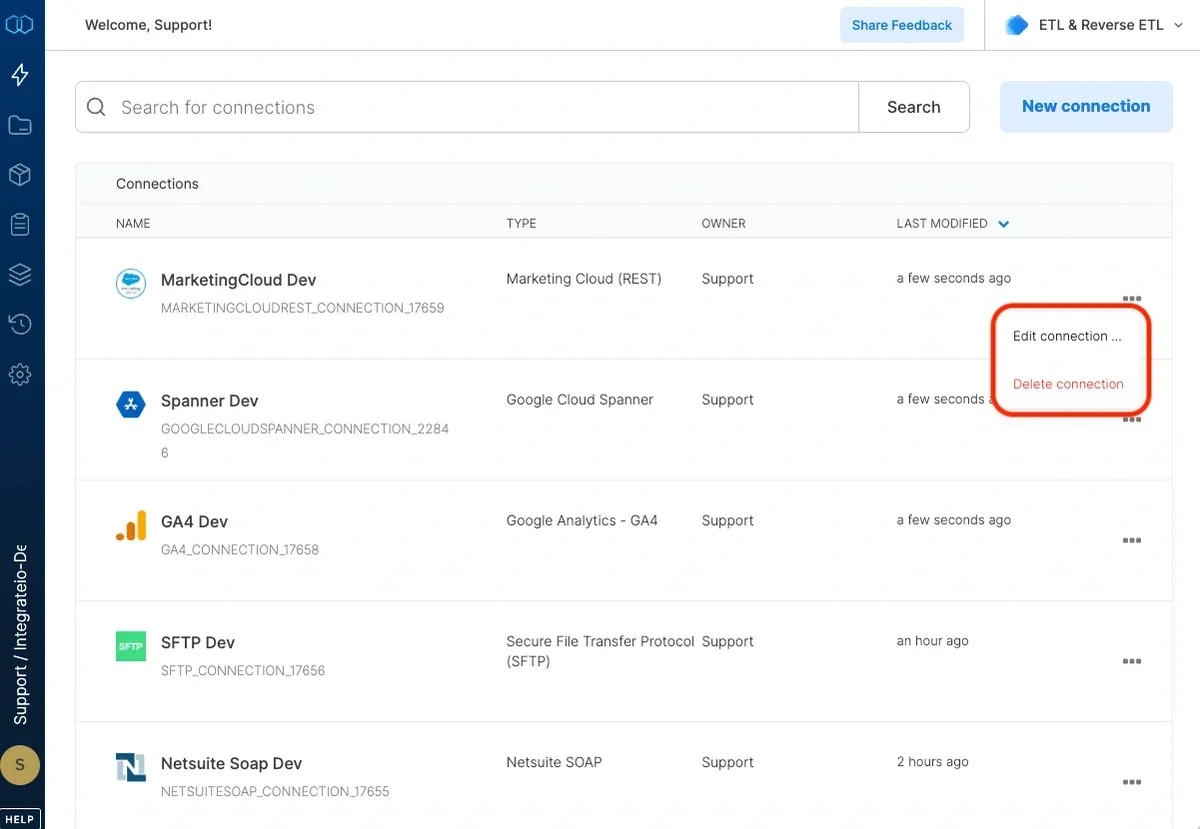
To define a connection in Integrate.io ETL to Marketing Cloud
1
Click the Connections icon (lightning bolt) on the top left menu.
2
To create a connection, click New connection.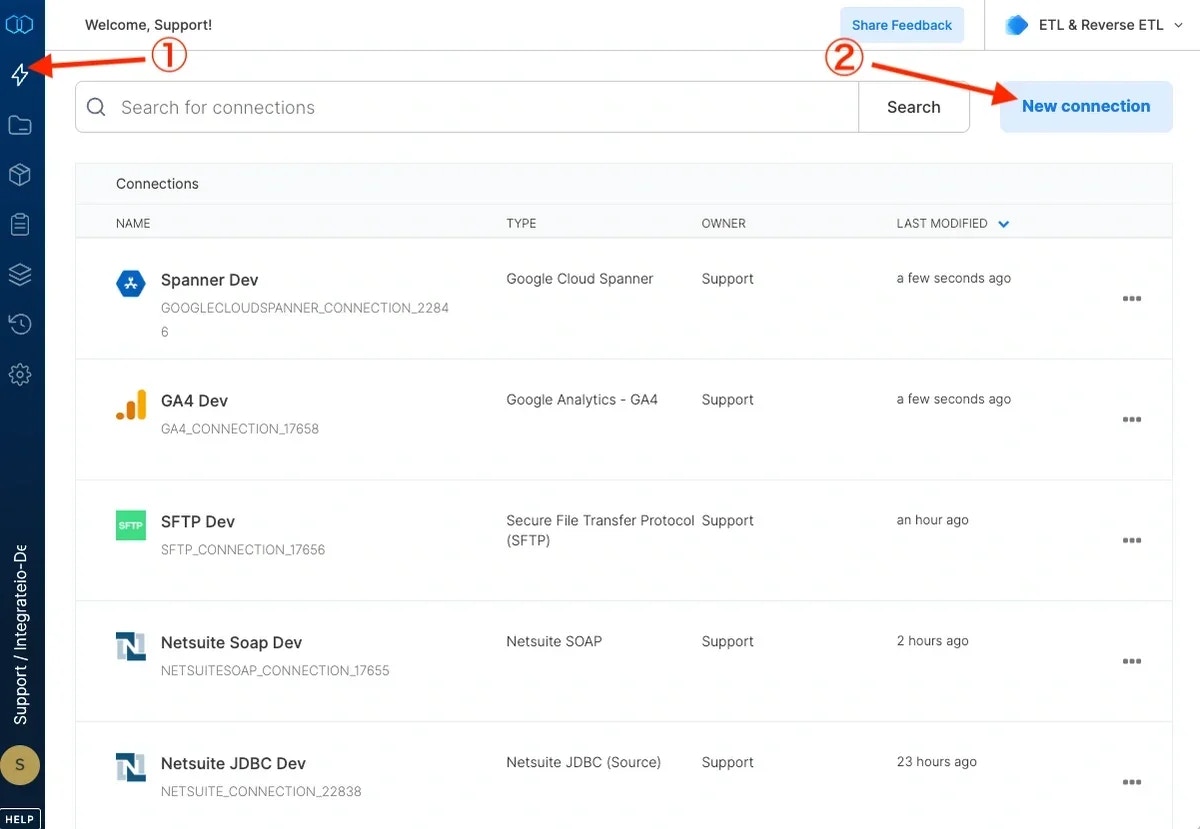
3
Select Marketing Cloud(REST) and name the connection.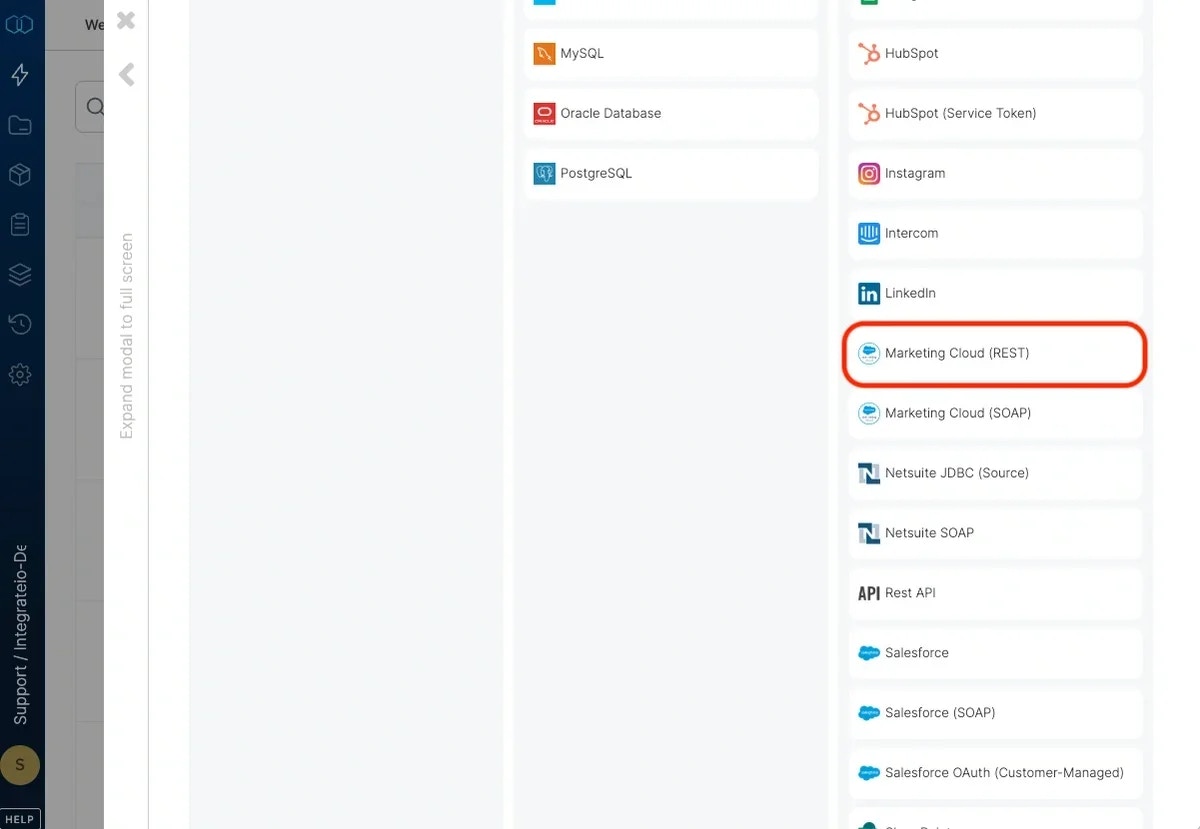
4
In the new Marketing Cloud connection window, name the connection and enter the connection information.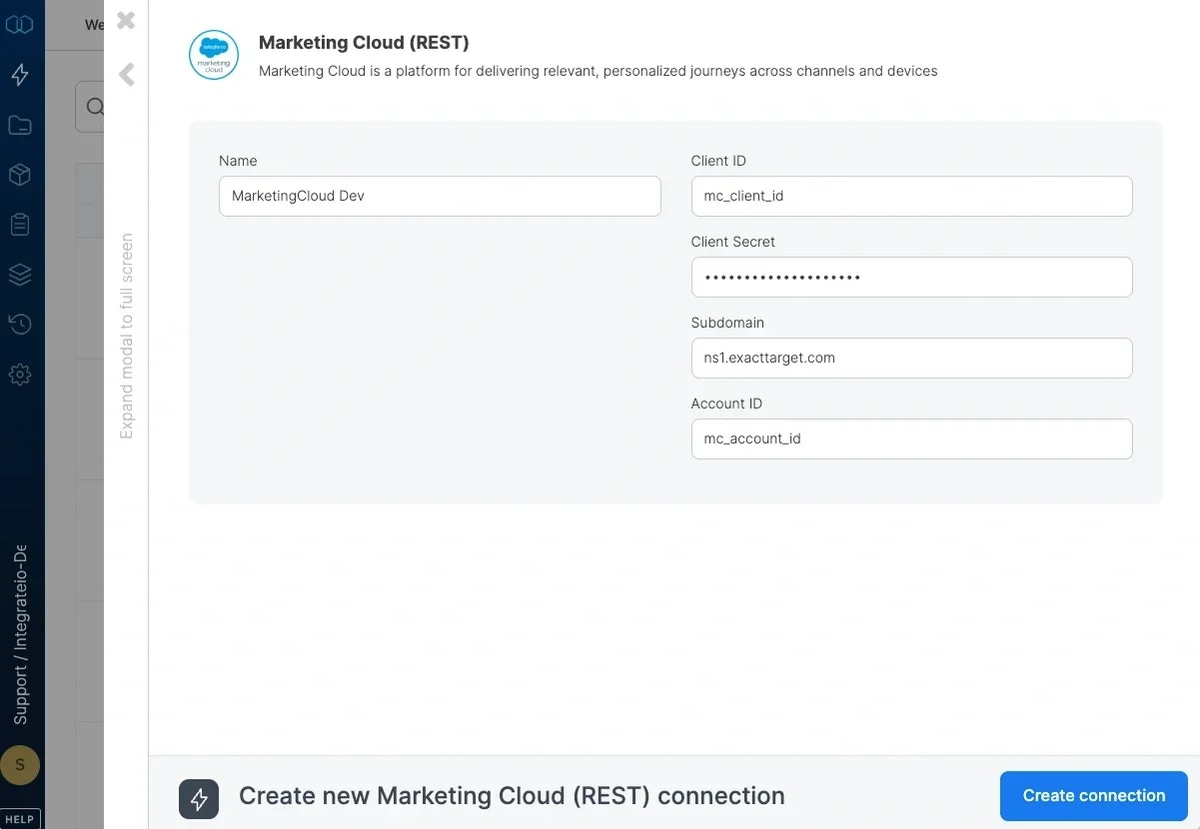
- Name - Name for the new connection
- Client ID - Your Marketing Cloud Client ID
- Client Secret - Your Marketing Cloud Client Secret
- Account ID - Your Marketing Cloud Account ID
5
Click Create Connection.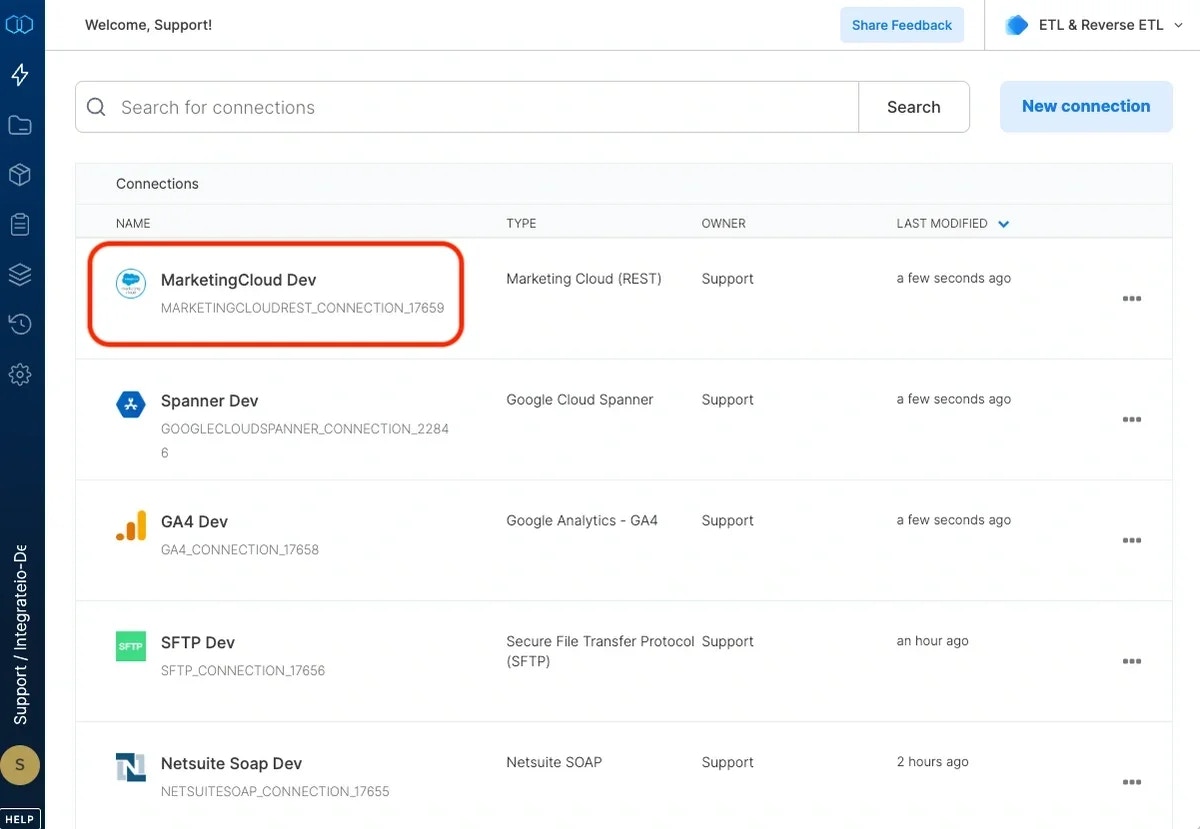
To modify a Marketing Cloud connection in Integrate.io ETL
1
Click the Connections icon (lightning bolt) on the top left menu.
2
Click a connection to open and modify it. Make any necessary changes, then click Test connection, and Save changes. To exit the Marketing Cloud connection window without changes, click Back to connections (grey tab on the left side) on the Marketing Cloud connection window.
3
To delete a Marketing Cloud connection, click the three vertical dots on the far right of the connection listing and select the Delete connection option.