> ## Documentation Index
> Fetch the complete documentation index at: https://www.integrate.io/docs/llms.txt
> Use this file to discover all available pages before exploring further.
# ETL: Union Transformation
> Use the Union transformation to merge records from two inputs with identical schemas into a single output stream in your ETL data pipeline.
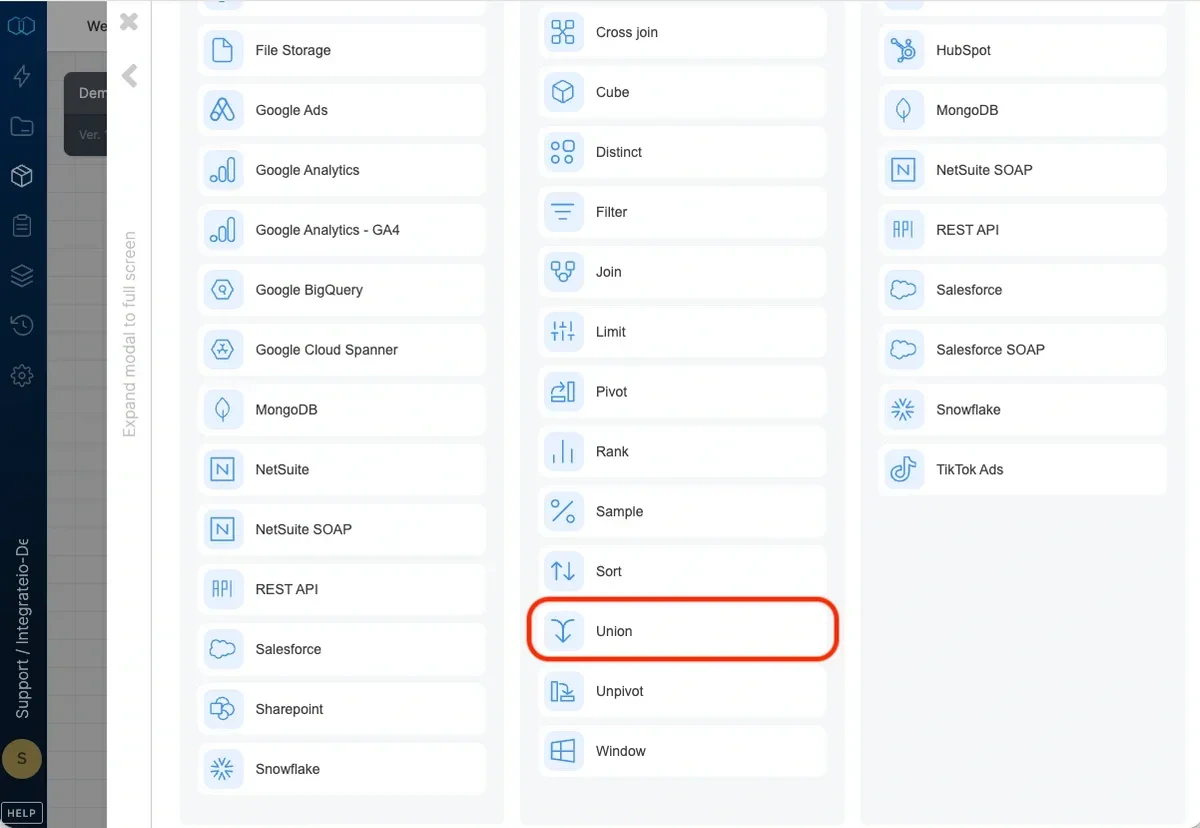 **Note:**
Union in Integrate.io ETL acts like Union all in SQL (will not remove duplicate rows)
## Union inputs
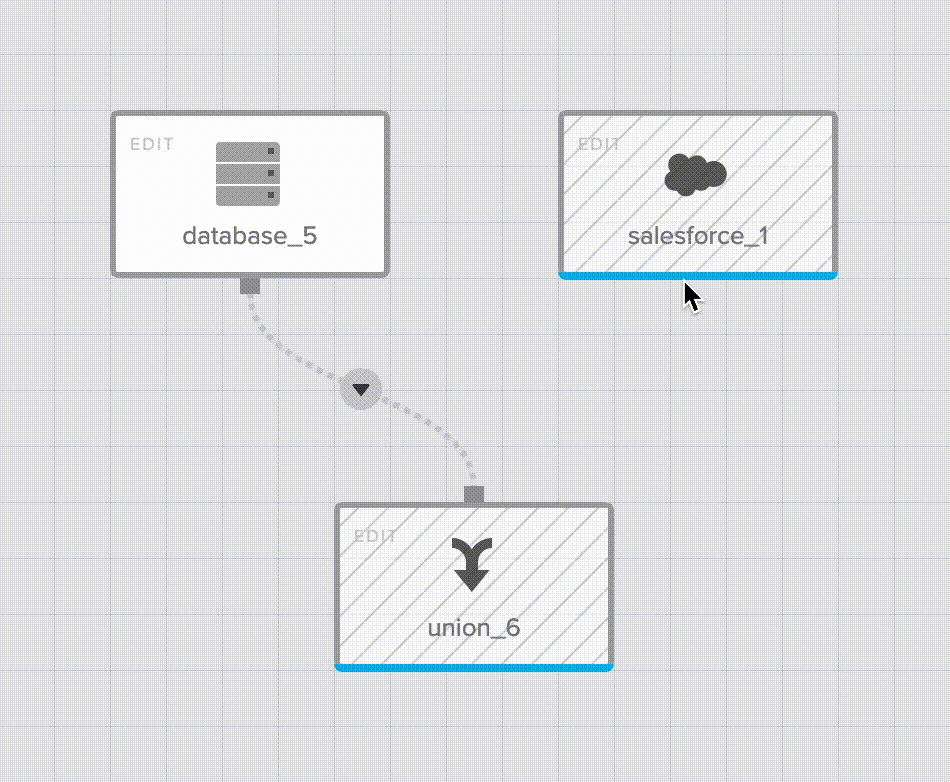
Select 2 inputs and drag and drop the component menu button onto the union component:
**Note:**
Union in Integrate.io ETL acts like Union all in SQL (will not remove duplicate rows)
## Union inputs
Select 2 inputs and drag and drop the component menu button onto the union component:
 Within the component you can define which input is the left input and which is the right input.
## Input field mapping
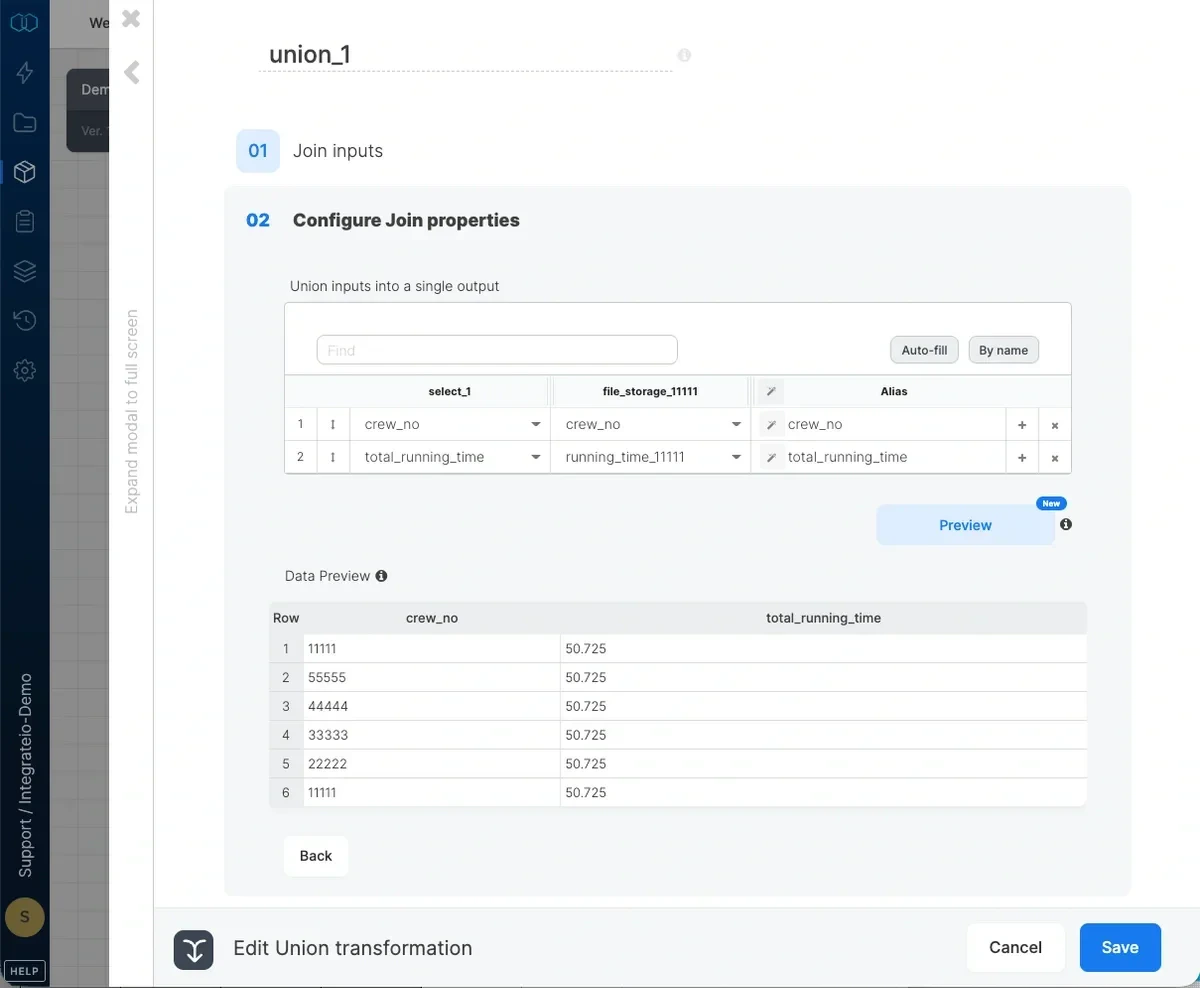
Map the pairs of fields from the two inputs into a single output field. You can auto-fill the list by order of fields in the two inputs (Auto-fill by order) or by matching field names (Auto-fill by name). You can also manually pick pairs of fields from the two inputs.
Within the component you can define which input is the left input and which is the right input.
## Input field mapping
Map the pairs of fields from the two inputs into a single output field. You can auto-fill the list by order of fields in the two inputs (Auto-fill by order) or by matching field names (Auto-fill by name). You can also manually pick pairs of fields from the two inputs.
 ## Field data type compatibility
Each mapped pair must use compatible data types. The designer validates each row and flags any pair whose left and right fields resolve to incompatible types. The flagged row shows an amber indicator and a tooltip naming the field and both types, for example: `Field "amount" may not combine: Integer on "source_a" vs String on "source_b"`.
A Union component with an incompatible mapping cannot be saved until you resolve the mismatch. Either remap the row to fields with compatible types, or add a Select transformation upstream to cast one side to match the other.
Numeric widening is allowed (for example, `Integer` and `Long` are compatible), and `bytearray` is treated as compatible with any type. Rows are not flagged when one or both field types are unknown, so the check never blocks a Union the backend would accept.
## Field data type compatibility
Each mapped pair must use compatible data types. The designer validates each row and flags any pair whose left and right fields resolve to incompatible types. The flagged row shows an amber indicator and a tooltip naming the field and both types, for example: `Field "amount" may not combine: Integer on "source_a" vs String on "source_b"`.
A Union component with an incompatible mapping cannot be saved until you resolve the mismatch. Either remap the row to fields with compatible types, or add a Select transformation upstream to cast one side to match the other.
Numeric widening is allowed (for example, `Integer` and `Long` are compatible), and `bytearray` is treated as compatible with any type. Rows are not flagged when one or both field types are unknown, so the check never blocks a Union the backend would accept.