> ## Documentation Index
> Fetch the complete documentation index at: https://www.integrate.io/docs/llms.txt
> Use this file to discover all available pages before exploring further.
# ETL: HubSpot Source
> How to configure the HubSpot source component to read contacts, companies, deals, and custom objects in your Integrate.io ETL pipeline.
Use the HubSpot source component to read CRM records (contacts, companies, deals, line items, custom objects, and more) from your HubSpot account into your [Integrate.io](http://integrate.io/) ETL pipeline. The component reads through HubSpot's CRM v3 API and supports both full and incremental loads.
## Connection
Select an existing HubSpot connection or create a new one. The source works with either HubSpot connection type:
| Connection type | Authentication | Setup guide |
| :---------------------- | :--------------------------------------------------------------------------------------------------------------- | :----------------------------------------------------------------------------------------------------- |
| HubSpot OAuth | You authorize Integrate.io against your HubSpot account in a browser. Access tokens are refreshed automatically. | [Connecting to HubSpot](/docs/etl/allowing-integrateio-etl-access-to-hubspot) |
| HubSpot (Service Token) | You create a HubSpot Private App and paste its access token. | [Connecting to HubSpot (Service Token)](/docs/etl/allowing-integrateio-etl-access-to-hubspot-service-token) |
Whichever type you use, the HubSpot app or private app must be granted read scopes for every object you intend to read. A missing scope surfaces as a permission error when the component loads the object list or the field list, not when the connection is created.
## Source Properties
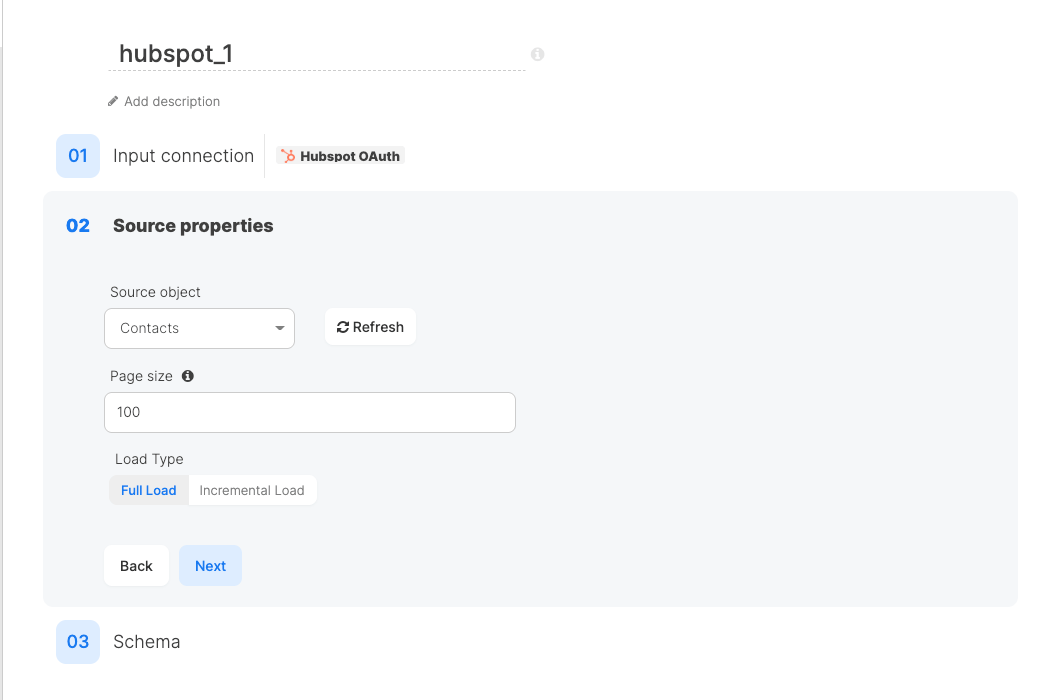
The source is configured in Step 02 of the component editor.
 ### Source object
Select the HubSpot object to read. The dropdown combines a fixed list of standard CRM objects with the custom objects discovered in your account:
| Object | Identifier |
| :--------------------- | :------------------ |
| Appointments | `0-421` |
| Carts | `carts` |
| Commerce Payments | `commerce_payments` |
| Commerce Subscriptions | `subscriptions` |
| Companies | `companies` |
| Contacts | `contacts` |
| Courses | `0-410` |
| Deals | `0-3` |
| Discounts | `discounts` |
| Fees | `fees` |
| Invoices | `invoices` |
| Leads | `leads` |
| Line Items | `line_items` |
| Listings | `0-420` |
| Orders | `orders` |
| Products | `products` |
| Quotes | `quotes` |
Custom objects are read from your account's own schema definitions and appear in the same dropdown under their HubSpot label, so no extra configuration is needed to pipe a custom object.
Click **Refresh** next to the dropdown to reload the object list, for example after creating a custom object in HubSpot or after widening the scopes on your private app.
The standard object list is a fixed catalog, not a reflection of what your portal has enabled. An object tied to a HubSpot feature you do not own (Commerce Payments or Courses, for instance) still appears in the dropdown but fails at field discovery time. Custom objects, by contrast, are always discovered live from your account.
### Page size
The number of records requested per API call. Defaults to `100`.
Accepts a number or a [package variable](/docs/etl/using-and-setting-variables-in-your-packages) (any value beginning with `$`). Anything else is rejected with the message *Value can only be a number or variable*.
Lower the page size if a job on a wide object times out. HubSpot returns every selected property for every record in the page, so a contacts object with several hundred properties produces a large response per call. Raising the page size reduces the number of API calls but increases per-call response size and the chance of a timeout.
HubSpot enforces its own maximum page size per endpoint and rejects requests above it. If a job fails with a validation error naming the `limit` parameter, lower the page size.
### Load Type
Select how records are read on each pipeline run:
* **Full Load.** Reads every record of the selected object on every run.
* **Incremental Load.** Reads only records whose sync date field falls on the chosen side of a reference date.
The two modes use different HubSpot endpoints, which has practical consequences. See [Full Load vs Incremental Load](#full-load-vs-incremental-load) below.
**Incremental Load** is only selectable once the component has discovered a usable date field on the object. If the option is unavailable, the selected object does not expose `hs_lastmodifieddate`.
### Incremental Load Settings
Selecting **Incremental Load** reveals three more fields.
### Source object
Select the HubSpot object to read. The dropdown combines a fixed list of standard CRM objects with the custom objects discovered in your account:
| Object | Identifier |
| :--------------------- | :------------------ |
| Appointments | `0-421` |
| Carts | `carts` |
| Commerce Payments | `commerce_payments` |
| Commerce Subscriptions | `subscriptions` |
| Companies | `companies` |
| Contacts | `contacts` |
| Courses | `0-410` |
| Deals | `0-3` |
| Discounts | `discounts` |
| Fees | `fees` |
| Invoices | `invoices` |
| Leads | `leads` |
| Line Items | `line_items` |
| Listings | `0-420` |
| Orders | `orders` |
| Products | `products` |
| Quotes | `quotes` |
Custom objects are read from your account's own schema definitions and appear in the same dropdown under their HubSpot label, so no extra configuration is needed to pipe a custom object.
Click **Refresh** next to the dropdown to reload the object list, for example after creating a custom object in HubSpot or after widening the scopes on your private app.
The standard object list is a fixed catalog, not a reflection of what your portal has enabled. An object tied to a HubSpot feature you do not own (Commerce Payments or Courses, for instance) still appears in the dropdown but fails at field discovery time. Custom objects, by contrast, are always discovered live from your account.
### Page size
The number of records requested per API call. Defaults to `100`.
Accepts a number or a [package variable](/docs/etl/using-and-setting-variables-in-your-packages) (any value beginning with `$`). Anything else is rejected with the message *Value can only be a number or variable*.
Lower the page size if a job on a wide object times out. HubSpot returns every selected property for every record in the page, so a contacts object with several hundred properties produces a large response per call. Raising the page size reduces the number of API calls but increases per-call response size and the chance of a timeout.
HubSpot enforces its own maximum page size per endpoint and rejects requests above it. If a job fails with a validation error naming the `limit` parameter, lower the page size.
### Load Type
Select how records are read on each pipeline run:
* **Full Load.** Reads every record of the selected object on every run.
* **Incremental Load.** Reads only records whose sync date field falls on the chosen side of a reference date.
The two modes use different HubSpot endpoints, which has practical consequences. See [Full Load vs Incremental Load](#full-load-vs-incremental-load) below.
**Incremental Load** is only selectable once the component has discovered a usable date field on the object. If the option is unavailable, the selected object does not expose `hs_lastmodifieddate`.
### Incremental Load Settings
Selecting **Incremental Load** reveals three more fields.
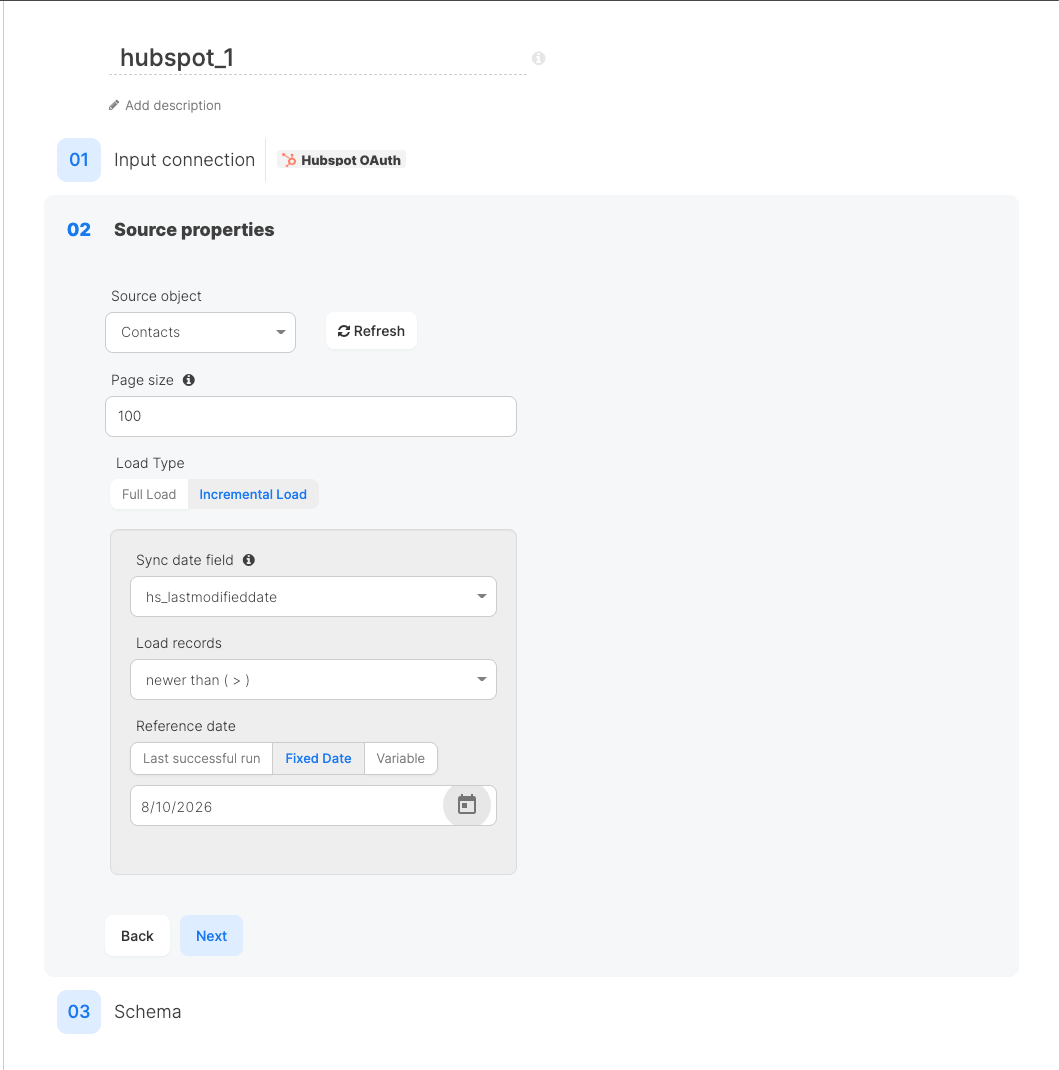 **Sync date field.** The date property used to filter records. For HubSpot this is always `hs_lastmodifieddate`, HubSpot's own last-modified timestamp. The component deliberately offers only this property, so the dropdown has a single option. Because the filter is on last-modified rather than created time, incremental runs pick up **both new and edited records**.
**Load records.** The filter direction relative to the reference date:
| Option | Meaning |
| :----------------- | :-------------------------------------------------- |
| `newer than ( > )` | Records modified on or after the reference date |
| `older than ( < )` | Records modified strictly before the reference date |
Despite the `>` in the label, **`newer than` is inclusive**. It maps to HubSpot's `GTE` (greater-than-or-equal) operator, while `older than` maps to the exclusive `LT`. A record whose `hs_lastmodifieddate` exactly equals the reference date is therefore included by `newer than`, so it can be read again on the following run. Deduplicate on `hs_object_id` in your destination if repeated boundary records are a problem.
**Reference date.** Where the comparison date comes from:
* **Last successful run.** Fills the date from the `$_PACKAGE_LAST_SUCCESSFUL_JOB_SUBMISSION_TIMESTAMP` system variable, so each scheduled run reads only what changed since the previous successful run was submitted. Recommended for scheduled pipelines.
* **Fixed Date.** A specific calendar date, chosen from a date picker. Use it for a one-off backfill.
* **Variable.** A package variable, for cases where the window is driven by something other than the last successful run.
On the very first run of a pipeline there is no previous successful job, so `$_PACKAGE_LAST_SUCCESSFUL_JOB_SUBMISSION_TIMESTAMP` has no value to resolve to. Seed the destination with one Full Load run (or an explicit **Fixed Date** backfill) before switching to **Last successful run**, rather than assuming the first incremental run loads history.
## Full Load vs Incremental Load
The two load types call different HubSpot endpoints, and the difference matters for large objects:
| | Full Load | Incremental Load |
| :--------------- | :------------------------------------- | :----------------------------------------------- |
| HubSpot endpoint | `GET /crm/v3/objects/{object}` (list) | `POST /crm/v3/objects/{object}/search` |
| Filtering | None, reads the whole object | `hs_lastmodifieddate` filter applied server-side |
| Pagination | Cursor-based, followed until exhausted | Cursor-based, followed until exhausted |
| Record ceiling | None | Subject to HubSpot's Search API result cap |
HubSpot's Search API caps how many results a single search can page through (10,000 at the time of writing), and the list endpoint used by Full Load is not subject to that cap. An incremental run whose window matches more records than the cap will not return all of them, and the job still completes successfully, so a large backfill done as one incremental run can silently come up short.
Keep incremental windows small enough to stay under the cap: run the initial history load as a **Full Load**, then switch to **Incremental Load** with **Last successful run** and schedule it often enough that each run's changes stay well below the ceiling. To backfill a large history incrementally instead, split it into several runs with narrower **Fixed Date** windows.
## Select Input Fields
Step 03 lists the properties discovered on the selected object. Choose the columns to bring into the pipeline, optionally rename them with aliases, and override the detected data type where needed. **Data Preview** shows sample rows for the selected fields.
**Sync date field.** The date property used to filter records. For HubSpot this is always `hs_lastmodifieddate`, HubSpot's own last-modified timestamp. The component deliberately offers only this property, so the dropdown has a single option. Because the filter is on last-modified rather than created time, incremental runs pick up **both new and edited records**.
**Load records.** The filter direction relative to the reference date:
| Option | Meaning |
| :----------------- | :-------------------------------------------------- |
| `newer than ( > )` | Records modified on or after the reference date |
| `older than ( < )` | Records modified strictly before the reference date |
Despite the `>` in the label, **`newer than` is inclusive**. It maps to HubSpot's `GTE` (greater-than-or-equal) operator, while `older than` maps to the exclusive `LT`. A record whose `hs_lastmodifieddate` exactly equals the reference date is therefore included by `newer than`, so it can be read again on the following run. Deduplicate on `hs_object_id` in your destination if repeated boundary records are a problem.
**Reference date.** Where the comparison date comes from:
* **Last successful run.** Fills the date from the `$_PACKAGE_LAST_SUCCESSFUL_JOB_SUBMISSION_TIMESTAMP` system variable, so each scheduled run reads only what changed since the previous successful run was submitted. Recommended for scheduled pipelines.
* **Fixed Date.** A specific calendar date, chosen from a date picker. Use it for a one-off backfill.
* **Variable.** A package variable, for cases where the window is driven by something other than the last successful run.
On the very first run of a pipeline there is no previous successful job, so `$_PACKAGE_LAST_SUCCESSFUL_JOB_SUBMISSION_TIMESTAMP` has no value to resolve to. Seed the destination with one Full Load run (or an explicit **Fixed Date** backfill) before switching to **Last successful run**, rather than assuming the first incremental run loads history.
## Full Load vs Incremental Load
The two load types call different HubSpot endpoints, and the difference matters for large objects:
| | Full Load | Incremental Load |
| :--------------- | :------------------------------------- | :----------------------------------------------- |
| HubSpot endpoint | `GET /crm/v3/objects/{object}` (list) | `POST /crm/v3/objects/{object}/search` |
| Filtering | None, reads the whole object | `hs_lastmodifieddate` filter applied server-side |
| Pagination | Cursor-based, followed until exhausted | Cursor-based, followed until exhausted |
| Record ceiling | None | Subject to HubSpot's Search API result cap |
HubSpot's Search API caps how many results a single search can page through (10,000 at the time of writing), and the list endpoint used by Full Load is not subject to that cap. An incremental run whose window matches more records than the cap will not return all of them, and the job still completes successfully, so a large backfill done as one incremental run can silently come up short.
Keep incremental windows small enough to stay under the cap: run the initial history load as a **Full Load**, then switch to **Incremental Load** with **Last successful run** and schedule it often enough that each run's changes stay well below the ceiling. To backfill a large history incrementally instead, split it into several runs with narrower **Fixed Date** windows.
## Select Input Fields
Step 03 lists the properties discovered on the selected object. Choose the columns to bring into the pipeline, optionally rename them with aliases, and override the detected data type where needed. **Data Preview** shows sample rows for the selected fields.
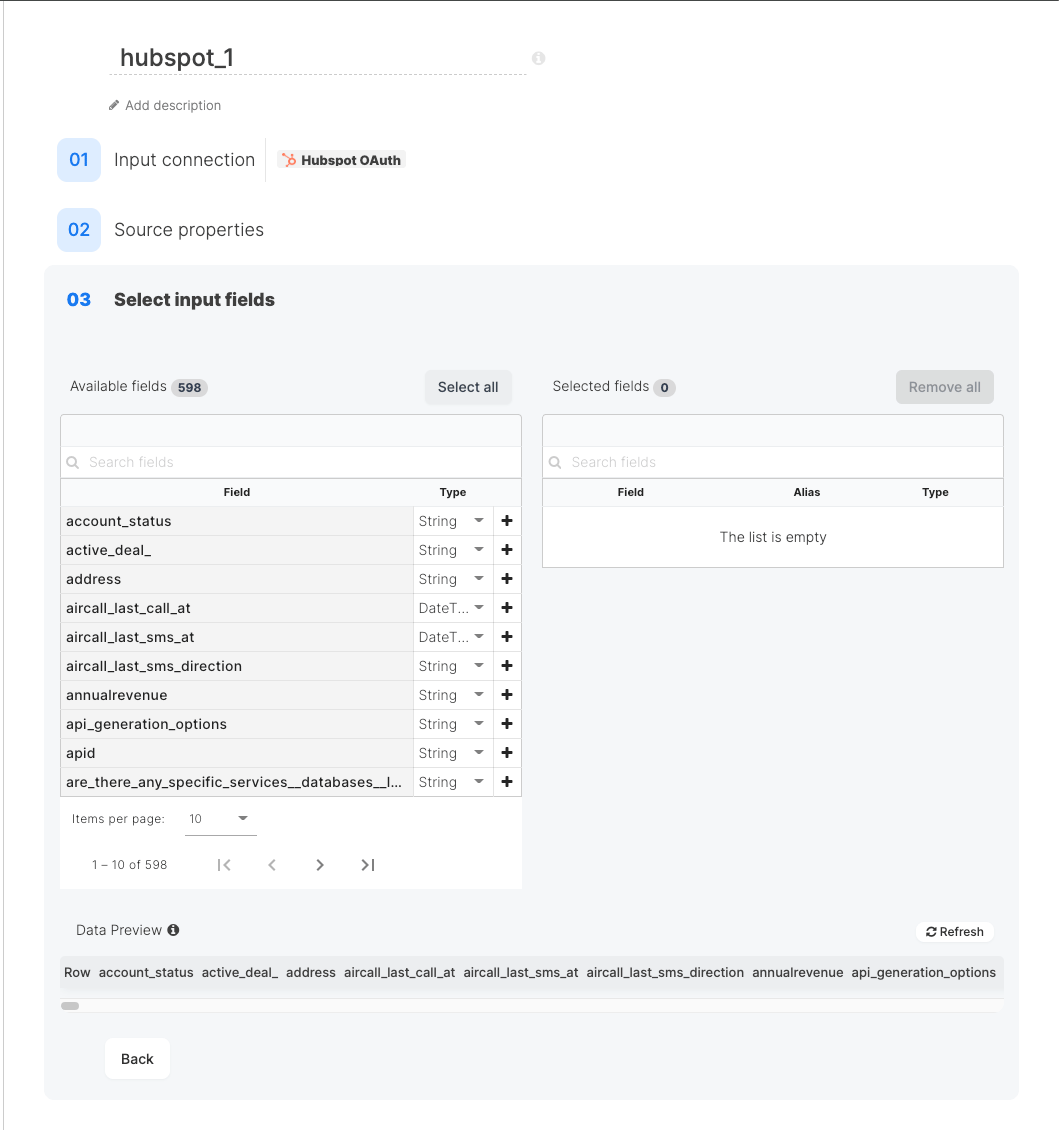 The field list can be long. HubSpot portals commonly have several hundred properties on `contacts` once custom properties are counted. Only the fields you select are requested from HubSpot at run time, so selecting just the columns you need reduces response size and makes jobs faster and less prone to timeouts.
Properties that HubSpot marks as **sensitive** and **highly sensitive** are included in the field list alongside standard properties. Confirm your private app or OAuth app is scoped for them, and be deliberate about selecting them into a pipeline.
### Data type mapping
Detected HubSpot property types map to Integrate.io types as follows:
| HubSpot property type | Integrate.io type |
| :-------------------- | :---------------- |
| `string` | string |
| `enumeration` | string |
| `bool` | boolean |
| `number` | double |
| `date` | datetime |
| `datetime` | datetime |
Any type not listed falls back to string.
**ID properties are mapped to string, not double.** HubSpot reports record IDs as `number`, but IEEE-754 doubles cannot represent integers above 2^53 exactly and render large values in scientific notation, which corrupts IDs. Properties named `id`, `hs_object_id`, `associatedcompanyid`, or anything ending in `_id` are therefore typed as string to preserve the exact value. Keep them as string when using them as a key in a downstream destination.
## Rate Limits and Token Refresh
The component handles HubSpot's API limits without configuration:
* **Rate limiting.** A rate-limited response is retried up to 5 times with exponential backoff (1s, 2s, 4s, 8s, 16s). Only after those retries are exhausted does the job fail with a rate limit error.
* **Token expiry.** On an OAuth connection, an expired access token is refreshed automatically and the request is retried once, so long-running jobs do not fail at the token lifetime boundary.
## Best Practices
* **Select only the fields you need.** This is the single biggest lever on job duration for HubSpot, because every selected property is requested for every record in every page.
* **Full Load first, then incremental.** Seed the destination with a Full Load, then switch to **Incremental Load** with **Last successful run**. This avoids both the empty first run trap and the Search API ceiling on large backfills.
* **Deduplicate on `hs_object_id`.** Because `newer than` is inclusive, boundary records can appear on consecutive runs. An upsert keyed on `hs_object_id` makes reruns idempotent.
* **Lower the page size on timeouts** before assuming the object is too large. Wide objects often just need smaller pages.
* **Restart clusters after changing the connection.** Connection settings are applied when a cluster starts, so jobs on an already-running cluster keep the previous settings until it is restarted.
## FAQ
**Q: Why is `hs_lastmodifieddate` the only option for the sync date field?**
The component restricts the sync field to HubSpot's own last-modified timestamp so incremental runs reliably capture both new and updated records. Filtering on other date properties (custom date fields, `createdate`) is not currently offered.
**Q: Why is Incremental Load greyed out?**
The option becomes available only after the component discovers `hs_lastmodifieddate` on the selected object. If it stays unavailable, the object does not expose that property. Click **Refresh**, and confirm your app has read scope on the object so field discovery can complete.
**Q: My incremental run returned fewer records than I expected. Why?**
Most likely the run hit HubSpot's Search API result cap. See [Full Load vs Incremental Load](#full-load-vs-incremental-load). The job succeeds rather than failing, so a short result on a wide window is the symptom to look for. Narrow the window or use a Full Load.
**Q: I created a custom object in HubSpot but it is not in the dropdown.**
Click **Refresh** next to **Source object** to re-read the object list. If it still does not appear, the connection's app is missing the read scope for that custom object.
**Q: Can I filter or query records with a WHERE clause?**
No. The HubSpot source reads whole objects, optionally narrowed by the incremental `hs_lastmodifieddate` filter. Apply further filtering downstream with a [Filter transformation](/docs/etl/using-components-filter-transformation).
**Q: Why did my record IDs arrive as text?**
That is deliberate. See the note under [Data type mapping](#data-type-mapping). Large IDs cannot survive a double round trip intact, so ID properties are typed as string.
## Related
The field list can be long. HubSpot portals commonly have several hundred properties on `contacts` once custom properties are counted. Only the fields you select are requested from HubSpot at run time, so selecting just the columns you need reduces response size and makes jobs faster and less prone to timeouts.
Properties that HubSpot marks as **sensitive** and **highly sensitive** are included in the field list alongside standard properties. Confirm your private app or OAuth app is scoped for them, and be deliberate about selecting them into a pipeline.
### Data type mapping
Detected HubSpot property types map to Integrate.io types as follows:
| HubSpot property type | Integrate.io type |
| :-------------------- | :---------------- |
| `string` | string |
| `enumeration` | string |
| `bool` | boolean |
| `number` | double |
| `date` | datetime |
| `datetime` | datetime |
Any type not listed falls back to string.
**ID properties are mapped to string, not double.** HubSpot reports record IDs as `number`, but IEEE-754 doubles cannot represent integers above 2^53 exactly and render large values in scientific notation, which corrupts IDs. Properties named `id`, `hs_object_id`, `associatedcompanyid`, or anything ending in `_id` are therefore typed as string to preserve the exact value. Keep them as string when using them as a key in a downstream destination.
## Rate Limits and Token Refresh
The component handles HubSpot's API limits without configuration:
* **Rate limiting.** A rate-limited response is retried up to 5 times with exponential backoff (1s, 2s, 4s, 8s, 16s). Only after those retries are exhausted does the job fail with a rate limit error.
* **Token expiry.** On an OAuth connection, an expired access token is refreshed automatically and the request is retried once, so long-running jobs do not fail at the token lifetime boundary.
## Best Practices
* **Select only the fields you need.** This is the single biggest lever on job duration for HubSpot, because every selected property is requested for every record in every page.
* **Full Load first, then incremental.** Seed the destination with a Full Load, then switch to **Incremental Load** with **Last successful run**. This avoids both the empty first run trap and the Search API ceiling on large backfills.
* **Deduplicate on `hs_object_id`.** Because `newer than` is inclusive, boundary records can appear on consecutive runs. An upsert keyed on `hs_object_id` makes reruns idempotent.
* **Lower the page size on timeouts** before assuming the object is too large. Wide objects often just need smaller pages.
* **Restart clusters after changing the connection.** Connection settings are applied when a cluster starts, so jobs on an already-running cluster keep the previous settings until it is restarted.
## FAQ
**Q: Why is `hs_lastmodifieddate` the only option for the sync date field?**
The component restricts the sync field to HubSpot's own last-modified timestamp so incremental runs reliably capture both new and updated records. Filtering on other date properties (custom date fields, `createdate`) is not currently offered.
**Q: Why is Incremental Load greyed out?**
The option becomes available only after the component discovers `hs_lastmodifieddate` on the selected object. If it stays unavailable, the object does not expose that property. Click **Refresh**, and confirm your app has read scope on the object so field discovery can complete.
**Q: My incremental run returned fewer records than I expected. Why?**
Most likely the run hit HubSpot's Search API result cap. See [Full Load vs Incremental Load](#full-load-vs-incremental-load). The job succeeds rather than failing, so a short result on a wide window is the symptom to look for. Narrow the window or use a Full Load.
**Q: I created a custom object in HubSpot but it is not in the dropdown.**
Click **Refresh** next to **Source object** to re-read the object list. If it still does not appear, the connection's app is missing the read scope for that custom object.
**Q: Can I filter or query records with a WHERE clause?**
No. The HubSpot source reads whole objects, optionally narrowed by the incremental `hs_lastmodifieddate` filter. Apply further filtering downstream with a [Filter transformation](/docs/etl/using-components-filter-transformation).
**Q: Why did my record IDs arrive as text?**
That is deliberate. See the note under [Data type mapping](#data-type-mapping). Large IDs cannot survive a double round trip intact, so ID properties are typed as string.
## Related