> ## Documentation Index
> Fetch the complete documentation index at: https://www.integrate.io/docs/llms.txt
> Use this file to discover all available pages before exploring further.
# ETL: Gmail Source
> Configure the Gmail source component in Integrate.io ETL to read CSV or Excel attachments and email body content from a Gmail inbox into your pipelines.
Use the Google Mail (Gmail) source component to read CSV or Excel file attachments, or the email body itself, from a Gmail inbox and ingest them into your [Integrate.io](http://integrate.io/) ETL pipeline.
## Connection
Select an existing Google Mail (Gmail) connection or create a new one. For setup instructions, see **Allowing Integrate.io ETL access to my Google Mail (Gmail)**.
## Source Properties
The source component is configured in Step 02 of the component editor.
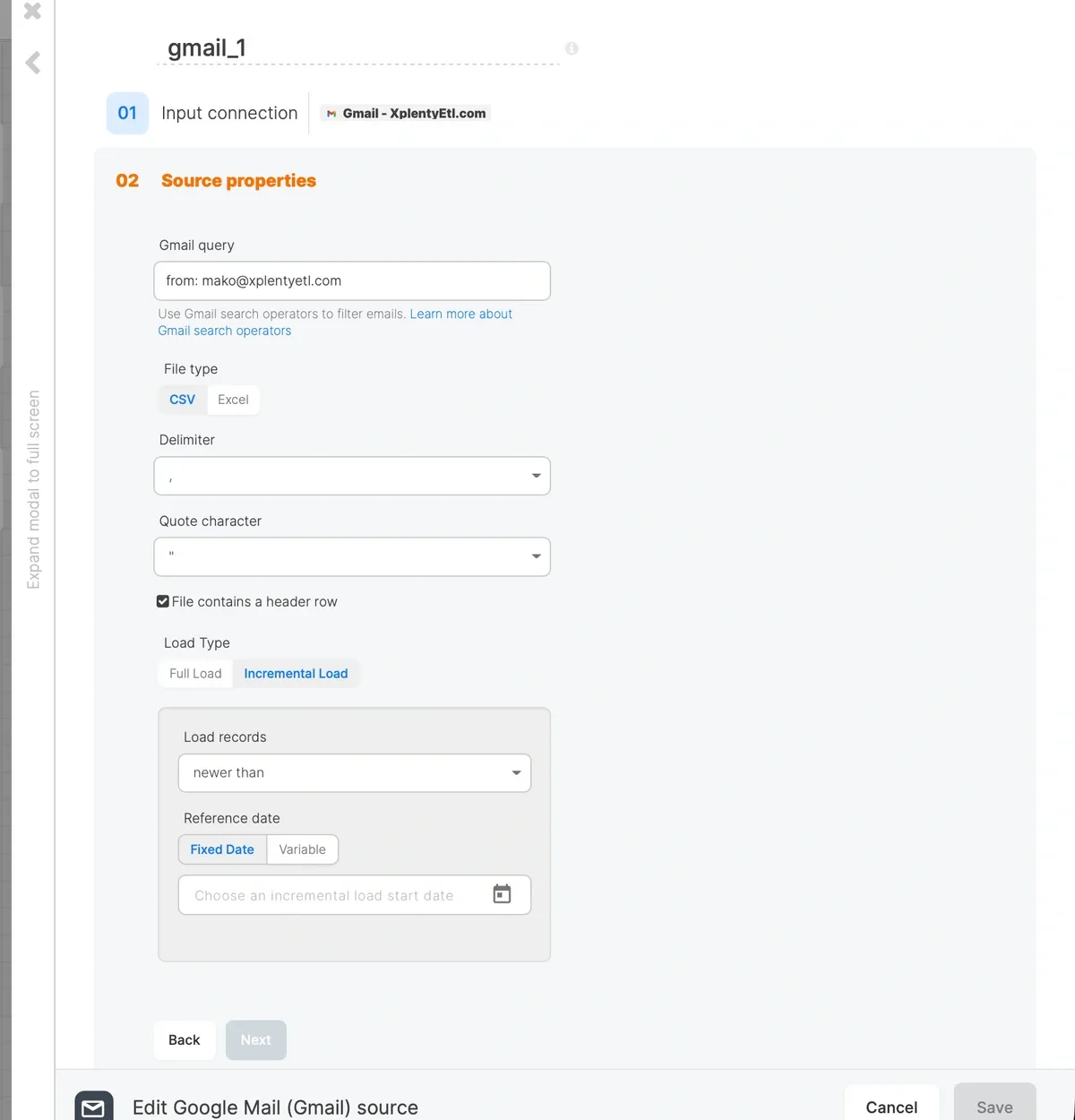 ### Gmail Query
Enter a Gmail search query to filter which emails are fetched. This field supports all standard [Gmail search operators](https://support.google.com/mail/answer/7190).
Examples:
* `from:supplier@example.com has:attachment filename:*.csv`: CSV attachments from a specific sender
* `from:@example.com has:attachment filename:*.csv`: CSV attachments from any sender at a domain
* `subject:"monthly report" has:attachment filename:*.csv`: Emails with a specific subject
* `{from:alice@example.com } has:attachment filename:*.csv`: OR logic across multiple senders
A space between operators means AND, so all conditions must match. Use `OR` (uppercase) or `{}` for OR logic between values of the same operator.
### Read From
Select what to extract from each matching email:
* **Attachments.** Read CSV or Excel attachments from matching emails. Each row in the file becomes a row in the pipeline, with email metadata appended as extra columns. This is the default.
* **Email body.** Read each matching email as a single row. The body, subject, sender, recipient, date, and message ID are exposed as columns. No attachment is required.
Use **Email body** when the data you need lives in the email text itself (for example, transactional notifications, form submissions, or system alerts that don't carry a file). Use **Attachments** when partners or systems send tabular data as CSV or Excel files.
### File Type
This option appears only when **Read From** is set to **Attachments**. Select the format of the attachment files to ingest:
* **CSV.** Comma-separated values
* **Excel.** `.xlsx` / `.xls` spreadsheet files
### Delimiter, Quote Character, and Header Row
These options appear only when **Read From** is set to **Attachments** and **File Type** is **CSV**.
* **Delimiter.** Character that separates fields in the CSV file.
* **Quote character.** Character used to quote field values.
* **File contains a header row.** Check this box if the first row of the file contains column headers. When enabled, the connector uses the header row to name the schema fields. This is checked by default.
### Load Type
Select how records are loaded on each pipeline run:
* **Full Load.** Fetches all emails matching the Gmail query on every run.
* **Incremental Load.** Fetches only emails received after a reference date. The connector appends an `after:YYYY/MM/DD` operator to your Gmail query at runtime so that only new emails are returned by the Gmail API, keeping API usage low and execution fast.
### Incremental Load Settings
When **Incremental Load** is selected, the following options appear:
**Load records.** Select the filter condition:
* `newer than ( > )`: Fetch emails received after the reference date.
**Reference date.** Choose the source of the date value:
* **Last successful run.** Track emails received since the last successful run of this pipeline. Selecting this option auto-fills `incremental_load_date` with the `$_PACKAGE_LAST_SUCCESSFUL_JOB_SUBMISSION_TIMESTAMP` system variable, so each scheduled run picks up only what arrived since the previous run finished. Recommended for scheduled pipelines.
* **Fixed Date.** Select a specific calendar date using the date picker. Use this for a one-time historical backfill.
* **Variable.** Use a custom package variable as the reference date. Select this when you need to drive the start date from a value other than the last successful run timestamp.
**Timezone note**: The Gmail `after:` operator interprets dates in **PST/PDT**, not UTC. If your variable is UTC-based, consider subtracting a 1-day buffer to avoid missing emails near the date boundary.
## Schema
After configuring the source properties, the **Schema** section (Step 03) displays the fields available in the pipeline. The columns depend on the **Read From** mode.
### Attachments Mode
Schema fields are derived from the header row of the first matching email attachment. In addition to the columns from the file itself, the connector appends the following metadata columns to every row:
| Column | Description | Example |
| -------------------- | ------------------------------------------- | --------------------------------------------------------- |
| email\_message\_id | Gmail message ID of the source email | 18d4f2e3a7b1c9d0 |
| email\_date | Date the email was received (ISO 8601, UTC) | 2026-03-10T14:30:00Z |
| attachment\_filename | Original filename of the attachment | sales\_report\_march.csv |
| email\_from | Sender email address | [supplier@example.com](mailto:supplier@example.com) |
| email\_to | Recipient email address | [reports@yourcompany.com](mailto:reports@yourcompany.com) |
| email\_subject | Subject line of the email | Monthly Sales Report |
| email\_body | Plain-text body of the email | Please find the report attached. |
These metadata columns let you trace each row back to its source email and file for deduplication and auditing downstream.
### Email Body Mode
Each matching email produces one row with the following columns:
| Column | Description | Example |
| ------------------ | ------------------------------------------- | ------------------------------------------------- |
| email\_message\_id | Gmail message ID of the source email | 18d4f2e3a7b1c9d0 |
| email\_date | Date the email was received (ISO 8601, UTC) | 2026-03-10T14:30:00Z |
| email\_from | Sender email address | [alerts@example.com](mailto:alerts@example.com) |
| email\_to | Recipient email address | [ops@yourcompany.com](mailto:ops@yourcompany.com) |
| email\_subject | Subject line of the email | Order #12345 confirmed |
| email\_body | Plain-text body of the email | Your order has been confirmed... |
Use a downstream **Select** or **Cross Join with Function** component to parse fields out of `email_body` (for example, with regular expressions) when you need structured values from the email text.
### Example: Extract Order IDs from Notification Emails
Configure the source with:
* **Gmail query:** `from:notifications@example.com subject:"Order confirmed"`
* **Read From:** `Email body`
* **Load Type:** `Incremental Load` with `$package_last_successful_job_submission_timestamp` as the reference date
In a downstream **Select** component, extract the order ID from the body using a regular expression:
```text theme={null}
RegexExtract(email_body, 'Order #(\\d+)', 1) AS order_id
```
### Gmail Query
Enter a Gmail search query to filter which emails are fetched. This field supports all standard [Gmail search operators](https://support.google.com/mail/answer/7190).
Examples:
* `from:supplier@example.com has:attachment filename:*.csv`: CSV attachments from a specific sender
* `from:@example.com has:attachment filename:*.csv`: CSV attachments from any sender at a domain
* `subject:"monthly report" has:attachment filename:*.csv`: Emails with a specific subject
* `{from:alice@example.com } has:attachment filename:*.csv`: OR logic across multiple senders
A space between operators means AND, so all conditions must match. Use `OR` (uppercase) or `{}` for OR logic between values of the same operator.
### Read From
Select what to extract from each matching email:
* **Attachments.** Read CSV or Excel attachments from matching emails. Each row in the file becomes a row in the pipeline, with email metadata appended as extra columns. This is the default.
* **Email body.** Read each matching email as a single row. The body, subject, sender, recipient, date, and message ID are exposed as columns. No attachment is required.
Use **Email body** when the data you need lives in the email text itself (for example, transactional notifications, form submissions, or system alerts that don't carry a file). Use **Attachments** when partners or systems send tabular data as CSV or Excel files.
### File Type
This option appears only when **Read From** is set to **Attachments**. Select the format of the attachment files to ingest:
* **CSV.** Comma-separated values
* **Excel.** `.xlsx` / `.xls` spreadsheet files
### Delimiter, Quote Character, and Header Row
These options appear only when **Read From** is set to **Attachments** and **File Type** is **CSV**.
* **Delimiter.** Character that separates fields in the CSV file.
* **Quote character.** Character used to quote field values.
* **File contains a header row.** Check this box if the first row of the file contains column headers. When enabled, the connector uses the header row to name the schema fields. This is checked by default.
### Load Type
Select how records are loaded on each pipeline run:
* **Full Load.** Fetches all emails matching the Gmail query on every run.
* **Incremental Load.** Fetches only emails received after a reference date. The connector appends an `after:YYYY/MM/DD` operator to your Gmail query at runtime so that only new emails are returned by the Gmail API, keeping API usage low and execution fast.
### Incremental Load Settings
When **Incremental Load** is selected, the following options appear:
**Load records.** Select the filter condition:
* `newer than ( > )`: Fetch emails received after the reference date.
**Reference date.** Choose the source of the date value:
* **Last successful run.** Track emails received since the last successful run of this pipeline. Selecting this option auto-fills `incremental_load_date` with the `$_PACKAGE_LAST_SUCCESSFUL_JOB_SUBMISSION_TIMESTAMP` system variable, so each scheduled run picks up only what arrived since the previous run finished. Recommended for scheduled pipelines.
* **Fixed Date.** Select a specific calendar date using the date picker. Use this for a one-time historical backfill.
* **Variable.** Use a custom package variable as the reference date. Select this when you need to drive the start date from a value other than the last successful run timestamp.
**Timezone note**: The Gmail `after:` operator interprets dates in **PST/PDT**, not UTC. If your variable is UTC-based, consider subtracting a 1-day buffer to avoid missing emails near the date boundary.
## Schema
After configuring the source properties, the **Schema** section (Step 03) displays the fields available in the pipeline. The columns depend on the **Read From** mode.
### Attachments Mode
Schema fields are derived from the header row of the first matching email attachment. In addition to the columns from the file itself, the connector appends the following metadata columns to every row:
| Column | Description | Example |
| -------------------- | ------------------------------------------- | --------------------------------------------------------- |
| email\_message\_id | Gmail message ID of the source email | 18d4f2e3a7b1c9d0 |
| email\_date | Date the email was received (ISO 8601, UTC) | 2026-03-10T14:30:00Z |
| attachment\_filename | Original filename of the attachment | sales\_report\_march.csv |
| email\_from | Sender email address | [supplier@example.com](mailto:supplier@example.com) |
| email\_to | Recipient email address | [reports@yourcompany.com](mailto:reports@yourcompany.com) |
| email\_subject | Subject line of the email | Monthly Sales Report |
| email\_body | Plain-text body of the email | Please find the report attached. |
These metadata columns let you trace each row back to its source email and file for deduplication and auditing downstream.
### Email Body Mode
Each matching email produces one row with the following columns:
| Column | Description | Example |
| ------------------ | ------------------------------------------- | ------------------------------------------------- |
| email\_message\_id | Gmail message ID of the source email | 18d4f2e3a7b1c9d0 |
| email\_date | Date the email was received (ISO 8601, UTC) | 2026-03-10T14:30:00Z |
| email\_from | Sender email address | [alerts@example.com](mailto:alerts@example.com) |
| email\_to | Recipient email address | [ops@yourcompany.com](mailto:ops@yourcompany.com) |
| email\_subject | Subject line of the email | Order #12345 confirmed |
| email\_body | Plain-text body of the email | Your order has been confirmed... |
Use a downstream **Select** or **Cross Join with Function** component to parse fields out of `email_body` (for example, with regular expressions) when you need structured values from the email text.
### Example: Extract Order IDs from Notification Emails
Configure the source with:
* **Gmail query:** `from:notifications@example.com subject:"Order confirmed"`
* **Read From:** `Email body`
* **Load Type:** `Incremental Load` with `$package_last_successful_job_submission_timestamp` as the reference date
In a downstream **Select** component, extract the order ID from the body using a regular expression:
```text theme={null}
RegexExtract(email_body, 'Order #(\\d+)', 1) AS order_id
```