> ## Documentation Index
> Fetch the complete documentation index at: https://www.integrate.io/docs/llms.txt
> Use this file to discover all available pages before exploring further.
# ETL: Package Groups
> Learn about Integrate.io ETL package groups for organizing packages, connections, and team resources. Separate environments for your data projects.
## What is an Integrate.io ETL Package Group?
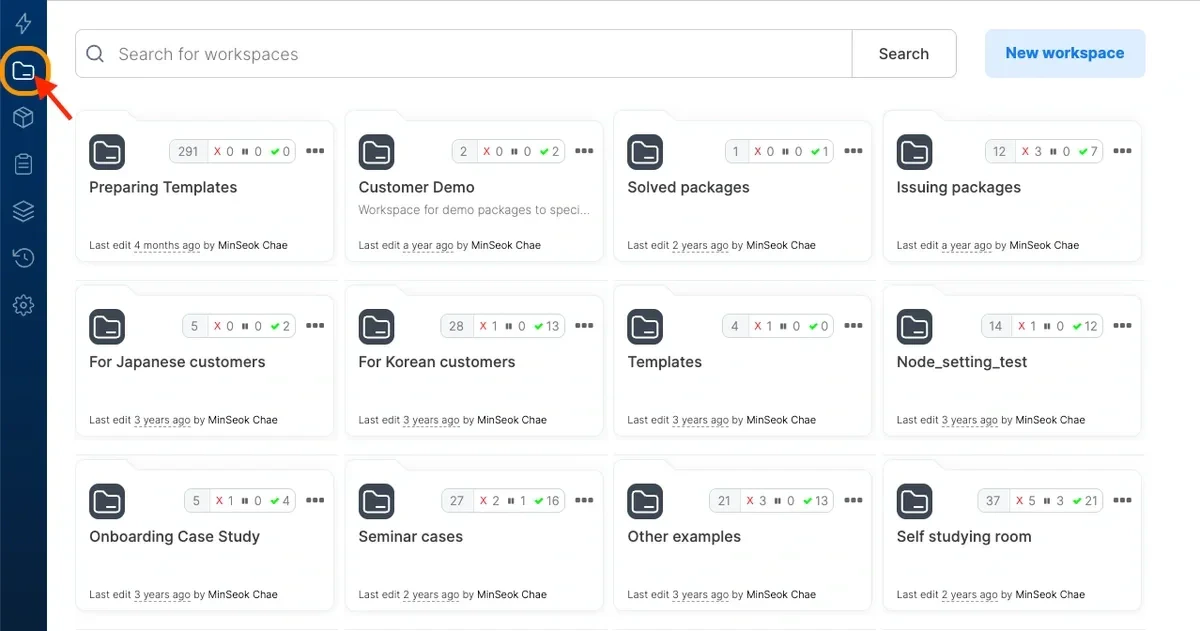
A Package Group provides a way to group and organize packages together. Think of Package Groups like folders. You can group pipelines by team if there are many users using the same Integrate.io ETL account, or group pipelines by customer, or if you simply want to have some template packages you’d like to go back to in the future. You could use an Integrate.io ETL Package Group to group packages together based on your requirements. You can have a look at our Package Groups feature by clicking this new icon we’ve introduced.
 ## Creating a Package Group
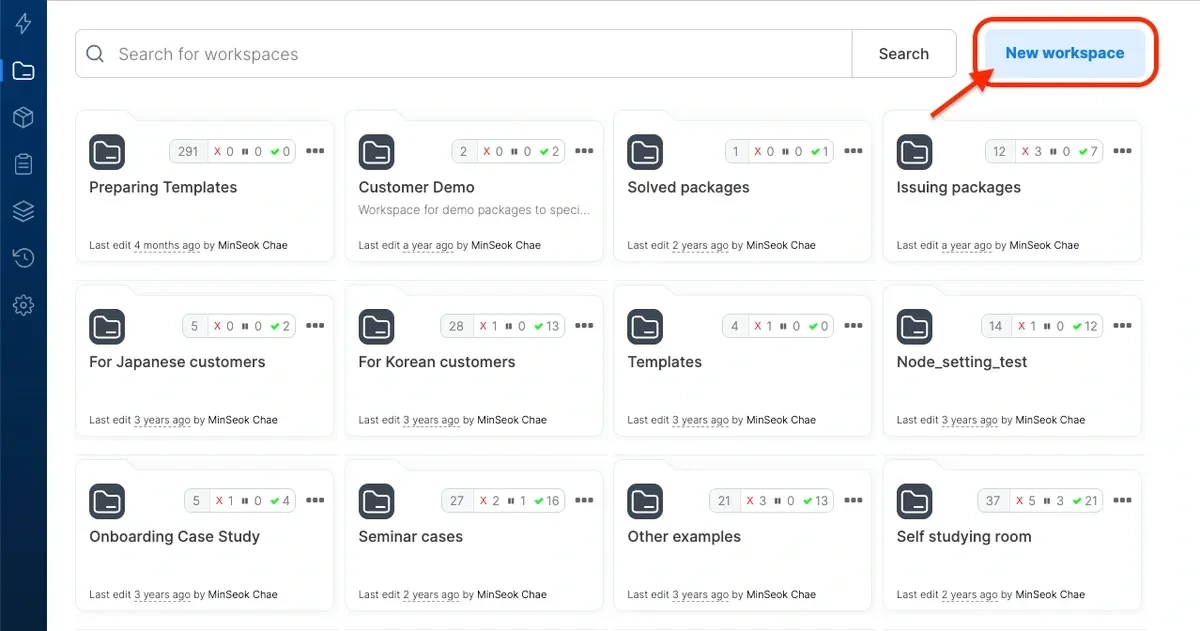
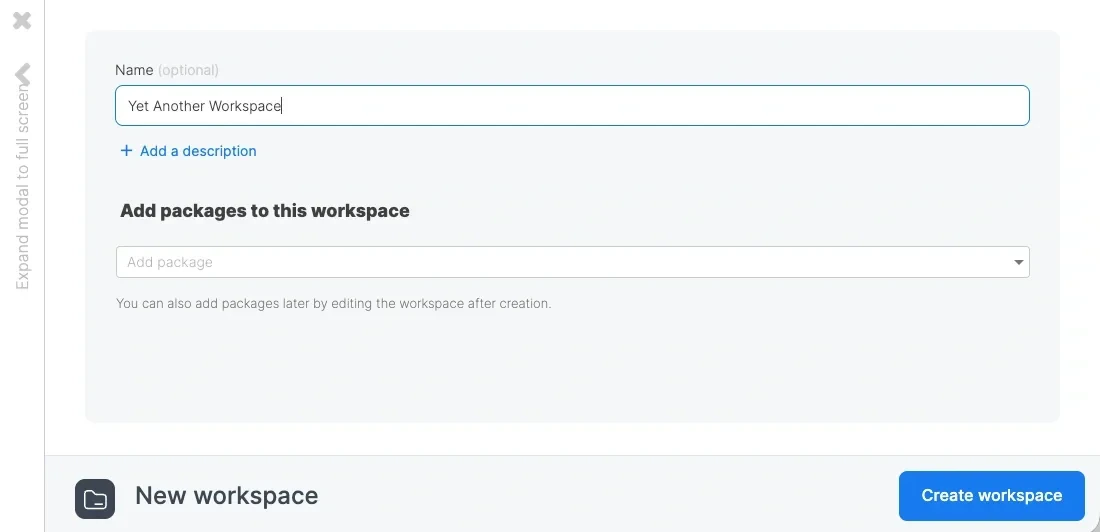
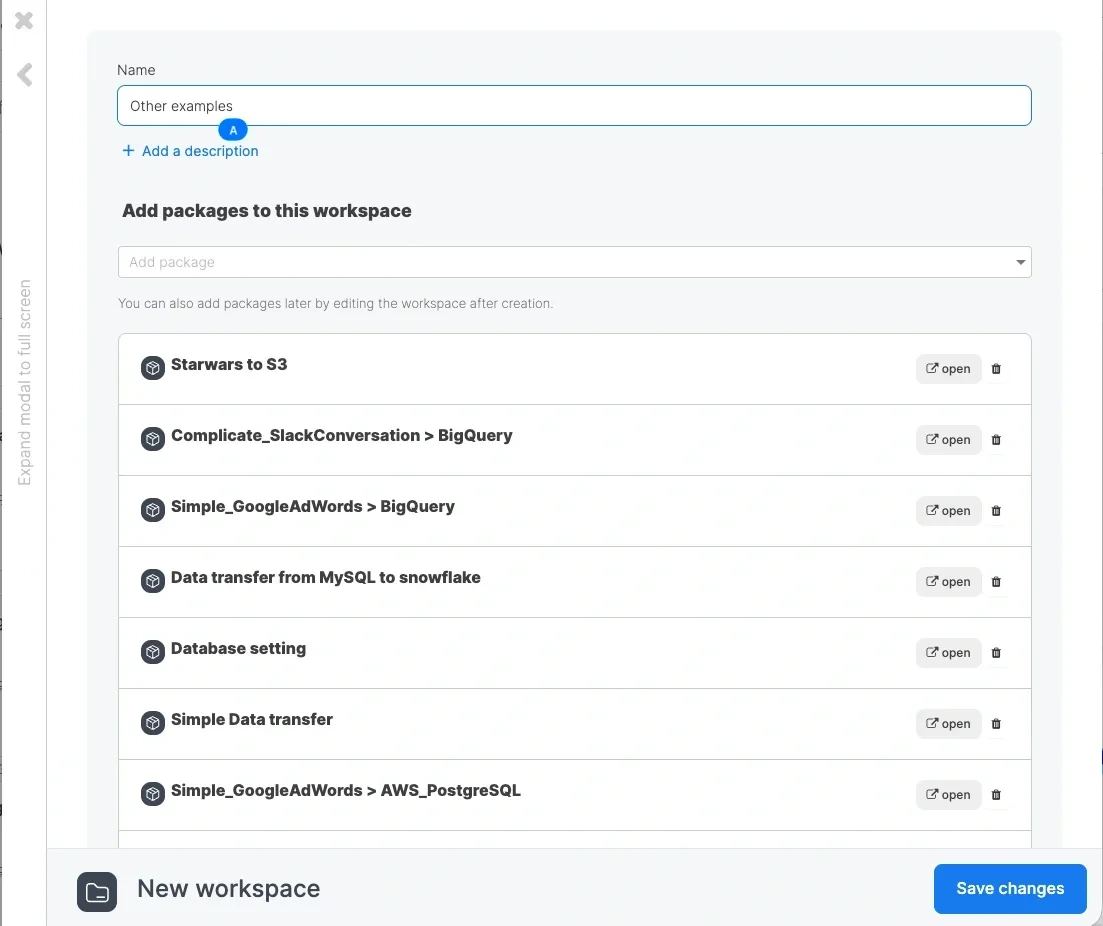
To create a Package Group, navigate to the Package Groups tab and click **New Package Group**. A modal will then pop up (see image below). Give the Package Group a name and add a description if so desired. You can also add packages to this Package Group if you already have some packages in mind, otherwise you can just click **Create Package Group** and add packages later.
## Creating a Package Group
To create a Package Group, navigate to the Package Groups tab and click **New Package Group**. A modal will then pop up (see image below). Give the Package Group a name and add a description if so desired. You can also add packages to this Package Group if you already have some packages in mind, otherwise you can just click **Create Package Group** and add packages later.
 ## Adding Packages to a Package Group
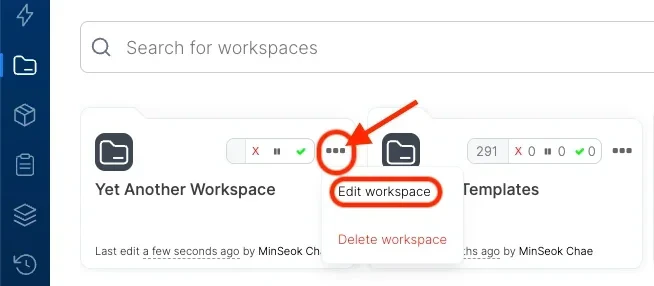
After Package Group creation, you can add packages to your Package Group by clicking the triple dot icon on the Package Group and clicking **Edit Package Group.** You can then click the dropdown and add packages to the Package Group. Take note that only packages that do not already belong to a Package Group can be added - i.e. a given package can only belong to one Package Group. Click the triple dot icon, and click **Edit Package Group** and add packages accordingly.
## Adding Packages to a Package Group
After Package Group creation, you can add packages to your Package Group by clicking the triple dot icon on the Package Group and clicking **Edit Package Group.** You can then click the dropdown and add packages to the Package Group. Take note that only packages that do not already belong to a Package Group can be added - i.e. a given package can only belong to one Package Group. Click the triple dot icon, and click **Edit Package Group** and add packages accordingly.
 ## Moving a Package to Another Package Group
If you would like to move a single package to another Package Group, you can go to the **Packages** tab, click the triple dot icon, and click **Change Package Group**. Packages not belonging to any Package Group would have **Add to Package Group** instead.
## Moving a Package to Another Package Group
If you would like to move a single package to another Package Group, you can go to the **Packages** tab, click the triple dot icon, and click **Change Package Group**. Packages not belonging to any Package Group would have **Add to Package Group** instead.
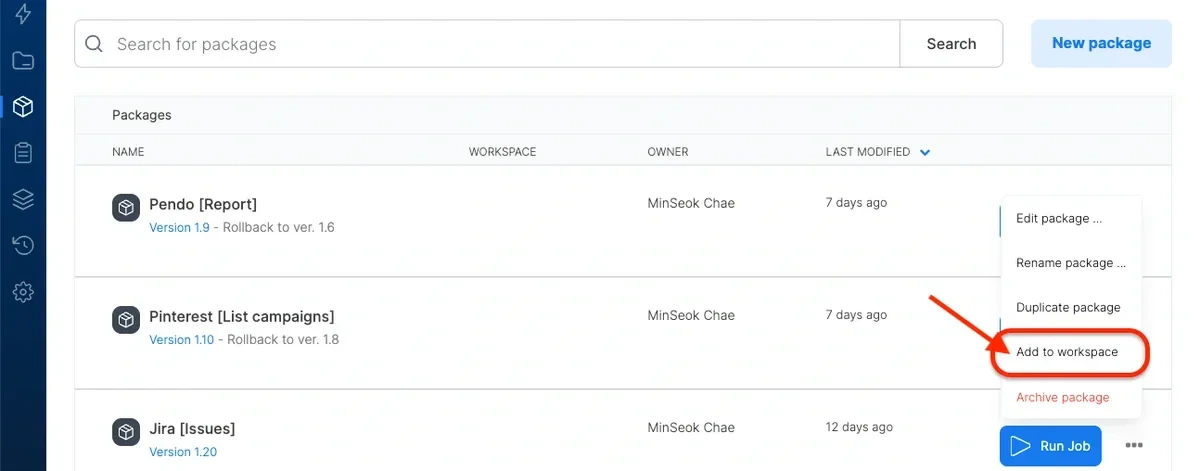 For moving packages to another Package Group in bulk, you can remove the packages from a Package Group by clicking **Edit Package Group**, removing the relevant packages, and saving it. You can then edit another Package Group by using the same **Edit Package Group** button and add the packages.
 ## Restricting a Package Group to Specific Connection Groups
By default a package group can reference any connection in the account. Account admins can bind a package group to one or more [connection groups](/etl/connection-groups) so packages in the group may only reference connections from those groups. Use this to keep production packages isolated from sandbox connections, separate one team's connections from another's, or enforce environment boundaries between package groups.
A package group with no binding is **unrestricted** and continues to see every connection in the account. Adding at least one binding switches the package group to **restricted** and applies these rules to every package in the group:
* The connection picker in the package designer lists only connections from the bound connection groups.
* Saving a package that references a connection outside the bound groups returns a 422 error naming the offending connection. This applies to sources, destinations, execute SQL, and Database Lookup components (including the bare `database_connection_id` and `cloud_storage_connection_id` fields on Database Lookup).
* Cloning a package into a restricted package group is blocked when the source references an out-of-bounds connection.
* Connections that do not belong to any connection group are treated as out of bounds in a restricted package group.
* Running an existing package that references an out-of-bounds connection fails at run time. Packages last saved before the binding was applied are grandfathered until they are next edited.
Clearing every binding returns the package group to unrestricted.
### Configure Connection Access on a Package Group
The **Connection access** picker is shown on the package group form when you have `manageConnectionAccess`.
Open the package group in **Package Groups**, or start a new one with **New Package Group**.
Scroll to **Connection access**. Use the picker to add one or more connection groups. Each added group is listed below the picker with a remove button.
Save the package group. The binding replaces the previous set; leaving the list empty saves the package group as unrestricted.
### Connection Access Audit Page
**Settings > Developer > Connection Access** is a read-only, account-wide overview of every package group with its binding state and a count of connections currently out of bounds. Use it to spot restricted package groups whose packages still reference connections outside the binding, then open the offending package group to fix the binding or the package.
Only bound (restricted) package groups are scanned. Unrestricted package groups show as **No restrictions**.
Access is gated on `manageConnectionAccess`. Members without the permission see a "not authorized" message.
### Permissions
Editing a package group's binding is an account-governance action gated on the dedicated `manageConnectionAccess` permission. Owners and Admins have it by default. On accounts using [custom roles](/etl/custom-roles), grant `manageConnectionAccess` to any additional role that should manage bindings. `updateWorkspace` alone does **not** grant it: a package-group editor cannot silently change which connections the group's members can reach.
### Managing bindings from the API
The binding is exposed on the account API v2 under a workspace. All calls require an admin API key.
Fetch the current binding for a package group:
```bash theme={null}
curl -u API_KEY: \
-H "Accept: application/vnd.xplenty+json; version=2" \
-H "X-Account-Id: ACCOUNT_ID" \
https://api.integrate.io/api/v2/workspaces/WORKSPACE_ID/connection_group_bindings
```
The response returns `connection_group_ids` (the bound connection group IDs) and `unrestricted` (true when the array is empty).
Replace the binding set. This call uses full replace-set semantics: rows not present in `connection_group_ids` are removed, and new IDs are added. Submit an empty array to clear every binding.
```bash theme={null}
curl -u API_KEY: \
-H "Accept: application/vnd.xplenty+json; version=2" \
-H "Content-Type: application/json" \
-H "X-Account-Id: ACCOUNT_ID" \
-X PUT \
-d '{ "connection_group_ids": [12, 34] }' \
https://api.integrate.io/api/v2/workspaces/WORKSPACE_ID/connection_group_bindings
```
Cross-account connection group IDs are rejected with a 422 rather than silently dropped.
List the out-of-bounds connection references currently held by packages in a restricted package group:
```bash theme={null}
curl -u API_KEY: \
-H "Accept: application/vnd.xplenty+json; version=2" \
-H "X-Account-Id: ACCOUNT_ID" \
https://api.integrate.io/api/v2/workspaces/WORKSPACE_ID/connection_binding_violations
```
Each violation names the package, the referenced connection, and the connection group that connection belongs to. Use this report to find packages you need to re-point, or connection groups you need to add to the binding, before a scheduled run hits the run-time check.
For an account-wide overview of every package group with its binding state and violation count, call:
```bash theme={null}
curl -u API_KEY: \
-H "Accept: application/vnd.xplenty+json; version=2" \
-H "X-Account-Id: ACCOUNT_ID" \
https://api.integrate.io/api/v2/workspaces/connection_access_audit
```
## Deleting a Package Group
You can delete a Package Group by clicking the triple dot icon on the Package Group and clicking **Delete Package Group**. Deleting a Package Group will not delete the packages under the Package Group. These packages will no longer belong to a Package Group.
## Package Group Summary Bar
## Restricting a Package Group to Specific Connection Groups
By default a package group can reference any connection in the account. Account admins can bind a package group to one or more [connection groups](/etl/connection-groups) so packages in the group may only reference connections from those groups. Use this to keep production packages isolated from sandbox connections, separate one team's connections from another's, or enforce environment boundaries between package groups.
A package group with no binding is **unrestricted** and continues to see every connection in the account. Adding at least one binding switches the package group to **restricted** and applies these rules to every package in the group:
* The connection picker in the package designer lists only connections from the bound connection groups.
* Saving a package that references a connection outside the bound groups returns a 422 error naming the offending connection. This applies to sources, destinations, execute SQL, and Database Lookup components (including the bare `database_connection_id` and `cloud_storage_connection_id` fields on Database Lookup).
* Cloning a package into a restricted package group is blocked when the source references an out-of-bounds connection.
* Connections that do not belong to any connection group are treated as out of bounds in a restricted package group.
* Running an existing package that references an out-of-bounds connection fails at run time. Packages last saved before the binding was applied are grandfathered until they are next edited.
Clearing every binding returns the package group to unrestricted.
### Configure Connection Access on a Package Group
The **Connection access** picker is shown on the package group form when you have `manageConnectionAccess`.
Open the package group in **Package Groups**, or start a new one with **New Package Group**.
Scroll to **Connection access**. Use the picker to add one or more connection groups. Each added group is listed below the picker with a remove button.
Save the package group. The binding replaces the previous set; leaving the list empty saves the package group as unrestricted.
### Connection Access Audit Page
**Settings > Developer > Connection Access** is a read-only, account-wide overview of every package group with its binding state and a count of connections currently out of bounds. Use it to spot restricted package groups whose packages still reference connections outside the binding, then open the offending package group to fix the binding or the package.
Only bound (restricted) package groups are scanned. Unrestricted package groups show as **No restrictions**.
Access is gated on `manageConnectionAccess`. Members without the permission see a "not authorized" message.
### Permissions
Editing a package group's binding is an account-governance action gated on the dedicated `manageConnectionAccess` permission. Owners and Admins have it by default. On accounts using [custom roles](/etl/custom-roles), grant `manageConnectionAccess` to any additional role that should manage bindings. `updateWorkspace` alone does **not** grant it: a package-group editor cannot silently change which connections the group's members can reach.
### Managing bindings from the API
The binding is exposed on the account API v2 under a workspace. All calls require an admin API key.
Fetch the current binding for a package group:
```bash theme={null}
curl -u API_KEY: \
-H "Accept: application/vnd.xplenty+json; version=2" \
-H "X-Account-Id: ACCOUNT_ID" \
https://api.integrate.io/api/v2/workspaces/WORKSPACE_ID/connection_group_bindings
```
The response returns `connection_group_ids` (the bound connection group IDs) and `unrestricted` (true when the array is empty).
Replace the binding set. This call uses full replace-set semantics: rows not present in `connection_group_ids` are removed, and new IDs are added. Submit an empty array to clear every binding.
```bash theme={null}
curl -u API_KEY: \
-H "Accept: application/vnd.xplenty+json; version=2" \
-H "Content-Type: application/json" \
-H "X-Account-Id: ACCOUNT_ID" \
-X PUT \
-d '{ "connection_group_ids": [12, 34] }' \
https://api.integrate.io/api/v2/workspaces/WORKSPACE_ID/connection_group_bindings
```
Cross-account connection group IDs are rejected with a 422 rather than silently dropped.
List the out-of-bounds connection references currently held by packages in a restricted package group:
```bash theme={null}
curl -u API_KEY: \
-H "Accept: application/vnd.xplenty+json; version=2" \
-H "X-Account-Id: ACCOUNT_ID" \
https://api.integrate.io/api/v2/workspaces/WORKSPACE_ID/connection_binding_violations
```
Each violation names the package, the referenced connection, and the connection group that connection belongs to. Use this report to find packages you need to re-point, or connection groups you need to add to the binding, before a scheduled run hits the run-time check.
For an account-wide overview of every package group with its binding state and violation count, call:
```bash theme={null}
curl -u API_KEY: \
-H "Accept: application/vnd.xplenty+json; version=2" \
-H "X-Account-Id: ACCOUNT_ID" \
https://api.integrate.io/api/v2/workspaces/connection_access_audit
```
## Deleting a Package Group
You can delete a Package Group by clicking the triple dot icon on the Package Group and clicking **Delete Package Group**. Deleting a Package Group will not delete the packages under the Package Group. These packages will no longer belong to a Package Group.
## Package Group Summary Bar
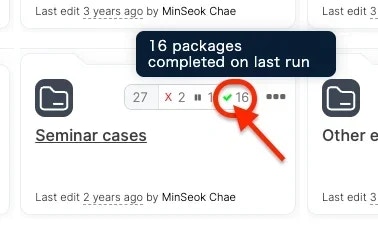 A summary bar on each Package Group is shown which indicates the following job-related information.
**Note**:
Archived packages are excluded from all counts in the summary bar.
* The leftmost number represents the total number of active (non-archived) packages under the Package Group
* ❌ Red cross indicates the number of packages failed on last run
* ⏸️ Gray Pause symbol indicates the number of packages stopped on last run
* ✅ Green tick indicates number of packages completed on last run.
This could be helpful if the packages underneath are being run regularly (via an Integrate.io ETL schedule for example) as it would quickly give insights on whether all the jobs succeeded during the last run, or if a package failed.
A summary bar on each Package Group is shown which indicates the following job-related information.
**Note**:
Archived packages are excluded from all counts in the summary bar.
* The leftmost number represents the total number of active (non-archived) packages under the Package Group
* ❌ Red cross indicates the number of packages failed on last run
* ⏸️ Gray Pause symbol indicates the number of packages stopped on last run
* ✅ Green tick indicates number of packages completed on last run.
This could be helpful if the packages underneath are being run regularly (via an Integrate.io ETL schedule for example) as it would quickly give insights on whether all the jobs succeeded during the last run, or if a package failed.