> ## Documentation Index
> Fetch the complete documentation index at: https://www.integrate.io/docs/llms.txt
> Use this file to discover all available pages before exploring further.
# ETL: Package Version Control
> Use package version control in Integrate.io ETL to track changes, compare versions, and revert to previous package configurations when needed.
## Introduction
Often in larger teams, it is very useful to version a package, keep track of a specific package version, schedule a certain package version, and rollback to a specific package version. Integrate.io ETL's package Version Control consists of the following core features:
* Ability to lock package version on schedule
* Ability to create a major version from the package designer
* View / Rollback to previous versions
Please note that only 100 of the last versions are made available, and discuss Version Control with your Integrate.io ETL Account Manager if you would like it enabled on your account. Here is a blog article on [Version Control of Packages](https://www.integrate.io/blog/package-version-control/).
Edits you make in the package designer are autosaved to a private draft and do not create a package version until you save. See [Package Drafts](/etl/package-drafts).
## Create a Major Version from Package Designer
Integrate.io ETL introduces two ways to save a package, Quick Save and Create Major Version both can be found under the Save dropdown (in the Package Designer).
### Quick Save
A Quick Save is your typical save button, which produces a minor version that increases linearly like 2.1, 2.2, 2.3, and so on. This is useful while you're developing the package and doing some tests.
### Major Version
Once everything is tested, you can click Create Major Version, to create a checkpoint of your last working version. This asks for a Version Description - similar to a Git commit message. Each major version increments the number on the left and resets back the minor version to 0 like 2.0, 3.0, 4.0, etc.
 After that you will see the following form:
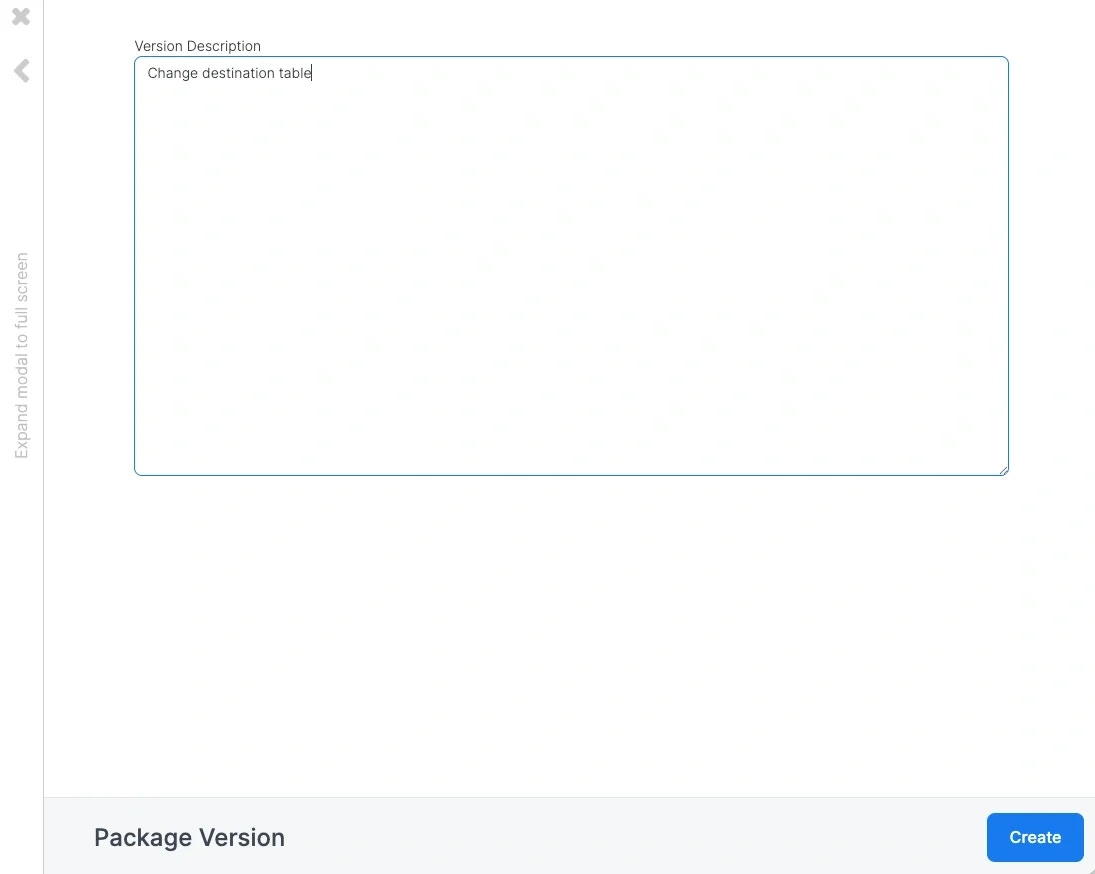 Add a description text and click the "*Create*" button. After creating the version you will see the new version number and description on your package list:
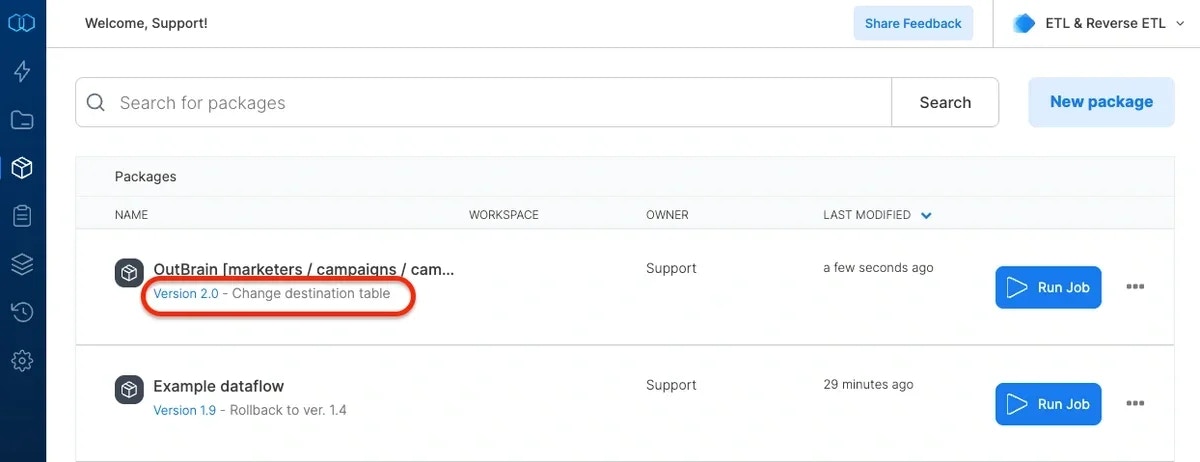 The version number and description are also visible when selecting a package version on schedule form and when rolling back the package to a previous version.
## Preview / Rollback Version
You can preview and rollback any of your packages to an earlier version. Integrate.io ETL provides access to the latest 100 versions. Open the Rollback version form from the Packages page by clicking the version number under the package name:
The version number and description are also visible when selecting a package version on schedule form and when rolling back the package to a previous version.
## Preview / Rollback Version
You can preview and rollback any of your packages to an earlier version. Integrate.io ETL provides access to the latest 100 versions. Open the Rollback version form from the Packages page by clicking the version number under the package name:
 Or from the Package Designer by clicking the version number under the package name:
 After that you will see the following form:
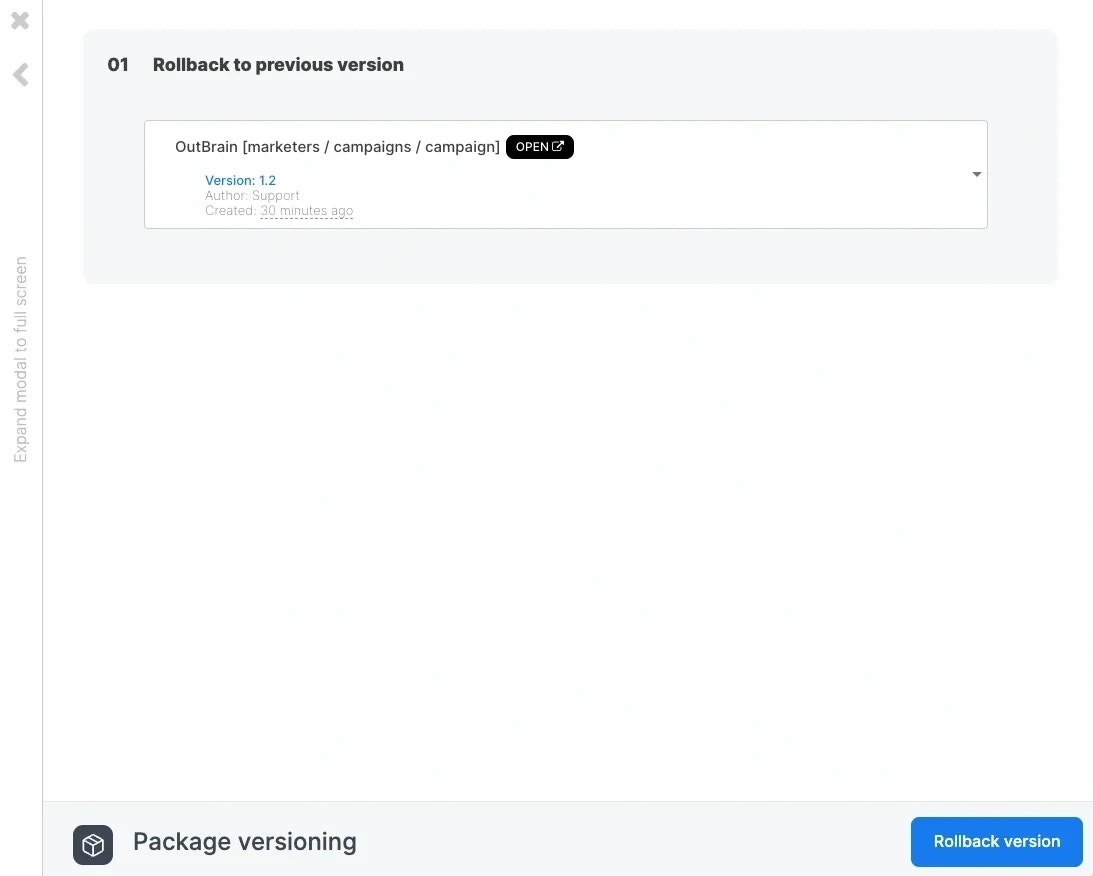 By default, the selected version is the version previous to the current version. To see all the available versions click the dropdown:
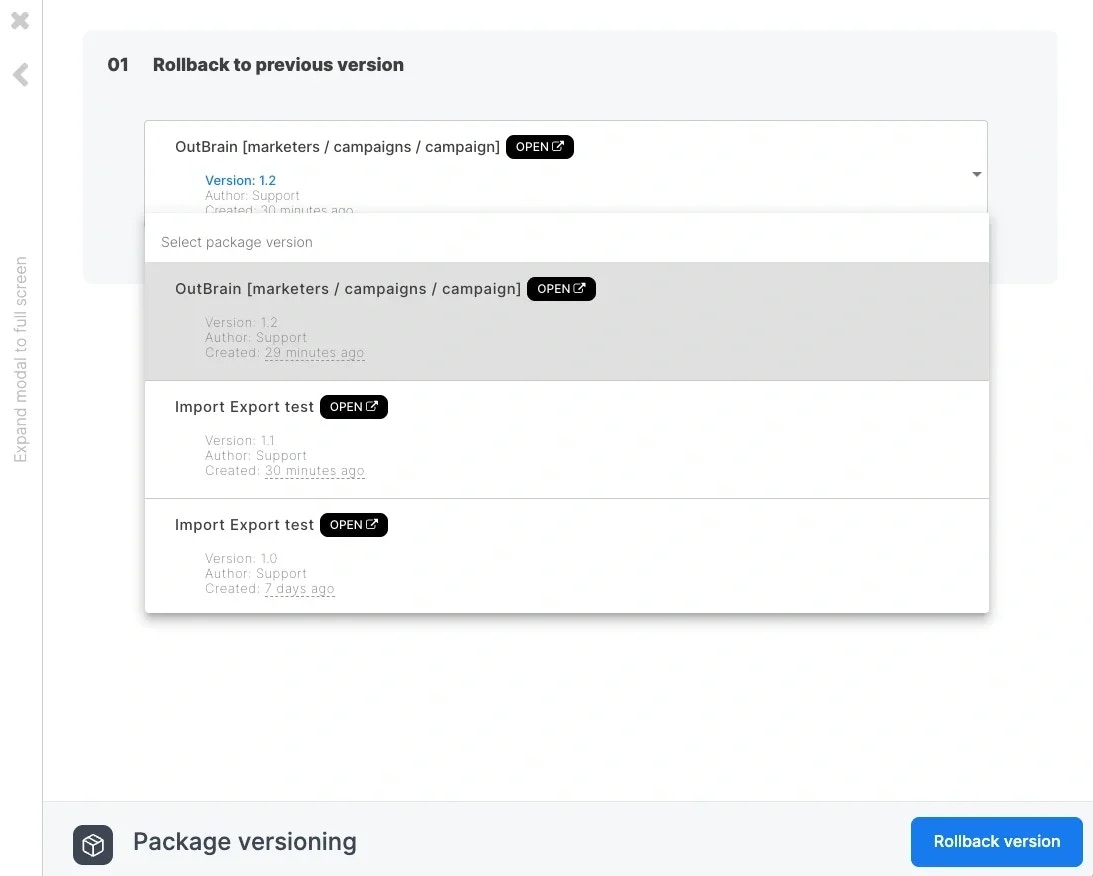 Each row shows the version number, description, and author. Two inline tags help you find specific rows:
* **Latest version**: the last saved version of the package. This row appears in the list only when you have an unsaved [draft](/etl/package-drafts) on the package, because the designer canvas is showing your draft instead of the saved version. Packages without a draft continue to hide the latest row.
* **Draft based on this version**: the version your current draft was started from. Opens read-only so you can compare your draft against its starting point.
After you select a version you can preview it or roll back to it.
To preview the version click **Open**. You are redirected to the package designer in read-only mode: you can inspect any component but all designer controls are disabled. Read-only version views never load your draft, so **Open** on the Latest version row always shows the clean saved version even when you have unsaved draft changes.
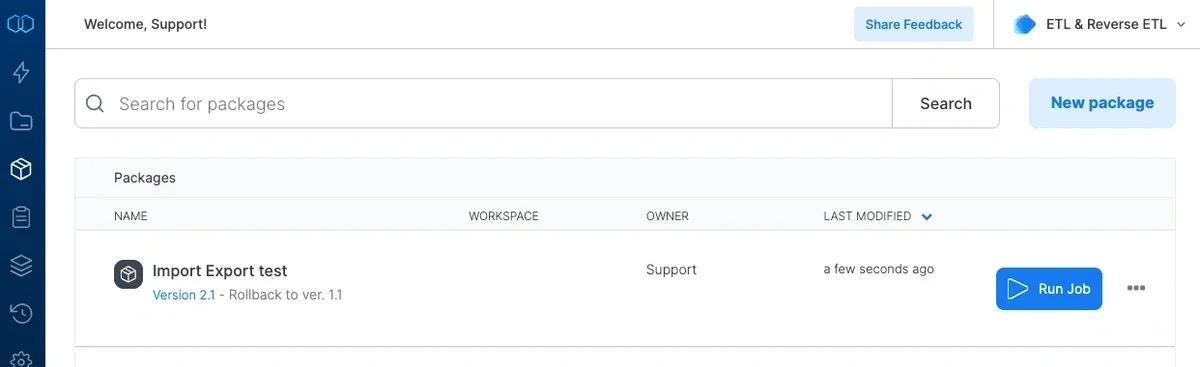
To roll back the package click **Rollback version**. A rollback produces a minor version with a predefined description:
Each row shows the version number, description, and author. Two inline tags help you find specific rows:
* **Latest version**: the last saved version of the package. This row appears in the list only when you have an unsaved [draft](/etl/package-drafts) on the package, because the designer canvas is showing your draft instead of the saved version. Packages without a draft continue to hide the latest row.
* **Draft based on this version**: the version your current draft was started from. Opens read-only so you can compare your draft against its starting point.
After you select a version you can preview it or roll back to it.
To preview the version click **Open**. You are redirected to the package designer in read-only mode: you can inspect any component but all designer controls are disabled. Read-only version views never load your draft, so **Open** on the Latest version row always shows the clean saved version even when you have unsaved draft changes.
To roll back the package click **Rollback version**. A rollback produces a minor version with a predefined description:
 ### Rollback safeguards
Rollback checks the state of the package before it creates a new version and prompts you in the following cases.
**You have an unsaved draft.** Rolling back replaces the running version and clears your draft. The designer shows "Discard your draft and roll back?" before proceeding. Choose **Discard draft & Rollback** to continue, or **Cancel** to keep editing.
**A newer version was saved while the list was open.** If someone saved a new version after you opened the Rollback version form, the designer shows "A newer version exists" listing the new version number. Choose **Refresh list** to reload the versions in place, or **Rollback anyway** to continue with the version you selected.
**You selected the running version.** Rolling back to the version already running would create a byte-identical duplicate, so the rollback is skipped:
* If you have an unsaved draft, the designer shows "Version *X* is already the running version, so rolling back is not needed. Discard your draft to return to it?" Choose **Discard draft** to drop your draft and return to the running version, or **Cancel** to keep your draft.
* If you have no draft, the designer confirms "Version *X* is already the running version" without creating a new version.
Rollback to any older version still creates a new version so the history remains append-only.
## Best Practice: Lock a Package Version on a Schedule
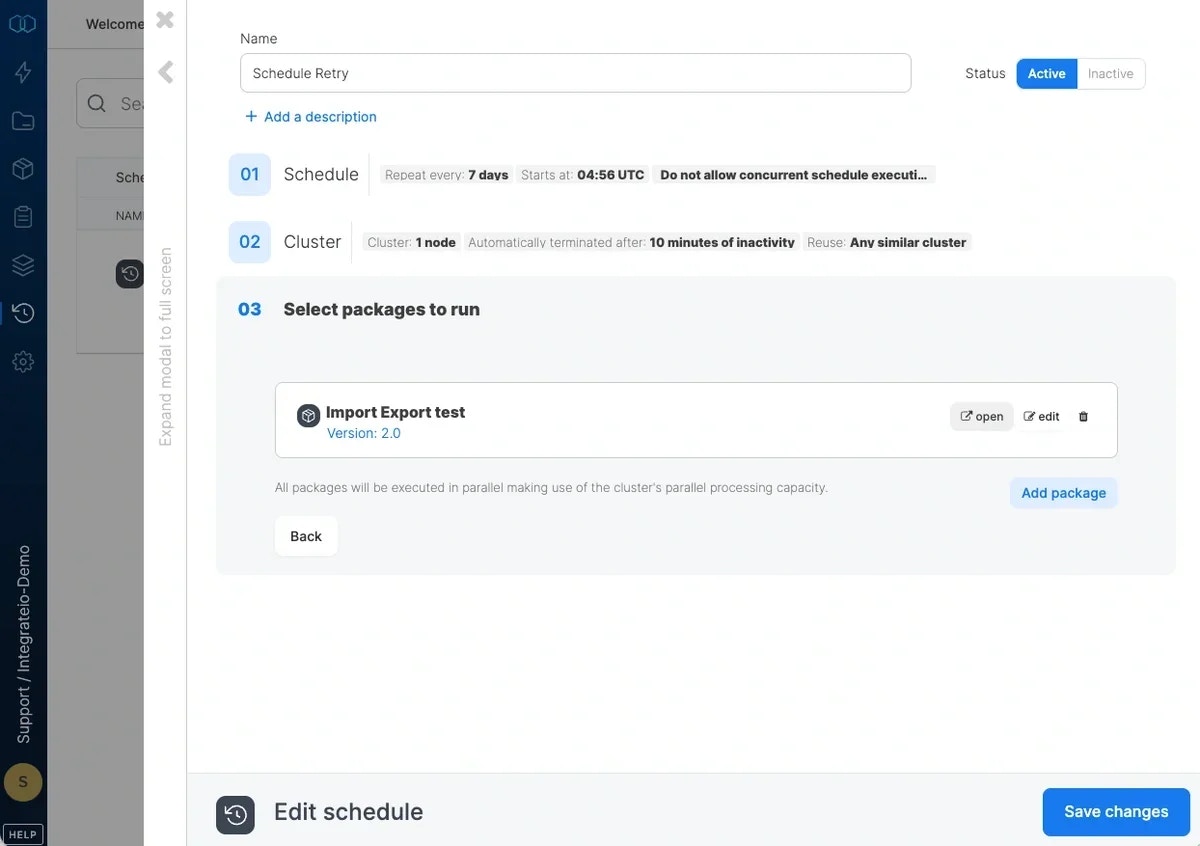
Regardless of the current package version, you can lock your schedule to run any previous version. This enables your team to continue developing on production package, without having to duplicate the package and worry about currently scheduled job runs (being impacted by development changes). How to use the feature:
Go to the Schedules page
Click the New Schedule button
Go to the Packages step and click Add package
On package select form, select a required package
After the package is selected you will see the following screen:
### Rollback safeguards
Rollback checks the state of the package before it creates a new version and prompts you in the following cases.
**You have an unsaved draft.** Rolling back replaces the running version and clears your draft. The designer shows "Discard your draft and roll back?" before proceeding. Choose **Discard draft & Rollback** to continue, or **Cancel** to keep editing.
**A newer version was saved while the list was open.** If someone saved a new version after you opened the Rollback version form, the designer shows "A newer version exists" listing the new version number. Choose **Refresh list** to reload the versions in place, or **Rollback anyway** to continue with the version you selected.
**You selected the running version.** Rolling back to the version already running would create a byte-identical duplicate, so the rollback is skipped:
* If you have an unsaved draft, the designer shows "Version *X* is already the running version, so rolling back is not needed. Discard your draft to return to it?" Choose **Discard draft** to drop your draft and return to the running version, or **Cancel** to keep your draft.
* If you have no draft, the designer confirms "Version *X* is already the running version" without creating a new version.
Rollback to any older version still creates a new version so the history remains append-only.
## Best Practice: Lock a Package Version on a Schedule
Regardless of the current package version, you can lock your schedule to run any previous version. This enables your team to continue developing on production package, without having to duplicate the package and worry about currently scheduled job runs (being impacted by development changes). How to use the feature:
Go to the Schedules page
Click the New Schedule button
Go to the Packages step and click Add package
On package select form, select a required package
After the package is selected you will see the following screen:
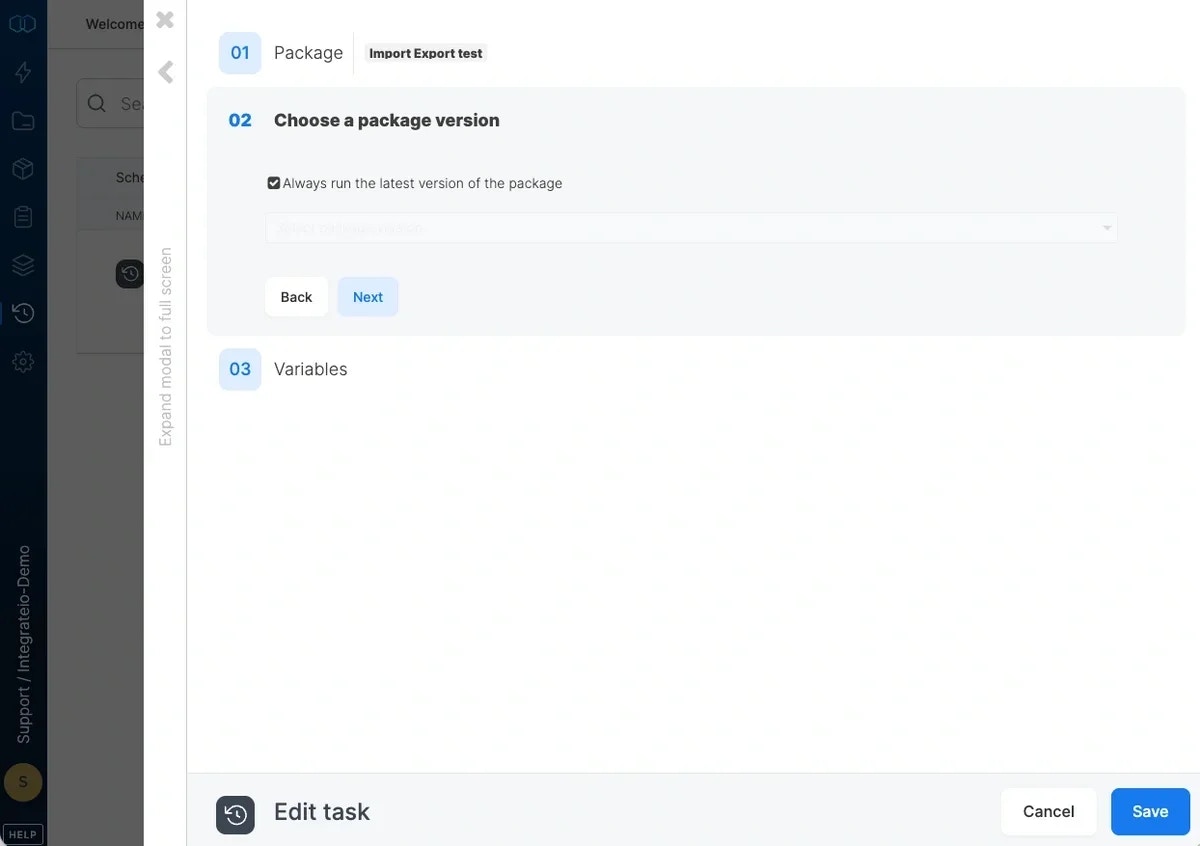 By default, the latest package version is used, to use a specific version uncheck the "*Always run the latest version of the package*" checkbox and select the required version.
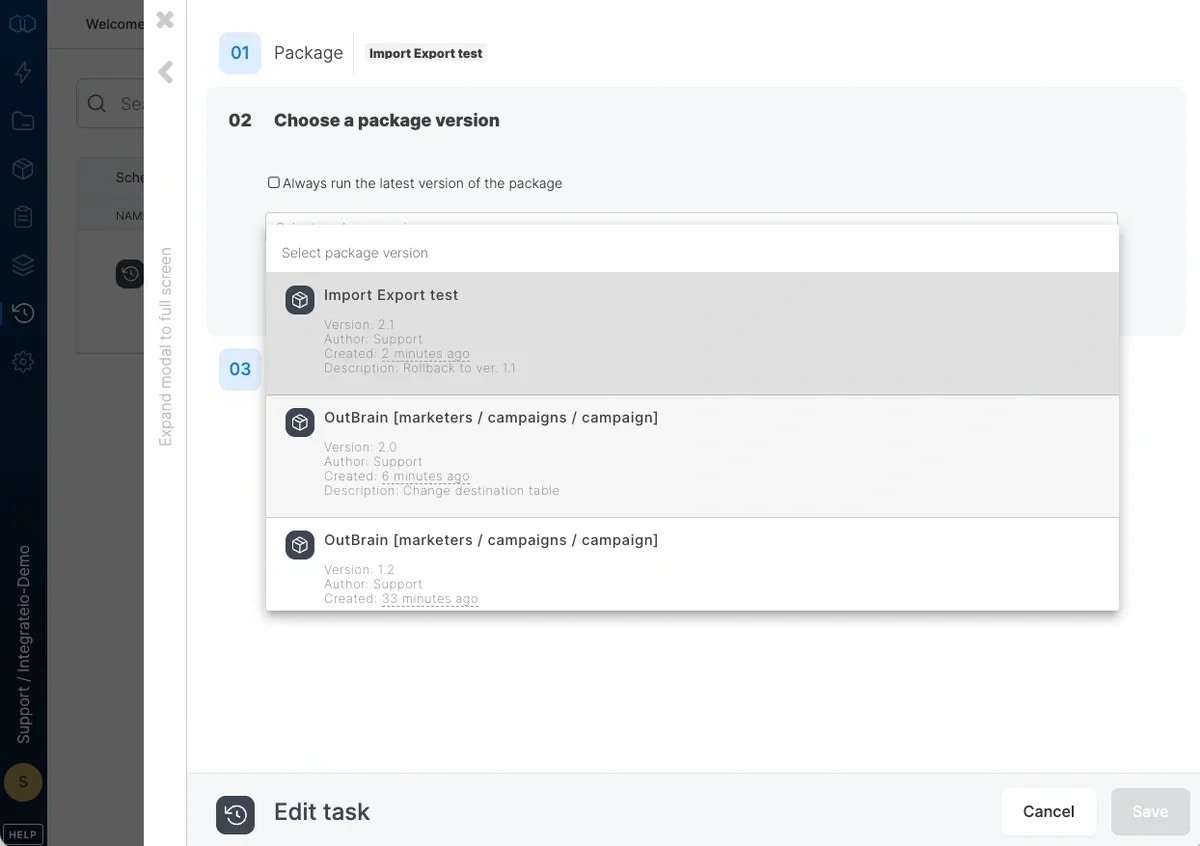 You can use the description as a guide for version selection. After you selected the required version and configured the schedule variables click Save. You will see the applied version number right after the package. See the screen below for an example